Your Profile
Change the name your colleagues see and set a new password.
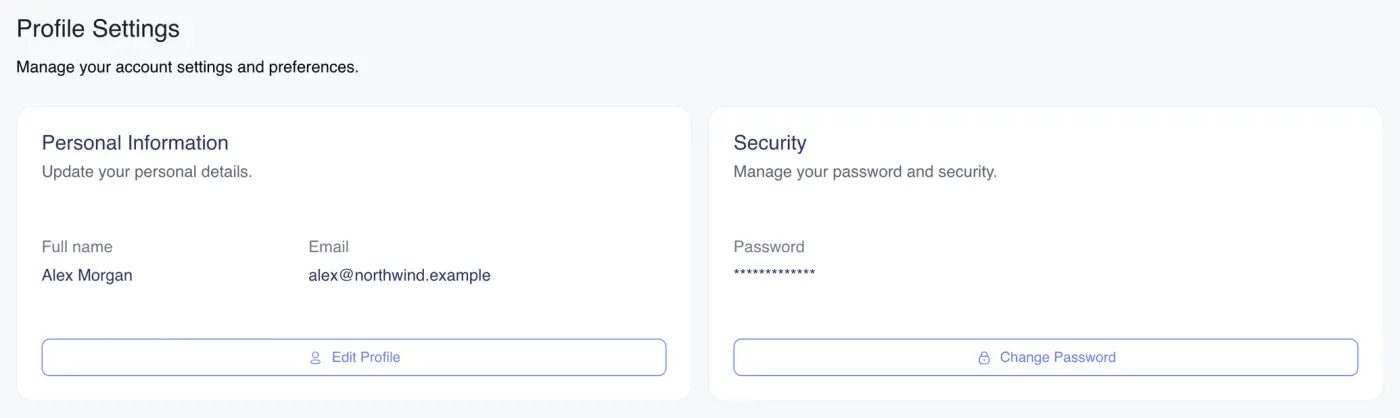
The Profile tab is about your own account rather than the workspace: your name, your email and your password. Everyone can open it, whatever their role.
To get there, click your name at the top right of any page, choose Settings, then click Profile.
Change your name
- Under Personal Information, click Edit Profile.
- Type your new Full name.
- Click Save.
Your name is what other people see in the member list and wherever your work is credited to you. It's also shown next to your avatar at the top right. The avatar shows your picture if your account has one, otherwise the first two letters of your name. There's no way to upload a picture here.
The field can't be left blank.
Change your email address
Your Email is shown under Personal Information but can't be edited. It's the address you sign in with. If it has to change, ask a workspace super admin to invite the new address and remove the old account.
Change your password
- Under Security, click Change Password.
- Enter your current password in Old Password.
- Enter the new one in New Password.
- Click Save.
As you type, a checklist under the field ticks off each rule. The new password must:
- be at least 8 characters long
- contain both upper-case and lower-case letters
- contain at least one number or symbol
- not contain your email address
Hovering the field shows a slightly stricter list that asks for a number and a special character (such as @, $ or !). A password with both passes either way.
You need your current password to set a new one, so someone who finds your screen unlocked can't lock you out. If you've forgotten it, sign out and use the forgotten-password link on the sign-in page.
Things that aren't on this page
- The workspace's plan, members and billing belong to the whole workspace. See Workspace Settings.
- API keys have their own tab. See API Keys and API Docs.