Vero
Meet Vero, the assistant that answers questions about your data and does the work for you, from labeling to training.
Vero is an AI assistant built into the app. You ask it something in plain words, and it answers from your own workspace or does the work for you: it reads your repositories, models and monitors, labels images with AI, adds classes, starts training, builds dashboards and, on plans with agents, runs scheduled jobs that email you reports.
Vero is part of some plans only. If you don't see it anywhere in the app, your plan doesn't include it; see Plans and Billing.
What you can ask Vero to do
Vero works with the same things you see in the app, and only with what your own account is allowed to see and change.
| You want to | Ask something like |
|---|---|
| Find something out | "How many images in line-2 have no labels?", "Which classes need more data?", "Compare Surface Defects v3 and v4" |
| Find images | "Find images that show an edge chip", or attach an image and ask for ones like it |
| Label with AI | "Label the scratches and particles in the line-2 folder", "Find the defects on this image" |
| Organize a repository | "Add a class called haze to Wafer Surface Defects", "Create a repository for the new camera" |
| Train a model | "Train a model on Wafer Surface Defects" |
| See your data as charts | "Build an analytics dashboard for this repository", "Show the class balance as a chart" |
| Get help with the app | "How do I split a folder into train and test?" Vero answers from these help articles and links the one it used. |
| Keep something running | "Every weekday at 8am, email me a summary of last night's defects" (plans with Vero agents) |
Vero answers questions straight away. Anything that changes your data, such as starting a labeling job or deleting images, waits for you to approve it first. See Approving Vero's Actions.
Vero sticks to your workspace and the app. It politely declines unrelated requests, such as recipes or general coding questions.
Open Vero
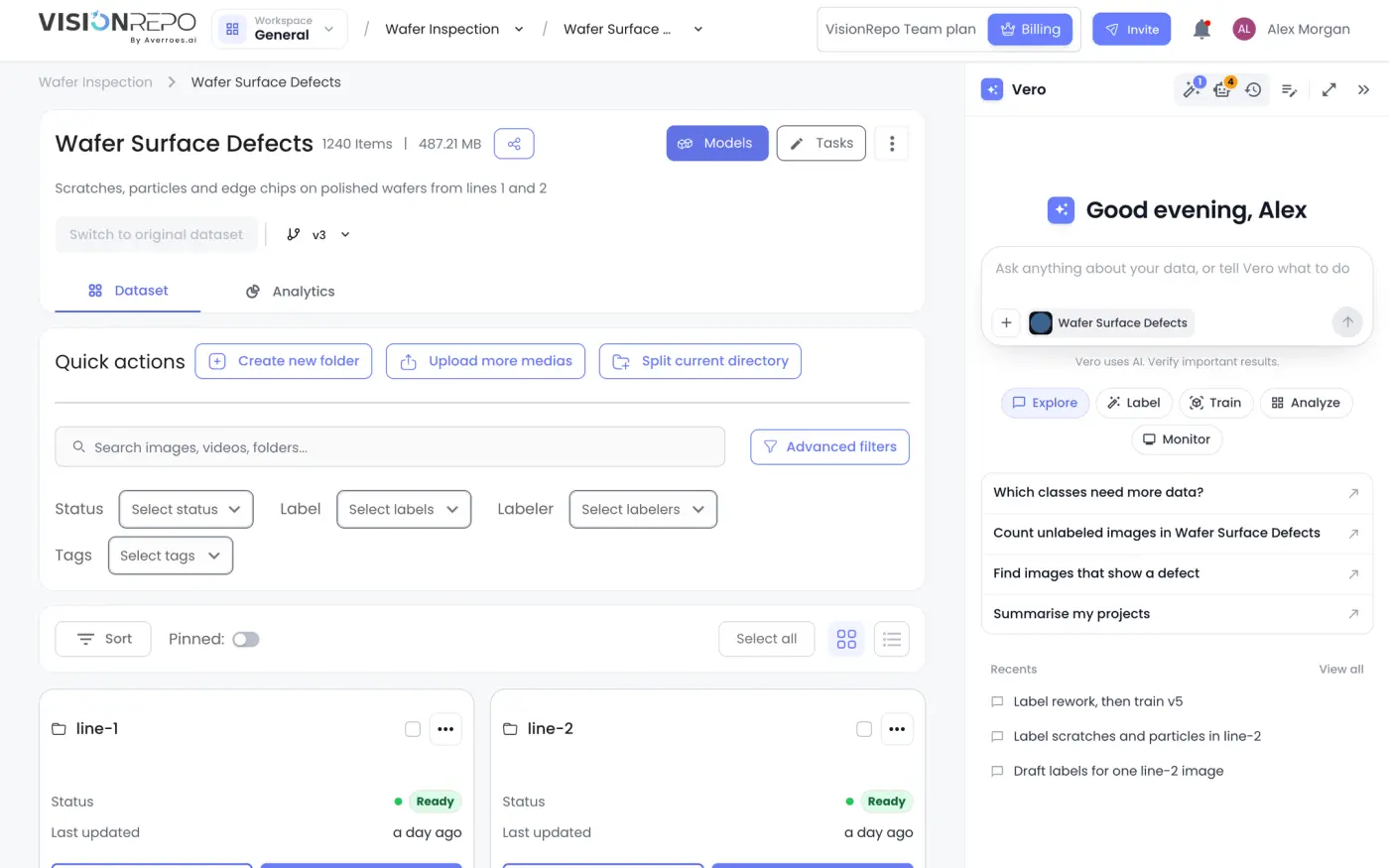
On a wide enough screen, Vero opens as a panel on the right of most pages. It stays closed on the home page and on pages built around one image, such as the labeling canvas, so it doesn't cover your work.
When the panel is closed, the Ask Vero button sits in the bottom-right corner of the page. Click it, or press ⌘J on a Mac (Ctrl J on Windows), to open Vero again. The same shortcut closes it. On the labeling canvas, Ctrl J belongs to the canvas, so open Vero with the button there.
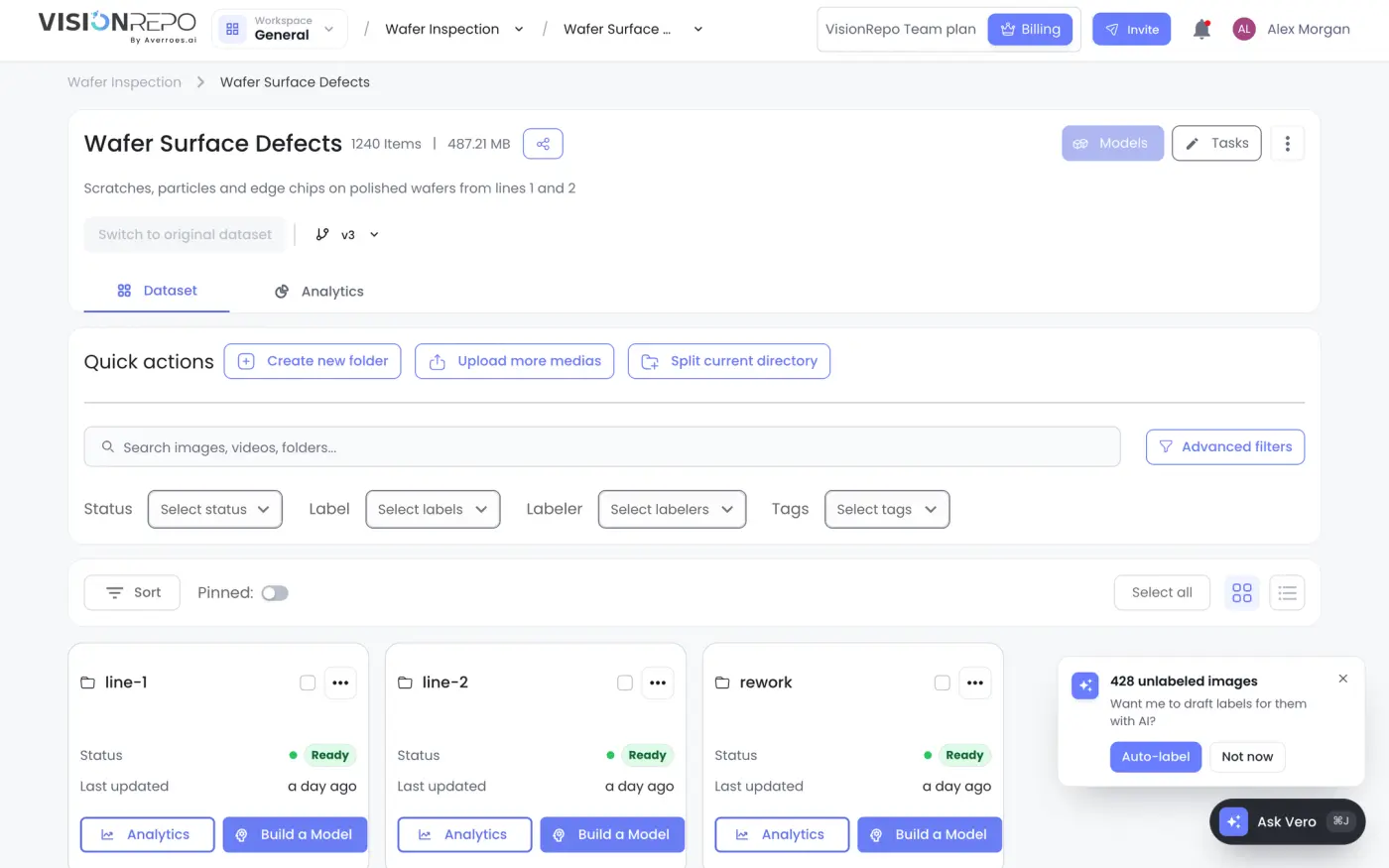
Sometimes a small card appears above the button with a suggestion for the page you're on, such as drafting labels for the unlabeled images in a repository, or a heads-up that an AI labeling job finished or an agent's run failed. Click its button to act on it, or Not now or the × to dismiss it. A dismissed suggestion doesn't come back.
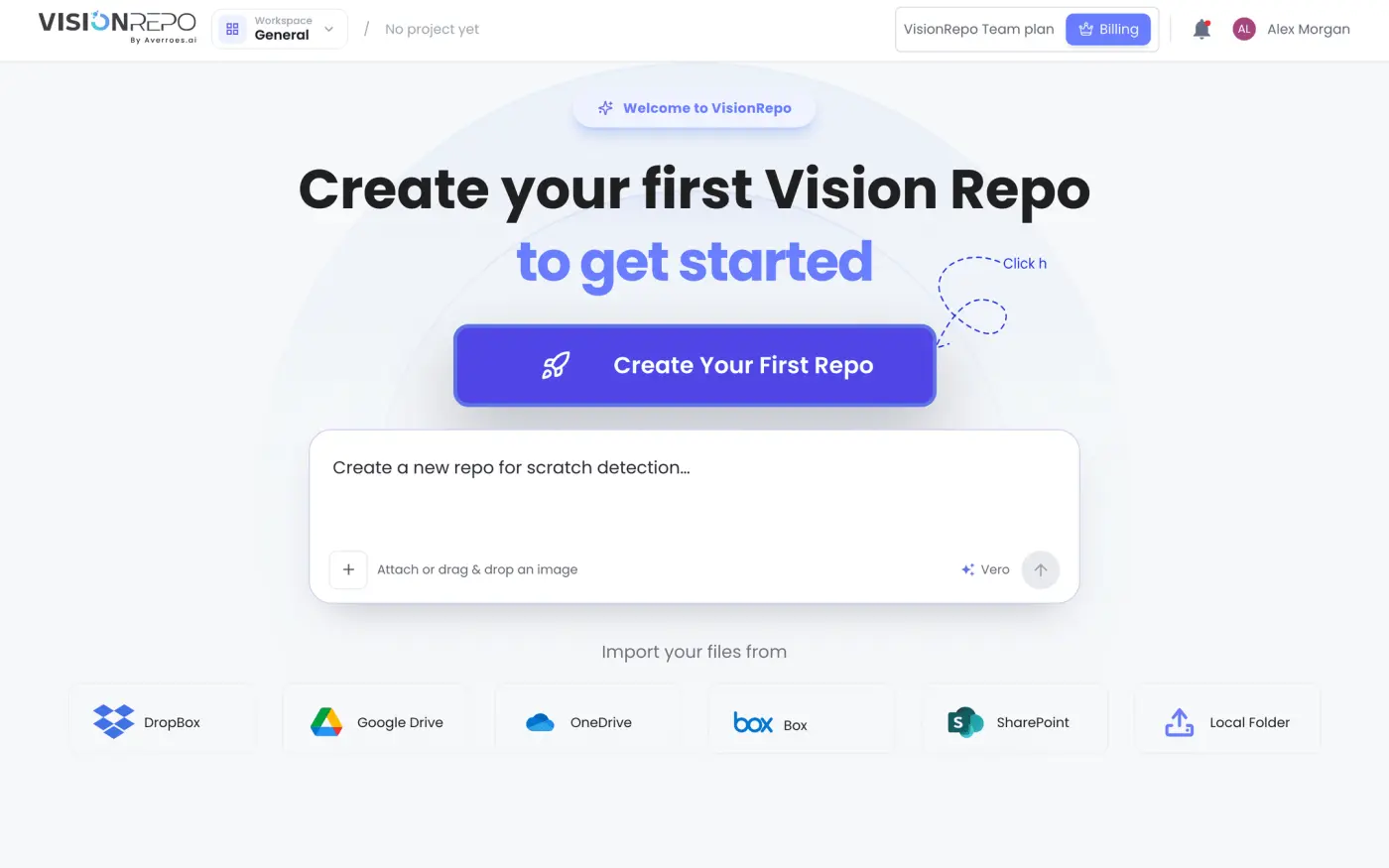
On the home page of a workspace with no projects yet, the message box under Create Your First Repo also goes to Vero. Type what you want, for example "Create a new repo for scratch detection", and Vero opens with your request.
Opening or closing the panel holds while you move around the app. Reloading the page or opening a new tab goes back to the default. Vero isn't available on small screens.
Find your way around the panel
The panel's header shows the title of the current chat ("Vero" until the chat has one) and these buttons:

| Button | What it does |
|---|---|
| AI labeling (magic wand) | Lists the AI labeling jobs in your workspace. The badge counts the jobs running now, or jobs that failed once nothing is running. See AI Labeling with Vero. |
| Agents (robot) | Lists your scheduled agents. The badge counts them and turns amber when one has a failed run. Shown only on plans with Vero agents. |
| Chat history (clock) | Lists your past chats. |
| New chat | Starts a new chat. Shortcut: ⌘⇧O on a Mac, Ctrl ⇧ O on Windows. |
| Maximize Vero | Opens Vero full screen. |
| Collapse Vero | Closes the panel. Anything Vero is doing carries on. |
Inside one of the lists, the same button reads Back to chat and takes you back to the conversation.
To make the panel wider or narrower, drag its left edge. The page beside it keeps a minimum width, so on a narrow window it scrolls sideways instead of getting squeezed.
Work with Vero full screen
Maximize Vero gives the chat the whole page below the app header. Your chats are listed down the left, with New chat and Search chats at the top, and cards for AI labeling and Vero Agents at the bottom that open those lists.
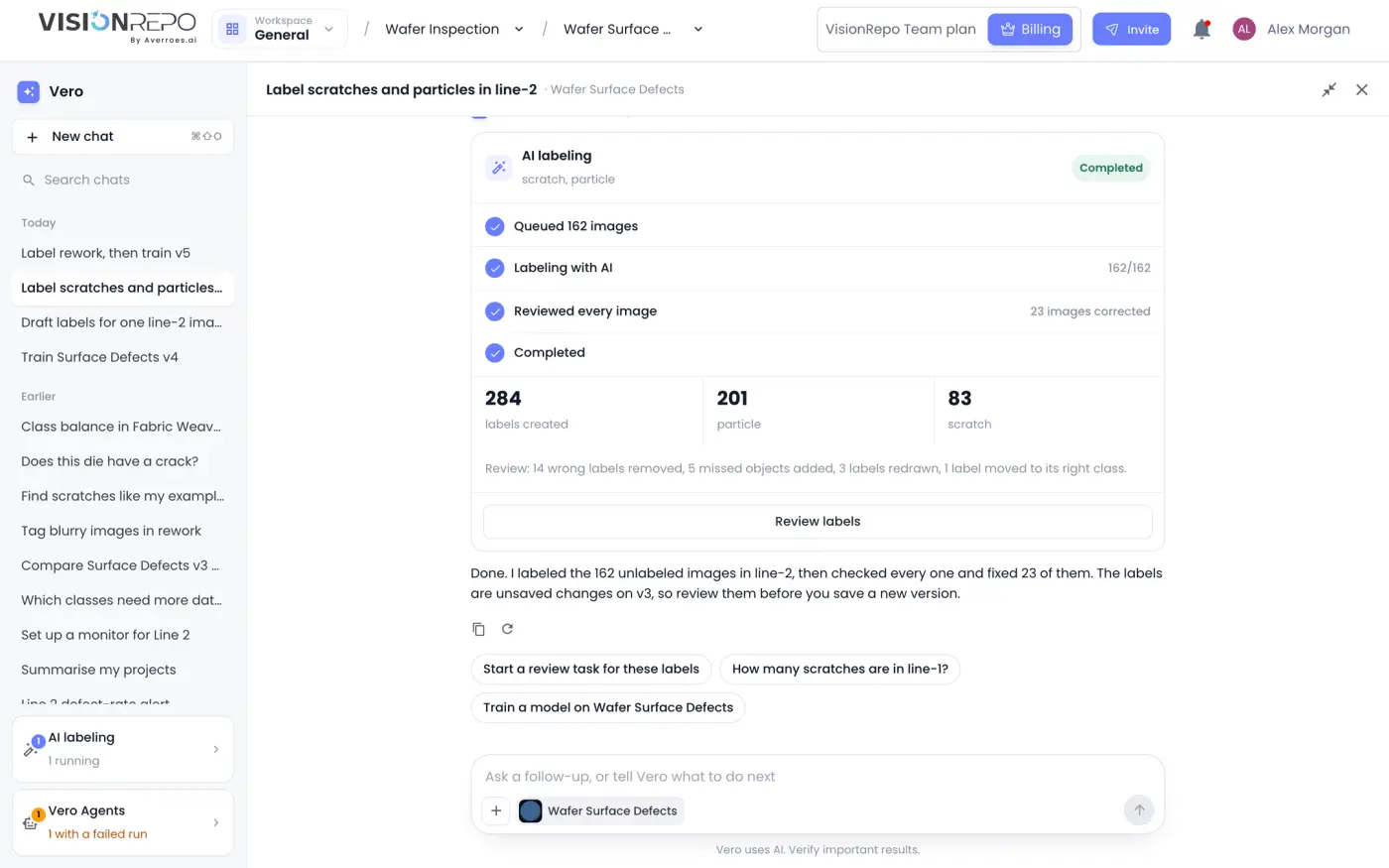
Click Restore Vero panel (the inward arrows at the top right) or press Esc to go back to the side panel. The × closes Vero.
Understand what Vero can see
Vero knows which page you're on. On a repository, model, monitor or batch prediction page, a chip in the message box shows what it's looking at, such as Wafer Surface Defects, so "this repository" or "these filters" mean what you'd expect. You don't have to name the repository you're in.
Apart from that, Vero only sees what you send it:
- your message;
- one image you attach to it;
- images and videos you add with Add to chat;
- your earlier messages and its replies in the same chat.
To look inside your repositories, Vero uses the same data you see in the app, as your own account. It can't see a repository you have no access to, and it can't do anything your role doesn't allow. See Chatting with Vero for attaching images and adding media to a chat.
Check what Vero tells you
Vero is an AI and can be wrong. The line under the message box says so: Vero uses AI. Verify important results.
- Labels Vero draws are suggestions. They arrive as unsaved changes on the repository, and Vero recommends a review task before you rely on them.
- Numbers come from your data at the moment Vero looked. Ask again after things change.
- When Vero quotes the help docs, it links the article it used. If the docs don't cover something, it says so rather than guessing.
Know your Vero allowance
Each workspace has a daily Vero allowance, shared by everyone in it. Settings › Usage shows how much of today's allowance is used in the Daily Vero Usage card, as a percentage, and when it resets.
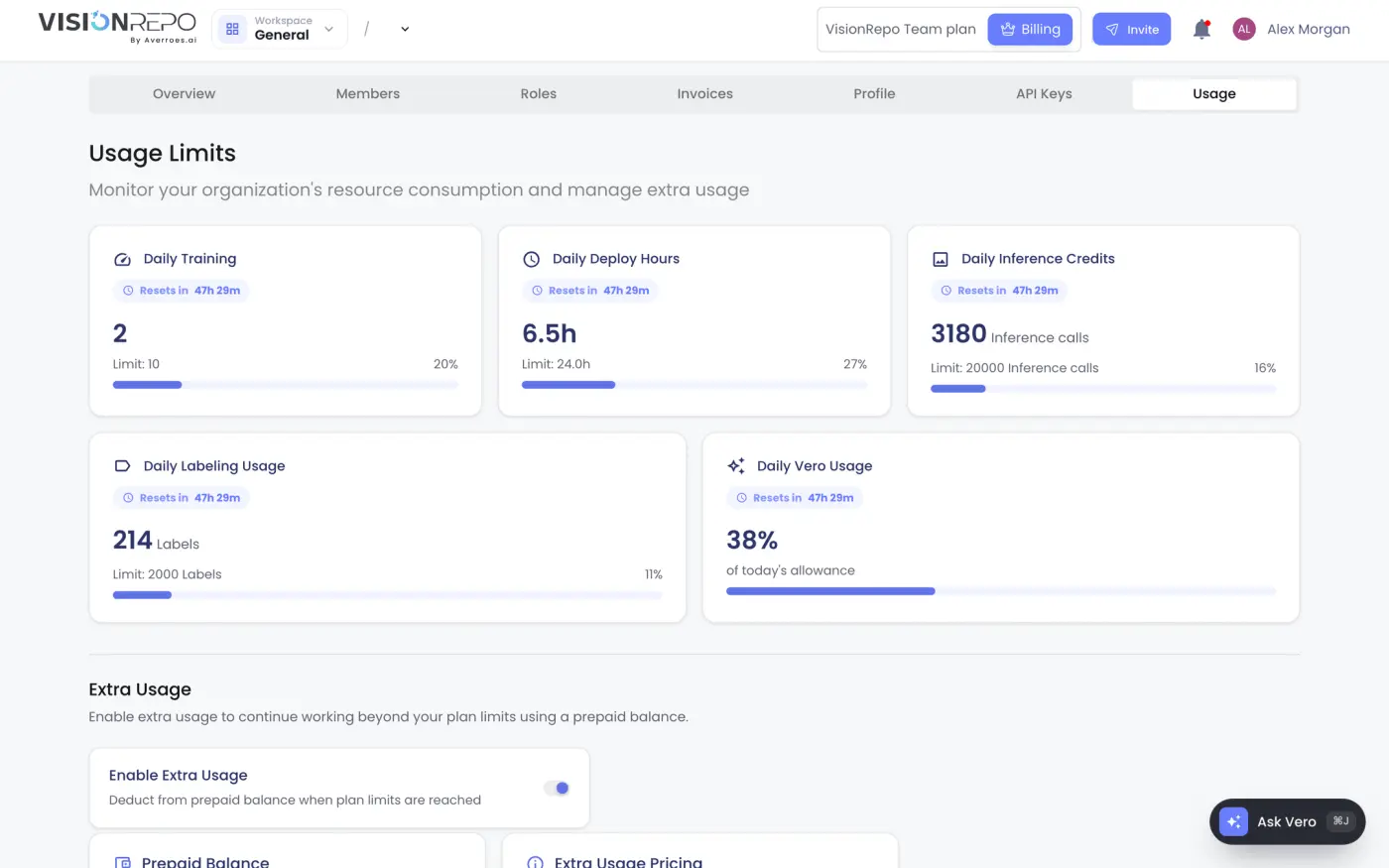
Longer chats and bigger jobs use more of the allowance. Everything Vero does on your behalf counts, including the checks it runs while labeling with AI.
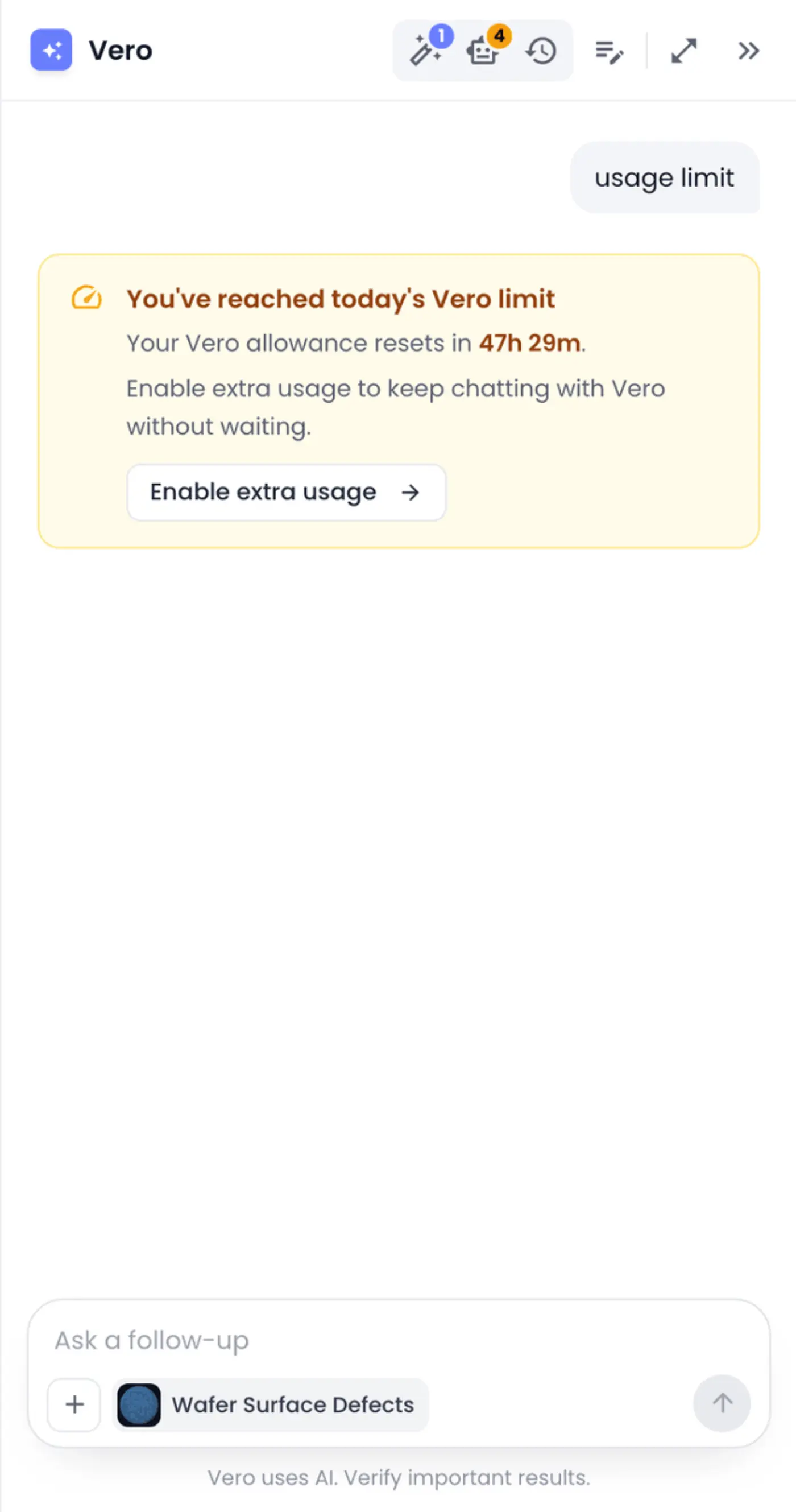
When the allowance runs out, Vero stops with You've reached today's Vero limit and tells you when it resets. Extra usage lets you keep chatting before then, paid from the workspace's prepaid balance: the notice's button reads Enable extra usage when it's off, or Manage usage when it's on and the balance needs a top-up. Both open Settings › Usage. See Usage and Limits.
Where to go next
-
Chatting with Vero covers asking, attaching images, replies and your chat history.
-
Approving Vero's Actions covers what Vero asks before it changes anything.
-
Plans and Long-Running Tasks covers requests with several steps and work that takes a while.
-
AI Labeling with Vero covers labeling one image or a whole folder from a description.
-
Custom Dashboards covers the analytics dashboards Vero builds.
-
Vero Agents covers scheduled reports and alerts.