AI Labeling with Vero
Describe what to find and let Vero label one image or a whole folder for you, then review the labels before you save them.
AI labeling draws labels for you from a description. You tell Vero what to look for, such as "scratches and particles", and it finds and outlines every one on your images. No trained model is needed, so it works on a brand-new repository.
You can label the image you're looking at, a folder, a filtered set of images or a whole repository. The labels arrive as unsaved changes, so you check them before they become part of a version.
Choose the right kind of labeling
The app has three ways to get labels without drawing every one by hand:
| What it uses | Where you start it | |
|---|---|---|
| AI labeling (this page) | A description in your words | By asking Vero |
| Auto labeling | A model you trained on this repository | Auto Label in the Models list, or by asking Vero |
| Smart Box and Smart Polygon | A point you click on the canvas | The labeling canvas, one object at a time |
When you ask Vero to label a repository that already has a trained model in Ready state, it asks whether to use that model (auto labeling) or a description (AI labeling). The other two are covered in Smart and Auto-Labeling.
AI labeling works in object detection repositories, where it draws boxes, and segmentation repositories, where it draws outlines. It doesn't label classification repositories.
Describe what to find
Write what you want labeled the way you'd say it to a colleague. Vero turns it into one short description per kind of object and matches each one to a class in the repository.
- One kind of object per class. "Scratches and particles" becomes two descriptions, scratch and particle, each going to its own class.
- Several classes at once. Ask for all of them in one request. It's faster than one class at a time, and you approve it once.
- Plain names work. "Label the edge chips" is enough when the repository has an edge chip class. Vero uses the class name, or a wording that worked for that class before.
- Missing classes are created first. If there's no class for what you asked, Vero proposes adding one, and you approve it like any other change.
- Broad words get a question. For something general, such as "defects" or "fruit", Vero first looks at a few images. If it sees several kinds, it asks whether you want one class for all of them or one class per kind.
Up to 10 descriptions fit in one request.
Label one image
To label a single image, open it on the labeling canvas, or name it, and ask:
- Ask Vero something like Find the particles on this image.
- Approve the card that appears.
- Vero labels the image and replies with what it found, usually within a few seconds.
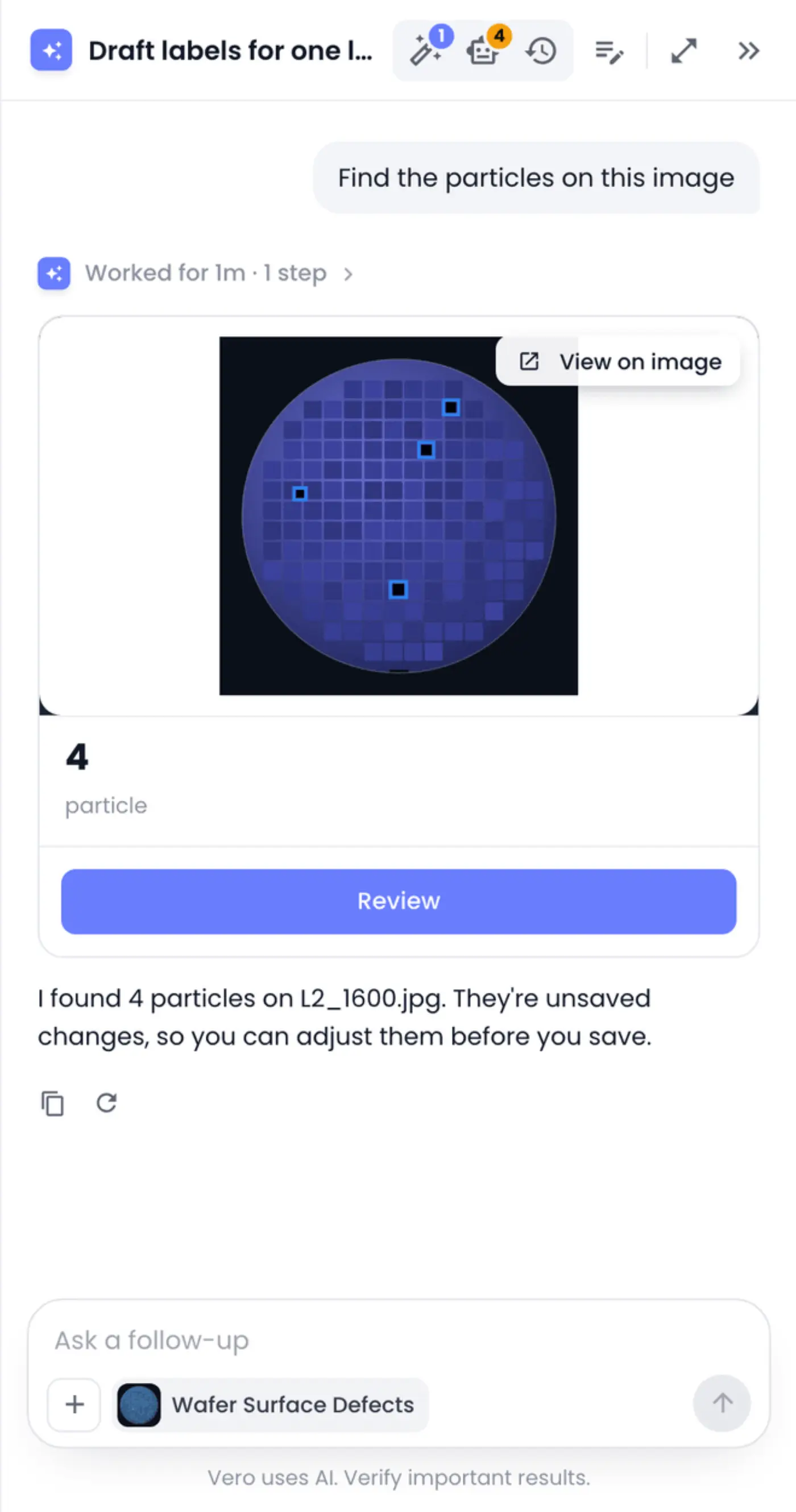
The card shows the image with its new labels and how many it found of each class. View on image and Review open the image on the labeling canvas, where the new labels are unsaved changes you can adjust or delete. If you're already on that image, the canvas updates in place.
Labeling one image is also a quick way to try a description before you run it over a whole folder.
If you ask again on the same image with exactly the same descriptions, the new result replaces the old one, so you don't end up with two sets. A different wording adds a second set, and any label you've already corrected by hand is kept either way. Vero labels an image even when it already has labels: new labels are added next to them, and an object that already has a label isn't labeled twice.
Label a folder, a filter or a whole repository
For more than one image, Vero runs an AI labeling job in the background.
- Ask Vero what to label and where, for example Label the scratches and particles in the line-2 folder. You can name a folder, tags, a search, a labeler, the filters on the page, a handful of specific images, or the whole repository.
- Answer Vero's question, if it asks one: every image, or only the ones with no labels yet? It tells you the counts. Choose "only the unlabeled ones" when you're adding a class that some images already have, so they don't get it twice.
- Approve the Start labeling job card, which names the repository, the folder and what to look for. See Approving Vero's Actions.
The job starts straight away, and a job card appears in the chat. You don't need to wait: close the chat, keep working, and a notification arrives when the job is done.
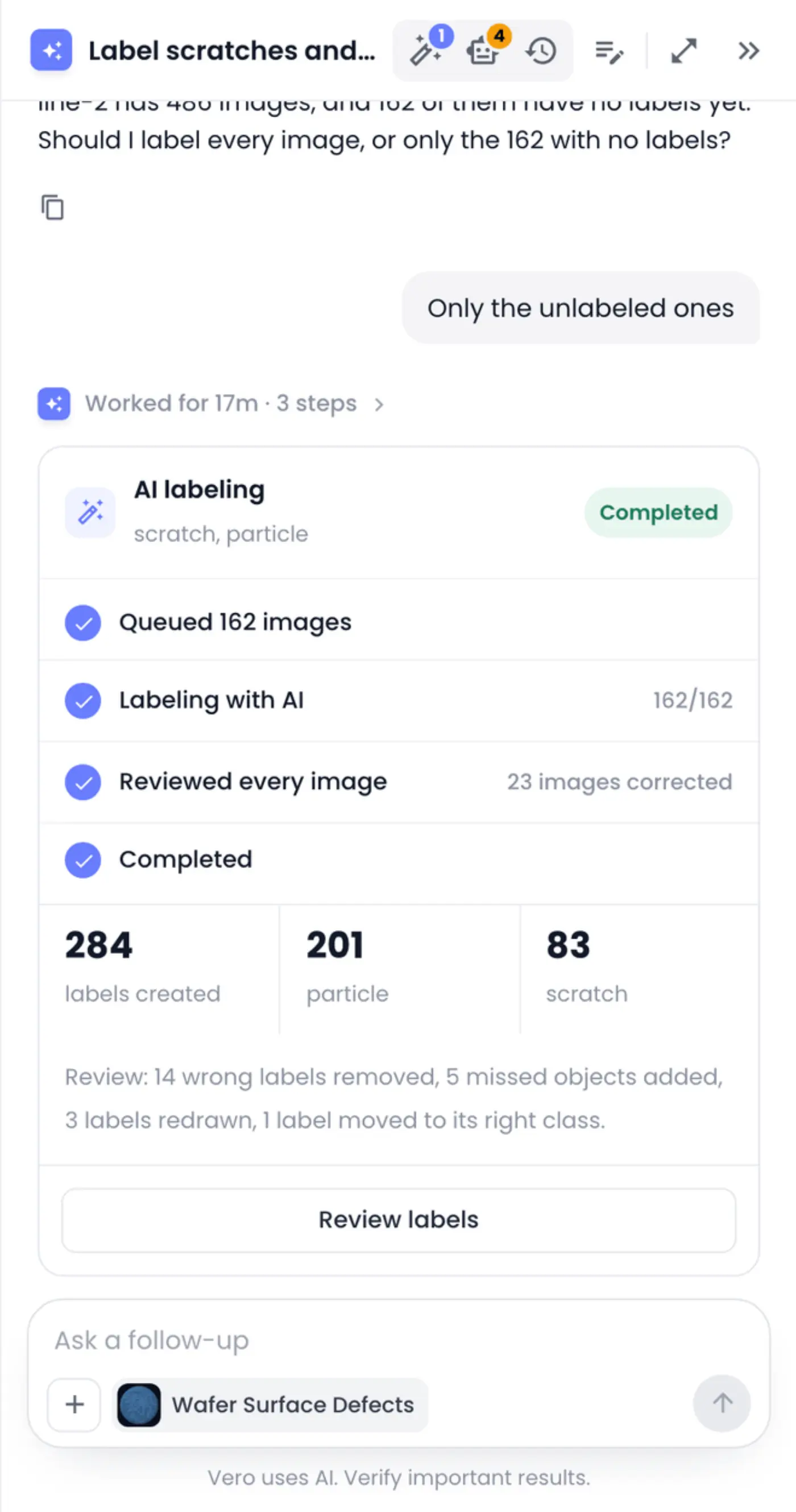
The card follows the job by itself:
- Queued shows how many images the job covers.
- Labeling with AI shows how many are done, and an estimate of the time left once there's enough to go on.
- Reviewing every image appears when Vero checks the job's labels after it finishes. It looks at each image, removes labels that are wrong, adds objects that were missed, redraws boxes that are off, and moves labels that went to the wrong class. The line under the numbers says what it changed.
- Ready to review, or the job's final status, once it's done.
Once finished, the card shows the number of labels created and the two classes with the most, plus any images that failed. Review labels opens the repository on the folder and filters the job covered, at the version the labels went into. While the job is still running the button reads Open repository, and Stop ends the job.
Vero doesn't keep you posted on a job's progress in its replies; the card does that. In a plan, Vero waits for the job and its check, then carries on with the next step by itself. See Plans and Long-Running Tasks.
Review and keep the labels
Everything AI labeling draws is a suggestion, saved as unsaved changes on the repository's current version. Nothing is final until you save a version.
- Click Review labels on the card, or Review on a single-image card.
- Go through the images on the labeling canvas, and fix or delete labels as you would your own.
- Save the version when you're happy. See Drafts and Collaboration.
For a large job, ask Vero to set up a review task so the checking can be shared out, for example Start a review task for these labels. See Reviewing Labeled Work.
Vero never saves a version unless you ask. If you'd like it to, say Save the labels as a new version, and approve the card.
Label from an example image
When an object is hard to describe in words, show Vero one.
- Attach an image with a clear example, such as a wafer with one scratch on it, and ask Find every scratch like the one in this image. You can also point at an image in the repository where you've labeled one by hand.
- Vero marks the example and asks you to confirm, for example I marked the scratch in your image as example 1. Is that the one? The card under its reply shows the example with a numbered box.
- If the box is wrong, say so ("not that one, the longer scratch"). If it's right, say yes, and approve the job.
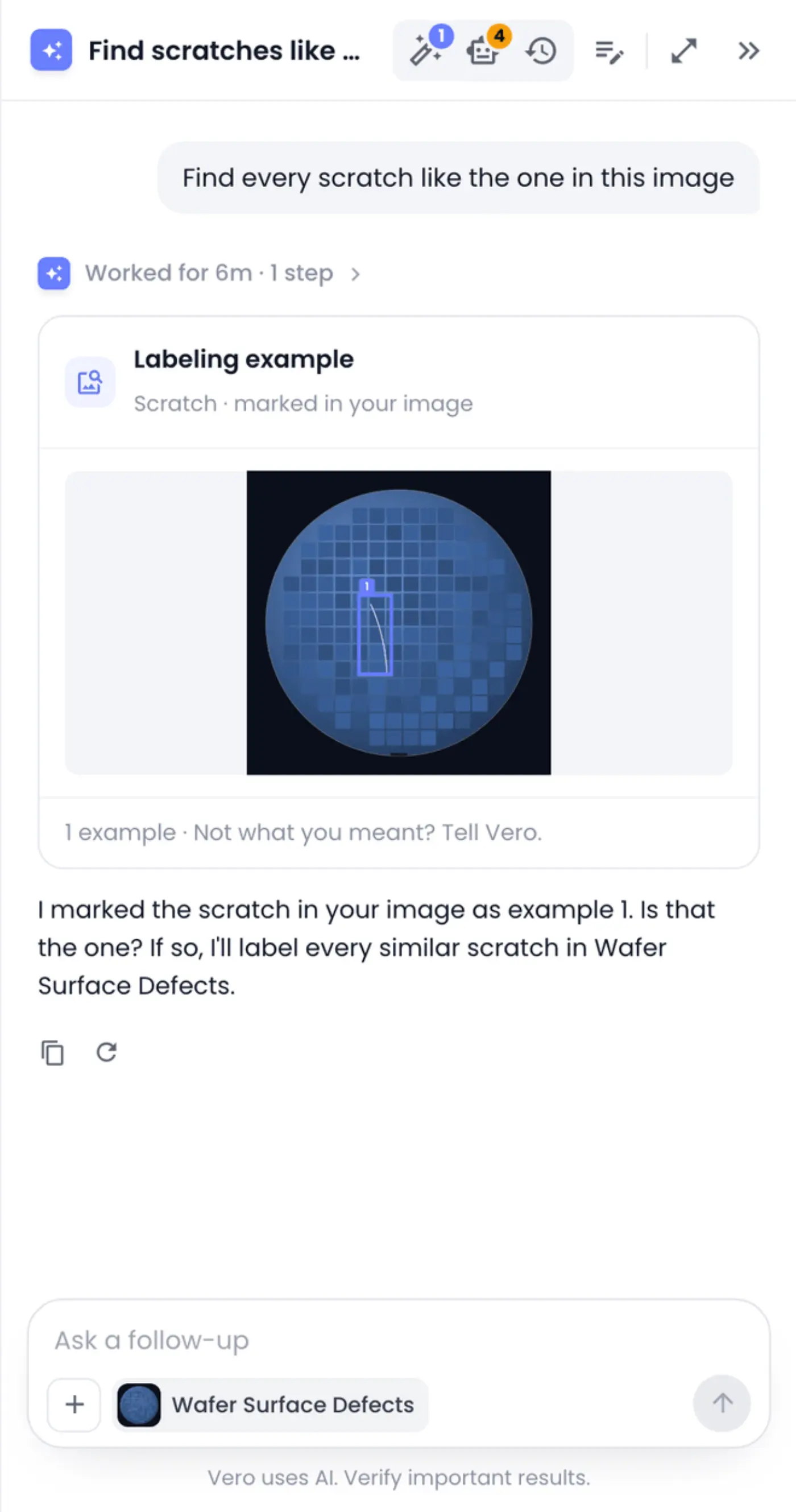
Vero only starts a job once you've confirmed the example. It may try the example on a few images first; if a plain description does better there, it uses the description instead and tells you.
If Vero can't pick out a single object in your image, it uses the whole image as the example and asks whether that's right. That works only when the image shows just the object, with little around it. Otherwise, label one example by hand on an image in the repository and ask Vero to find more like it.
Ask about an image you attach
You don't need a repository to ask what's in an image. Attach one and ask, for example Does this die have a crack? Vero looks at it, outlines what it finds and answers in a sentence or two. No approval is needed, because nothing in your workspace changes.
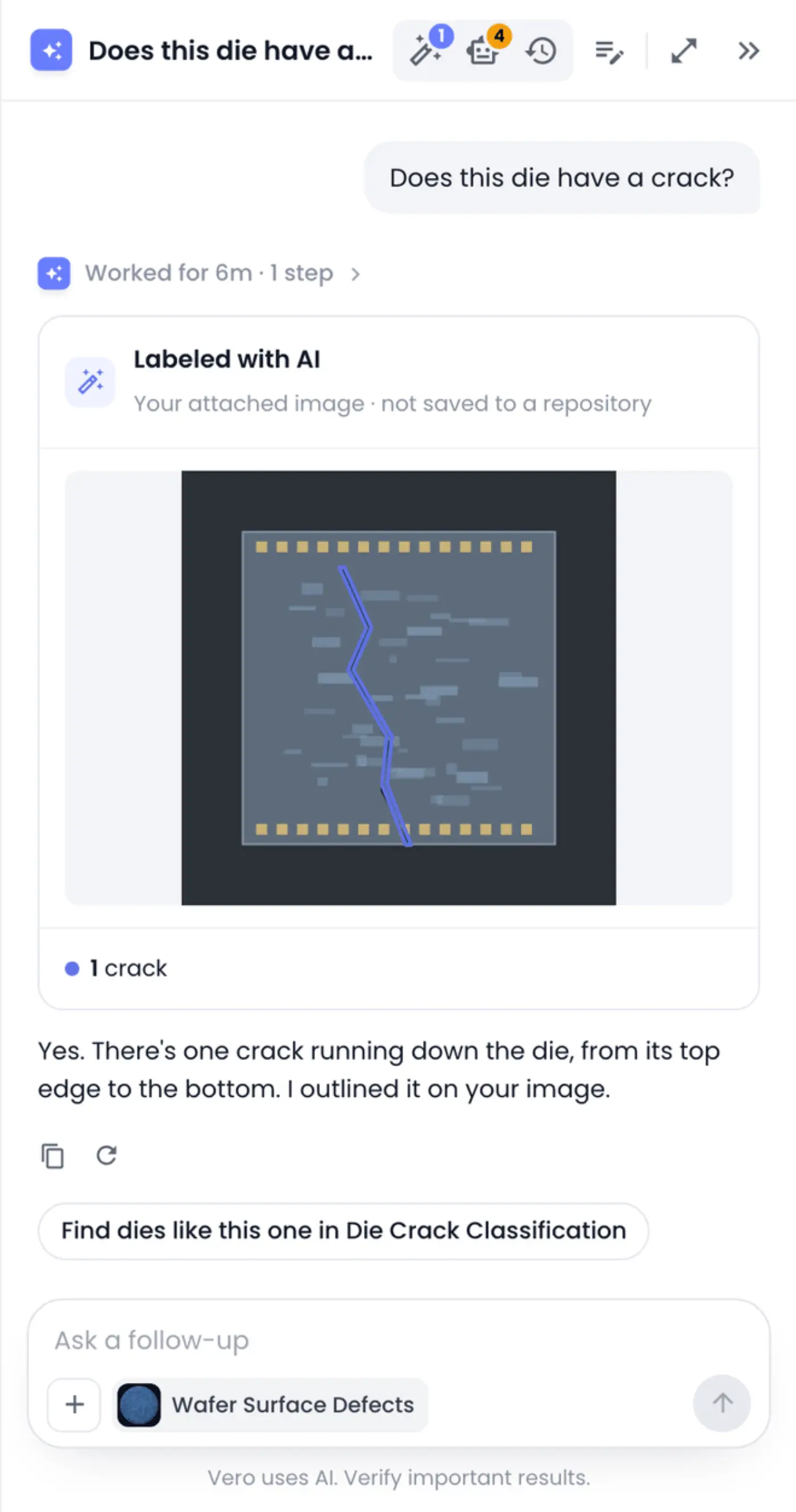
The image and its outlines stay in the chat for 30 days, so you can ask follow-up questions about them. They're never added to a repository. To keep such images, upload them; see Upload and Import Data.
See all your AI labeling jobs
Click AI labeling (the magic wand) in the panel header to see every AI labeling job in your workspace, newest first. Its badge shows how many are running.
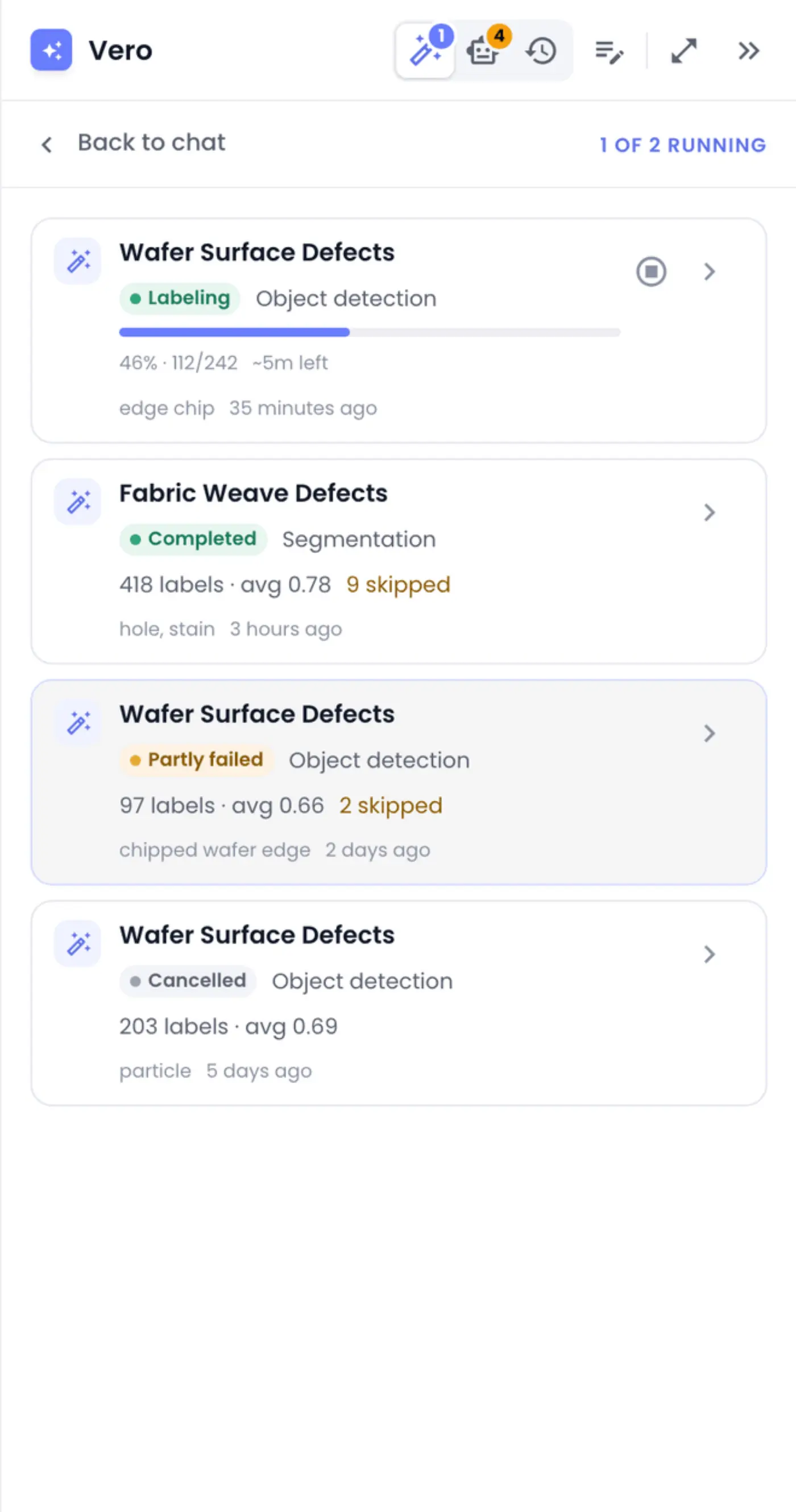
Each row shows the repository, what the job looked for, its status and its progress or result. Click a row to open the repository at the version the job wrote to. Load more shows older jobs.
While jobs are running, the top of the list shows how many are running out of the most your workspace can run at once, such as 1 of 2 running.
| Status | What it means |
|---|---|
| Queued | Waiting to start. |
| Starting | Sending the images to be labeled. |
| Labeling | Running. |
| Stopping | You asked it to stop, and it's finishing up. |
| Completed | Done. Some jobs find nothing; the row then says No labels found. |
| Partly failed | Done, but some images couldn't be labeled, for example because they couldn't be read. The rest have their labels. |
| Failed | No image could be labeled. Ask Vero what went wrong. |
| Cancelled | Stopped before the end. |
With no jobs yet, the list shows a few requests under Try asking. Clicking one puts it in the message box, so you can fill in the details before you send it.
Stop a job
To stop a running job, click the stop icon on its row in the AI labeling list, or Stop on its card in the chat, then confirm with Stop job.
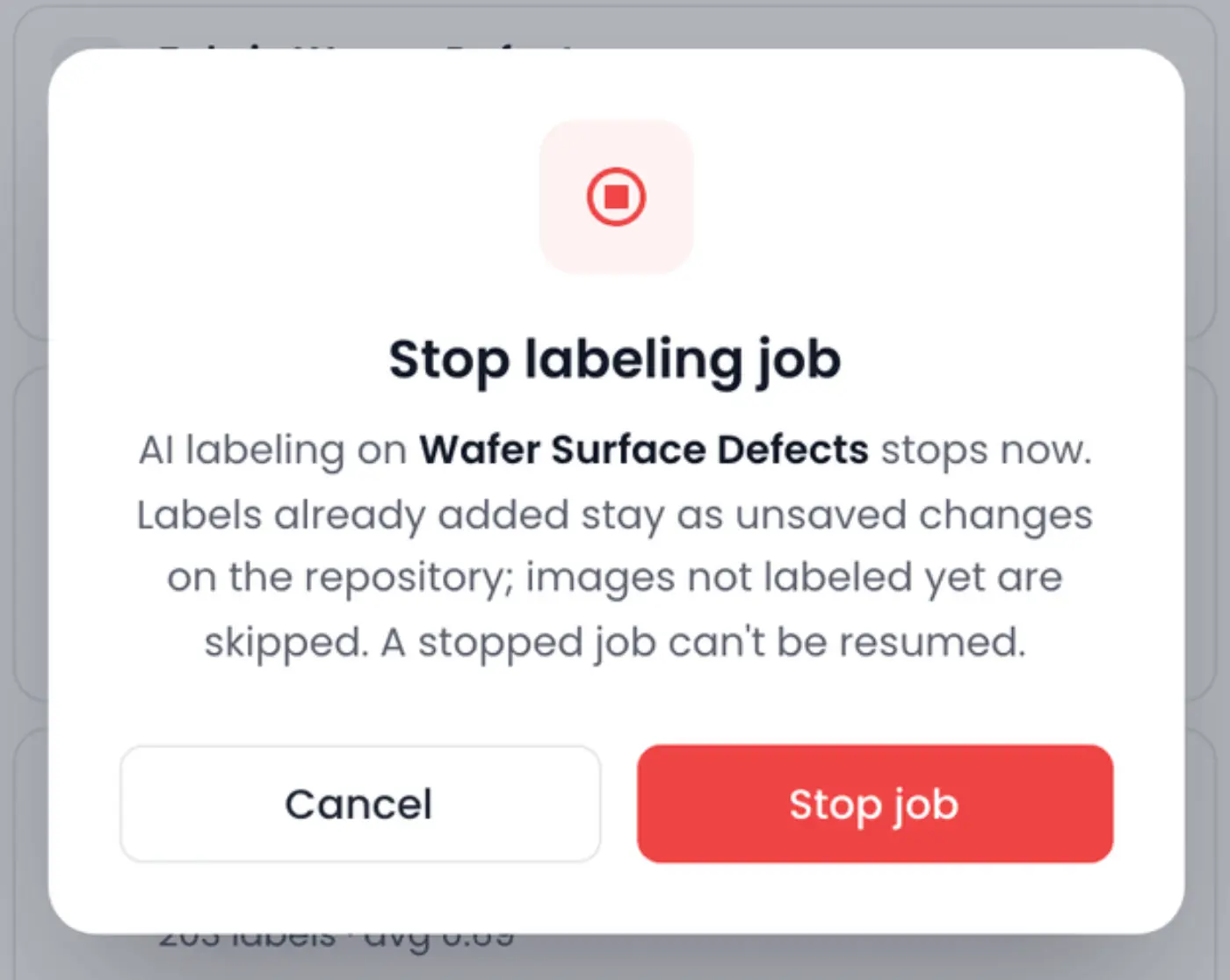
Labels already added stay as unsaved changes; the images not labeled yet are skipped. A stopped job can't be resumed, but you can ask Vero to run a new one over the images that are still unlabeled. Stopping a job needs permission to edit the repository.
Know the limits
- A job can cover up to 20,000 images. For more, split the work by folder.
- Only one job runs on a repository at a time, and a workspace runs at most two jobs at once. Vero tells you when you have to wait for one to finish.
- Jobs label images and video frames, not whole videos.
- Very large images are looked at in overlapping pieces, so small objects aren't missed.
- The checks Vero runs while labeling count toward your workspace's daily Vero usage; see Vero.
Get better results
- Try one image first. Label a typical image, look at the result, and adjust your description before you run the whole folder.
- Name what you see, not why it matters. "Dark spot" works better than "contamination"; "crack" better than "defect".
- Use one word per kind. "Scratch" and "particle" as two descriptions beat one long sentence.
- If nothing is found, Vero tells you. Try another wording, or label from an example image instead.
- Let Vero suggest more. After labeling, Vero may mention other kinds of objects it noticed. It never labels those unless you ask.