Usage and Limits
Check today's training, deploy, inference and labeling allowances, keep working past them with extra usage, and top up your prepaid balance.
Your plan gives the workspace a daily allowance of compute-heavy work: training runs, time with models deployed, inference and labels. The Usage tab in settings shows how much of each you've used today, and it's where you turn on extra usage so work can carry on once an allowance is spent.
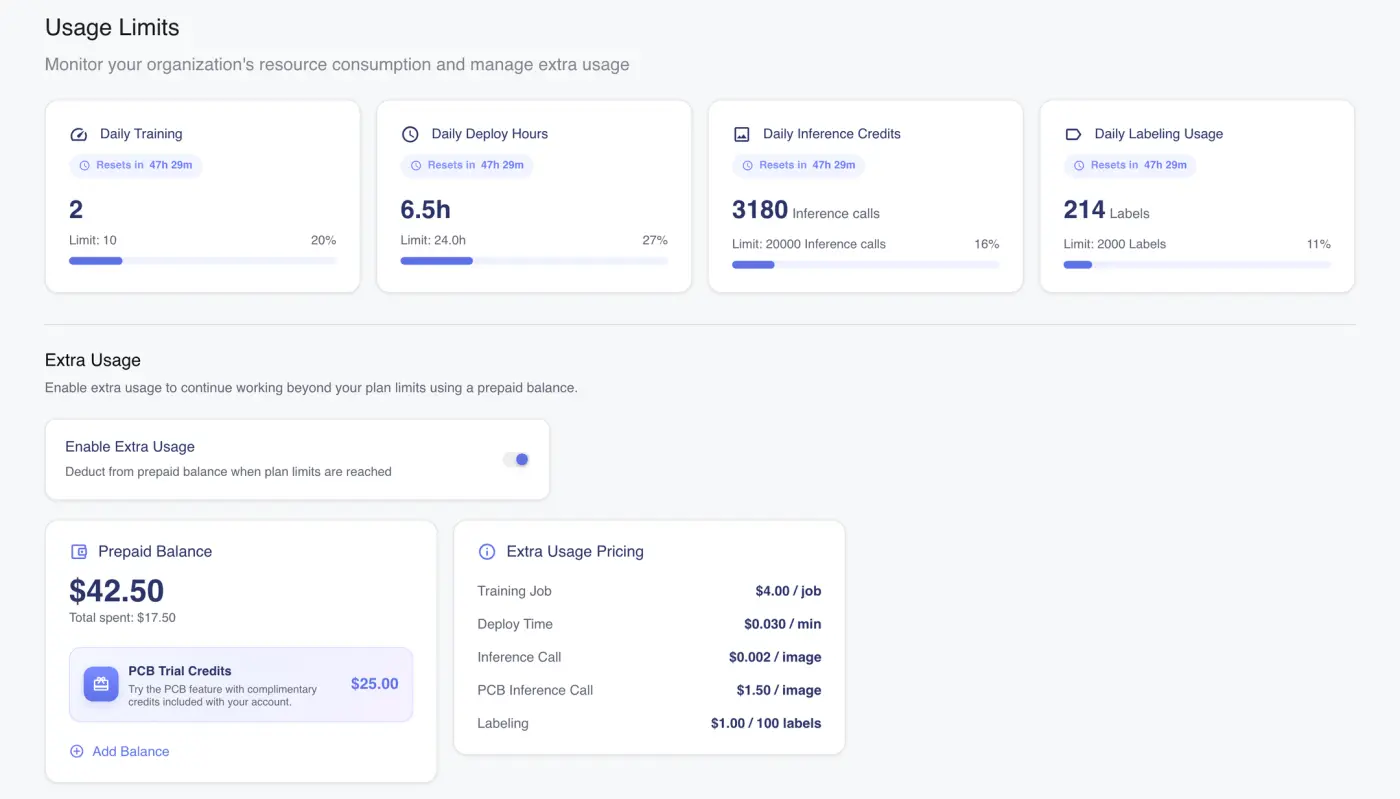
Check today's allowances
Open settings from the account menu and click Usage. Everyone in the workspace can see this tab.
| Card | What it counts |
|---|---|
| Daily Training | Model training runs started |
| Daily Deploy Hours | Time your deployed models have been running, in hours (or minutes under an hour) |
| Daily Inference Credits | Images sent to your models for prediction |
| Daily Labeling Usage | Labels created |
Each card shows today's count, the Limit, the share used and a bar. The bar turns amber at 80% and red when the allowance is spent. An allowance your plan doesn't cap reads Limit: Unlimited and has no bar.
The counts refresh every minute while the page is open.
On plans with Vero, a Daily Vero Usage card shows how much of today's Vero allowance the workspace has used, as a percentage. Everything Vero does counts toward it, including the checks it runs while labeling with AI. See Vero.
When allowances reset
Allowances run for 24 hours from the first time you use them, not from midnight. A card you haven't touched today shows Begins on first use. Once you've used it, the pill reads Resets in with the time left.
Storage and downloads aren't daily. They're on the Overview tab, described in Workspace Settings.
What happens when you hit a limit
Once an allowance is spent and extra usage isn't covering it, that kind of work is refused until the allowance resets. The message tells you what happened:
- Labeling: saving new labels fails with "You've reached your labeling limit. Enable extra usage to continue."
- Training: starting a training run fails with a message about the daily training limit.
- Inference and deploy hours: new predictions and deployments are refused until the allowance resets.
In those messages, Enable extra usage is a link that opens the Usage tab.
When the Vero allowance is spent, Vero stops with You've reached today's Vero limit, says when it resets, and links to this tab (Enable extra usage, or Manage usage when extra usage is already on).
A banner also appears at the top of the settings pages and repository pages, naming the limit you reached, for example "Usage limit reached. You've reached your daily inference limit. Enable extra usage to continue." It warns you earlier too, once inference or running models pass 70% of the day's allowance. The training banner only shows after you've actually tried to train and been refused. Close any banner with the ×.
Keep working with extra usage
With extra usage on, work past a daily allowance carries on and is paid from the workspace's prepaid balance, at the rates listed under Extra Usage Pricing. Nothing about your plan changes.
- On the Usage tab, find Extra Usage.
- Turn on Enable Extra Usage.
- If your balance is empty, the Add Balance dialog opens. Add funds (see the next section).
If you close the dialog without paying while the balance is still empty, the switch turns itself off again. Extra usage with no money behind it wouldn't let anything through.
Turn the switch off at any time to stop spending. Work is then refused at the daily limit again.
Extra Usage Pricing lists what each kind of work costs from your balance: Training Job, Deploy Time (per minute), Inference Call (per image), PCB Inference Call (per image) and Labeling (per 100 labels).
Top up your prepaid balance
- Click Add Balance on the Prepaid Balance card.
- Pick one of the preset amounts under Select Amount, or type your own in the custom amount field.
- Choose a card under Payment Method, or click Add new card.
- Click Pay (the button shows the amount).
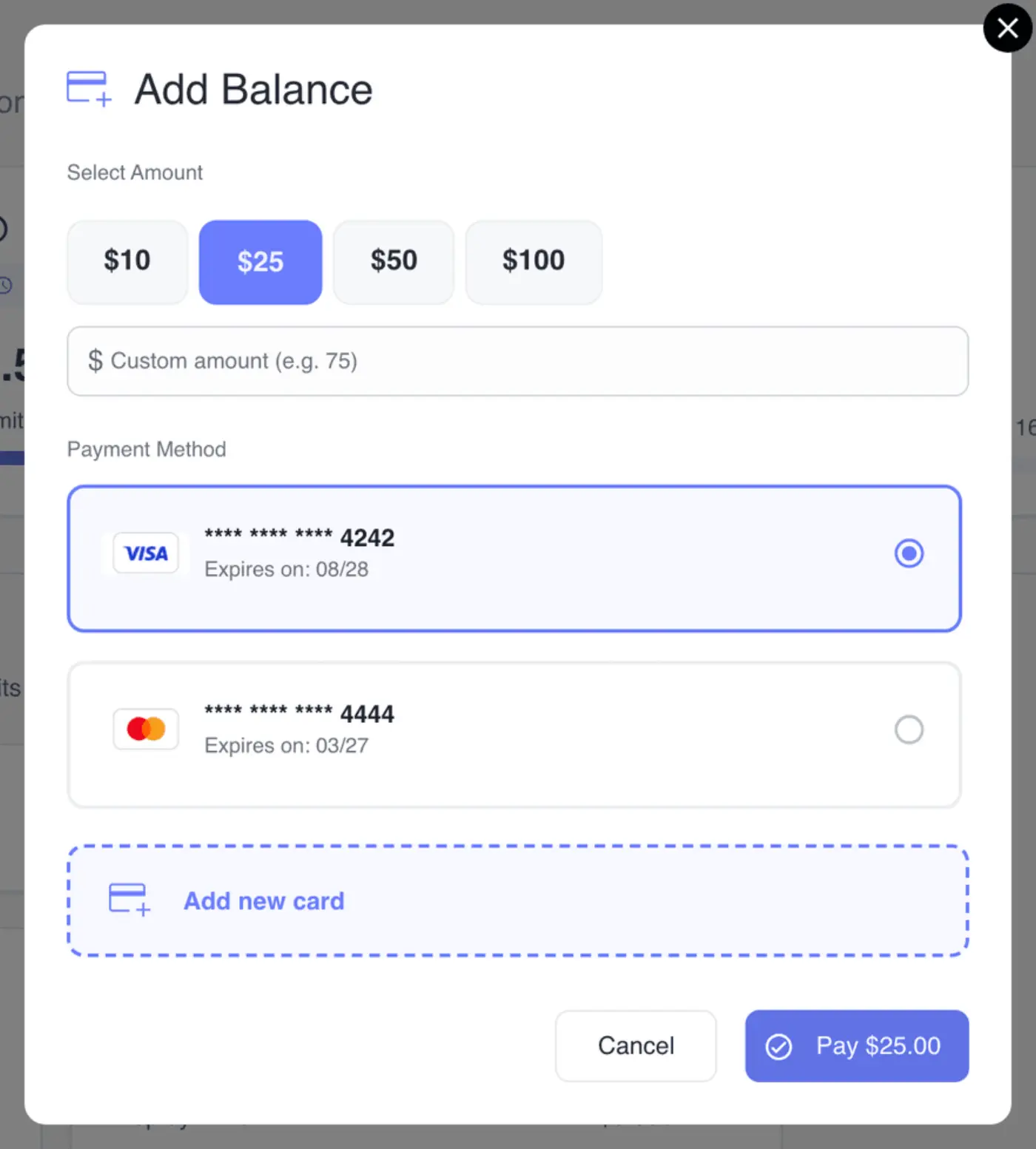
When the payment goes through, the new balance shows straight away. Total spent under the balance is what extra usage has cost the workspace so far.
Choose between extra usage and a bigger plan
If the workspace has never used extra usage (no balance, nothing spent), the tab shows two cards instead of the switch.
- Enable extra usage (marked RECOMMENDED) lists the extra-usage rates. Enable & Top up turns it on and opens Add Balance.
- Upgrade to the next plan up shows that plan's price and daily allowances. Compare Plans opens the plan picker.
If you've just run out, a note above the cards says which allowance is spent and when it resets.
Extra usage suits the odd busy day: you pay for the overflow and nothing else changes. If you're hitting limits most days, a larger plan is usually the better deal because the higher allowance applies every day. See Plans and Billing for changing plan.
Use your PCB trial credits
The Prepaid Balance card also shows PCB Trial Credits: complimentary credit for trying PCB inspection. It's separate from the balance you top up.
If your plan doesn't include PCB inspection uploads, these credits are what let you upload boards. When they run out, uploads are refused with "You don't have enough PCB credit to upload." See PCB Inspection.
Who can change these settings
Anyone can see the allowance cards. The Extra Usage section (balance, trial credits, pricing and the switch) only appears for people whose role can read billing.
Turning extra usage on or off, Add Balance, Enable & Top up and Compare Plans all need write access to billing. Without it they're greyed out, and hovering one names the missing permission.