Approving Vero's Actions
See what Vero asks before it changes your data, approve or reject it, and spot the actions that can't be undone.
Vero can look at anything you can see without asking. Before it changes something, such as starting an AI labeling job, adding a class, training a model or deleting images, it stops and shows you what it is about to do. Nothing happens until you approve.
Know what Vero asks about
| Vero does it straight away | Vero asks you first |
|---|---|
| Reading repositories, images, labels, models, monitors and predictions | Labeling images with AI, one or many |
| Counting, comparing and summarising | Adding, changing or deleting labels, classes or images |
| Searching for images, by text or by an image you attach | Saving a new version of a repository |
| Looking at images and outlining what's in an image you attach | Starting training |
| Answering from the help docs | Creating or deleting projects and repositories |
| Offering links to pages | Creating an agent or changing its script, and sending email |
A few small changes go through without a card: creating an empty repository, and renaming, pausing or resuming one of your agents.
Vero acts as you. Approving an action never lets Vero do more than your own role allows: if you couldn't delete a repository yourself, Vero can't either.
Vero also never saves a new version of a repository unless you ask it to. Labels it adds stay as unsaved changes, so you can review them first.
Approve or reject an action
When Vero wants to change something, its reply ends with an approval card: This action needs your approval before I run it.
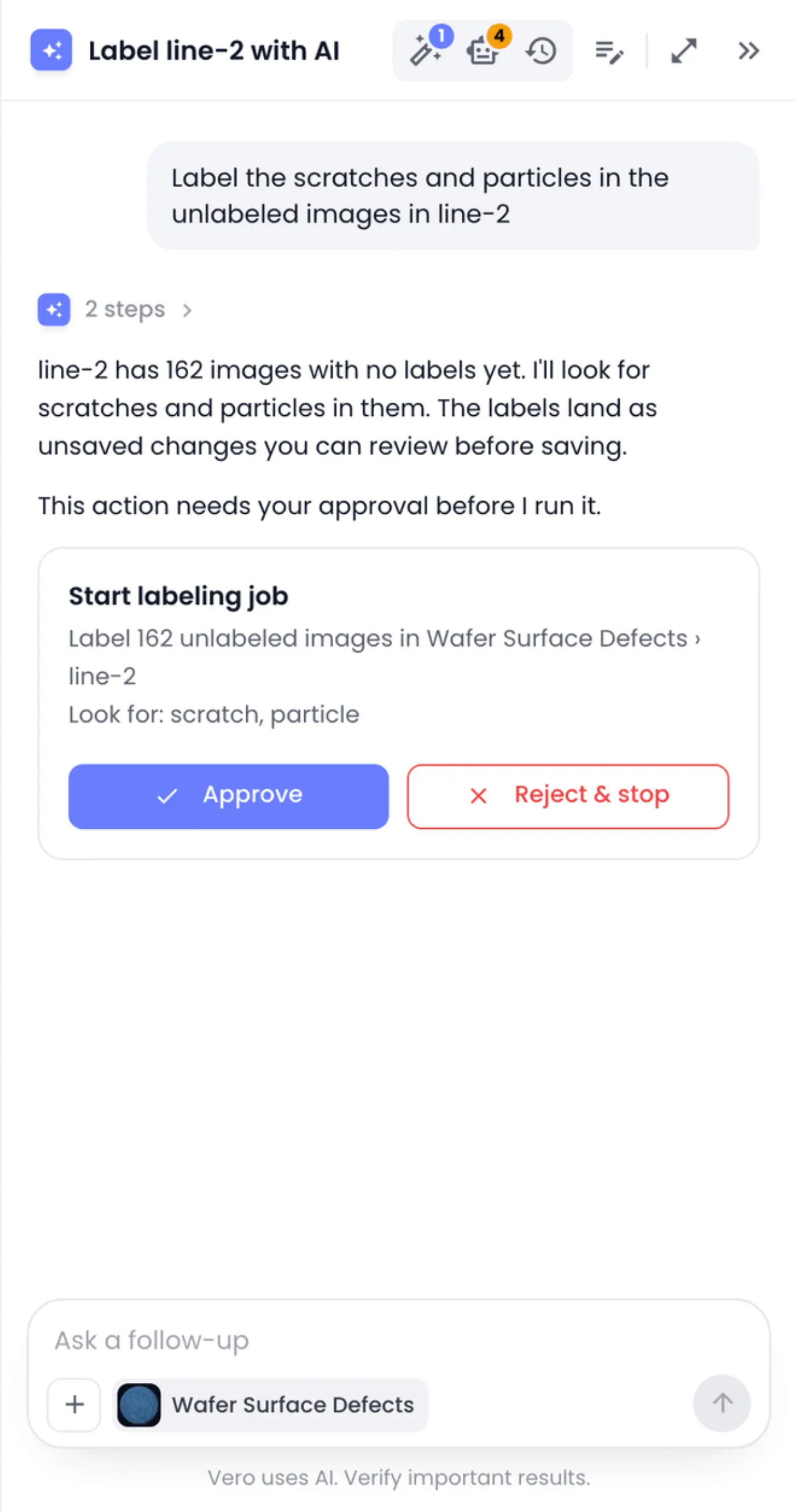
The card's title says what kind of action it is, and the lines under it say exactly what it will touch, by name. Read them, then:
- Click Approve to let Vero run it. Vero carries on with your request and reports back.
- Click Reject & stop to say no. Vero doesn't run it and doesn't try it again. It tells you what it skipped, and you can say what you'd like instead, for example Only do line-1.
While a card is waiting, the message box is locked, so decide on the card first. To change what Vero proposed, reject it and then say what you want.
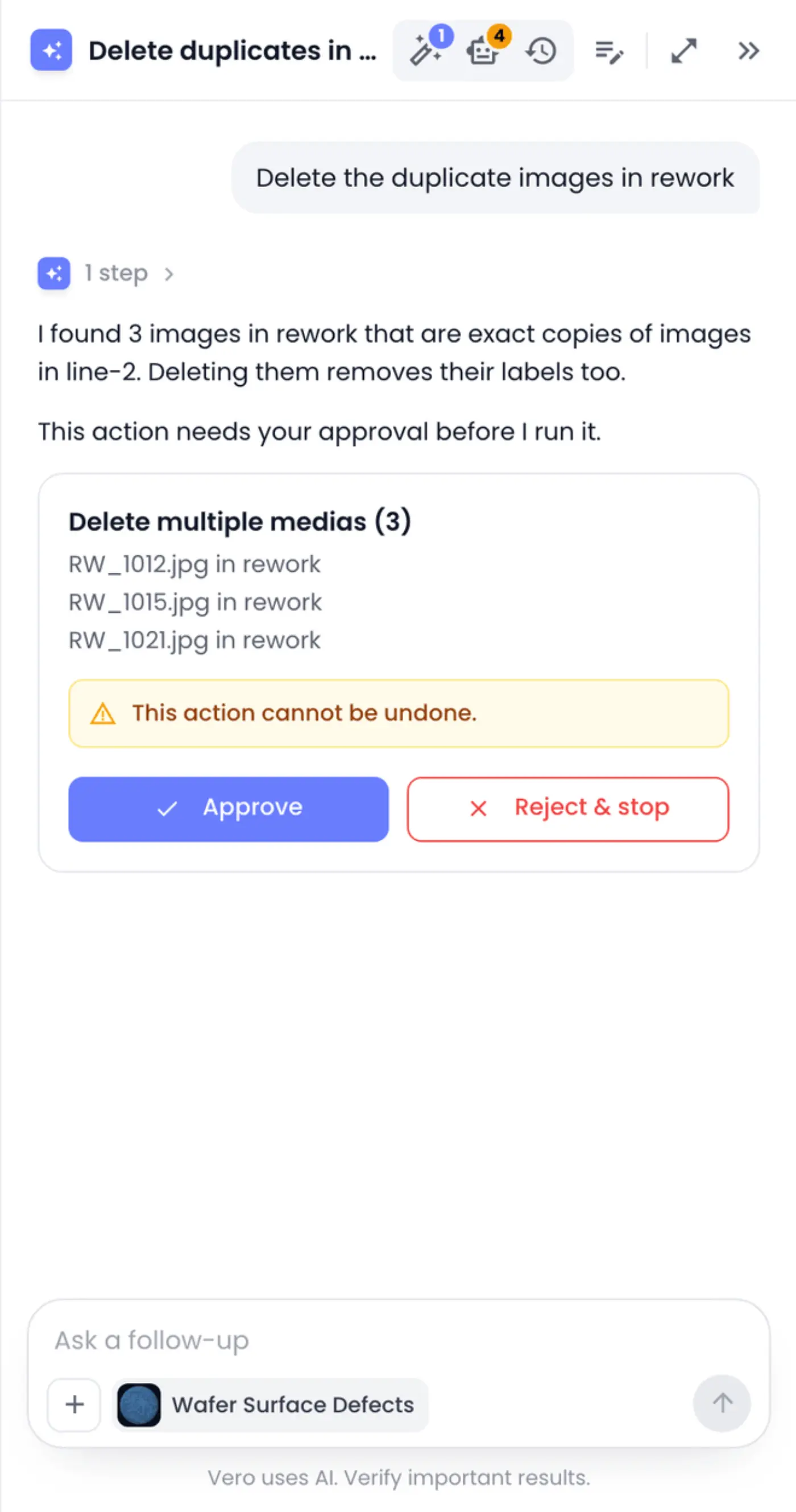
If Vero needs to do the same thing several times, such as deleting a few images, one card covers them all and shows the count in its title, with a line for each.
When a request needs different kinds of actions, Vero asks for them one at a time, or, for longer requests, proposes a plan you approve once. See Plans and Long-Running Tasks.
Watch for actions that can't be undone
Deleting is permanent. When an action deletes something, its card says This action cannot be undone. Check the list of what will be deleted before you approve.
Deleted repositories go to the trash first and can be restored from there; see Repositories.
Pick up a request you didn't answer
An approval card waits for you. If you leave it unanswered and reload the page or come back to the chat later, the card isn't shown again. Ask Vero to go ahead in a new message, such as Go ahead and start that labeling job, and it asks again.
See the result of an approved action
After you approve, Vero runs the action and replies with what happened. If the action failed, Vero says so and why, and never claims it worked.
The app updates on its own: a new class appears in the class list, new labels appear on the image, and a deleted image leaves the grid, without reloading the page. If you were inside a repository or project that Vero deleted, you're taken to the page above it.
Some actions keep running after Vero's reply, such as an AI labeling job or training. Vero shows a card for them that follows their progress; see AI Labeling with Vero.