Chatting with Vero
Ask Vero questions, choose the model it answers with, attach an image or add media from your repository, read its replies, and come back to past chats.
A chat with Vero works like a chat with a colleague who can see your workspace: you say what you need, Vero looks things up or does the work, and you carry on from its answer. This page covers sending messages, what a reply contains, and finding your chats again.
Start a chat
- Open Vero (see Vero).
- Type your request in the message box, for example Which classes in this repository need more data?
- Press Enter to send. Shift+Enter starts a new line instead.
A new chat opens on a welcome screen. The chips under the message box, Explore, Label, Train, Analyze and Monitor, each show a few ready-made requests. Click one to send it as it is. On a repository page they name that repository, such as Count unlabeled images in Wafer Surface Defects.
Under the chips, Recents lists your last three chats. Click one to pick up where you left off, or View all for the full history.
To start over at any time, click New chat in the panel header, or press ⌘⇧O (Ctrl ⇧ O on Windows). Your current chat is kept in the history.
Choose a model
Vero answers with its own model, Vero, unless you pick another. To change it, click the model's name beside the send button and choose one:
- Vero
- Claude Fable
- OpenAI Astra
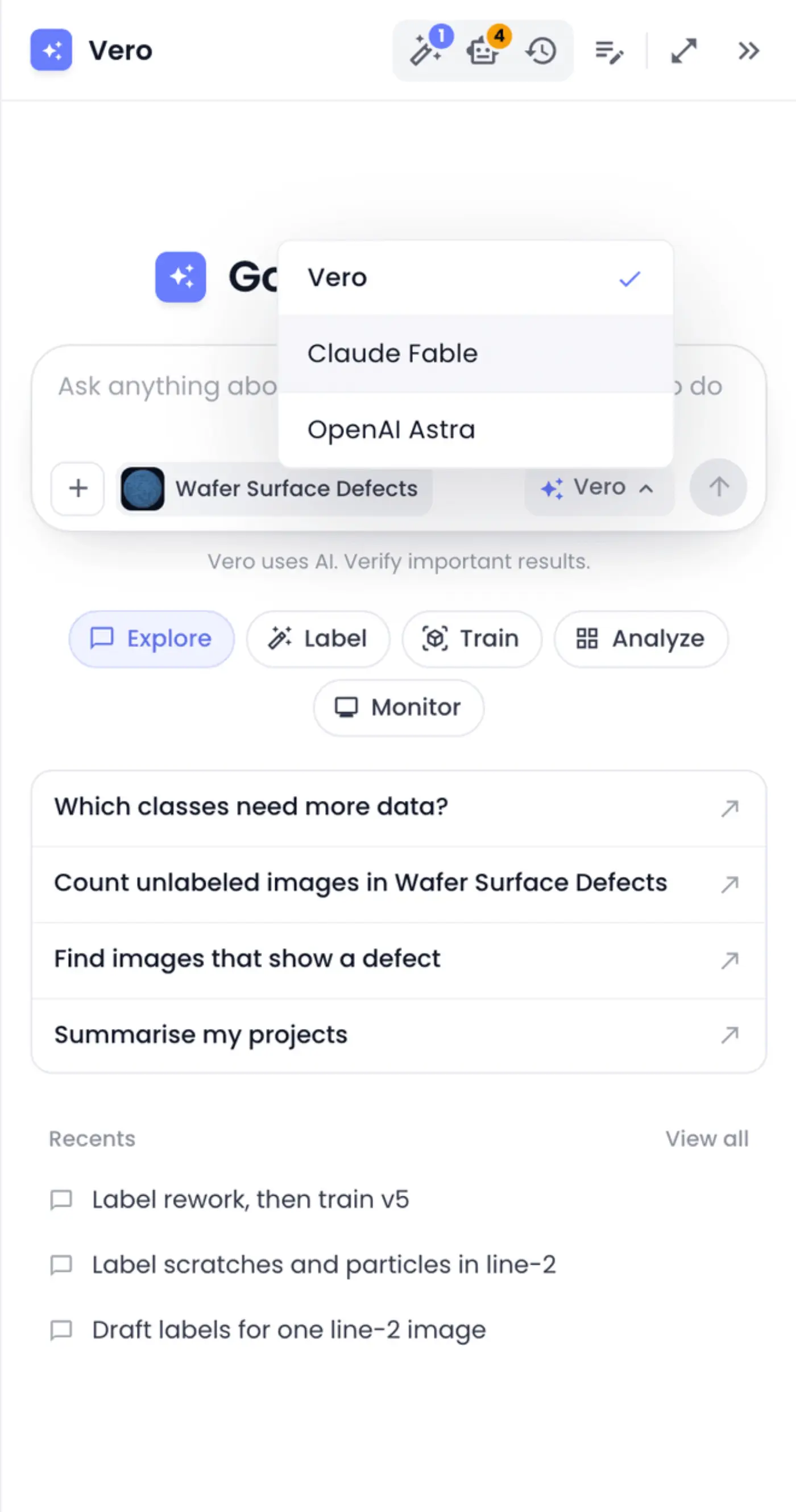
You can pick a model before your first message, on the home page's message box too, or between messages in a chat. Your next message uses it; earlier replies stay as they are. Vero remembers your choice in this browser, so new chats start with it.
While Vero is replying, or waiting for you to approve an action, the model can't be changed and its name is greyed out. It's back as soon as the reply is done.
Write requests Vero can act on
Vero understands everyday language, so you don't need special commands. A few habits get better results:
- Say what and where. "Label the scratches in line-2" beats "label this". On a repository page you can leave out the repository's name; Vero knows where you are.
- Use your own names. Mention repositories, folders, classes and models as they appear in the app. Vero finds them.
- Ask for everything at once. "Label the edge chips in rework, then train v5" is one request. Vero turns it into a plan you approve once; see Plans and Long-Running Tasks.
- Answer its questions. When something could go two ways, such as labeling every image or only the unlabeled ones, Vero asks once before it starts. A short reply like "only the unlabeled ones" is enough.
Attach an image
You can send one image with a message, for example a photo of a part from the line that isn't in any repository yet.
- Click + (Attach files) in the message box and pick an image,
- drag an image onto the panel (it shows Drop an image to attach), or
- paste one, such as a screenshot, into the message box.
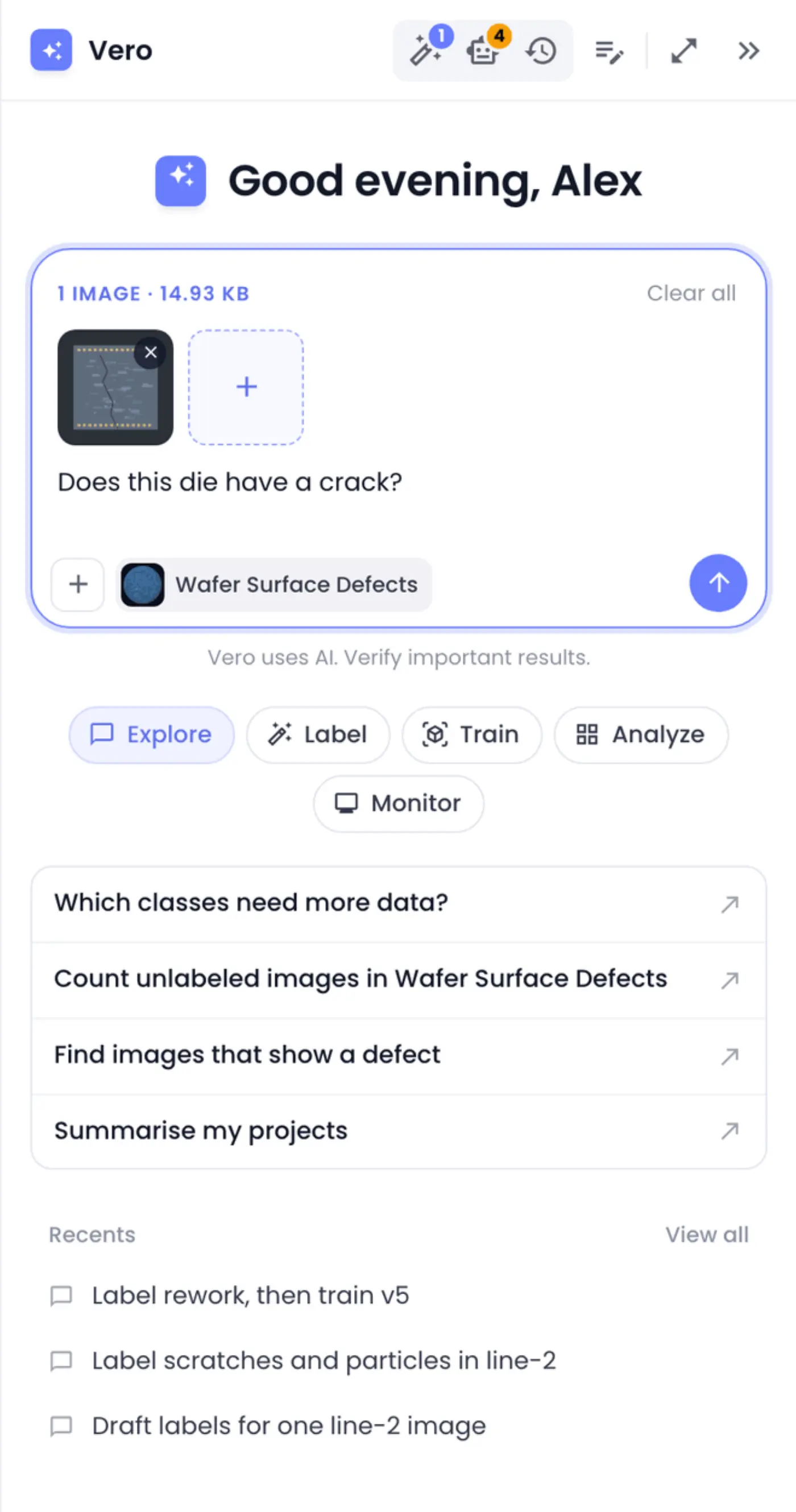
The image shows above your message, with its size, until you send it. The + tile beside it swaps it for another image, and its × or Clear all removes it. Vero takes one image per message: adding a second replaces the first, and files that aren't images are refused.
What Vero does with the image depends on what you ask:
- Ask about it, such as Does this die have a crack?, and Vero looks at it and answers, outlining what it found. See AI Labeling with Vero.
- Ask for similar images, and Vero searches your repositories for images that look like it.
- Use it as an example, such as Find every scratch like the one in this image, and Vero labels matching objects across a repository.
An attached image is never added to a repository. When Vero labels it, it keeps the image and what it found for 30 days, so you can ask follow-up questions about it.
Add images from a repository to the chat
To ask about images that are already in a repository, add them to the chat instead of downloading and attaching them.
- In the repository, open the … menu on an image or video.
- Click Add to chat.
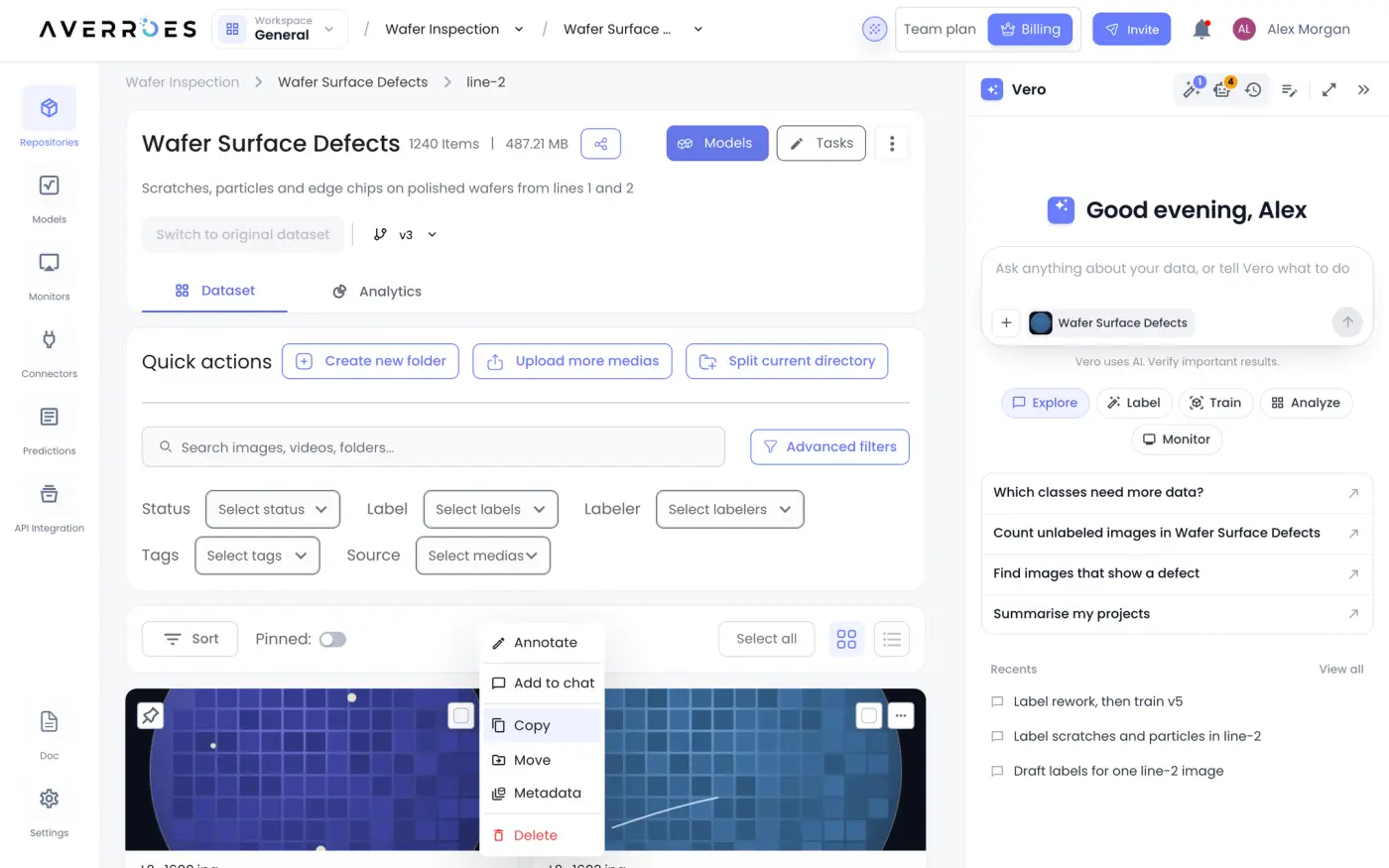
The image appears as a chip in Vero's message box, with its thumbnail and name. Add as many as you like, then type your question about them. Click the × on a chip to take it back out.
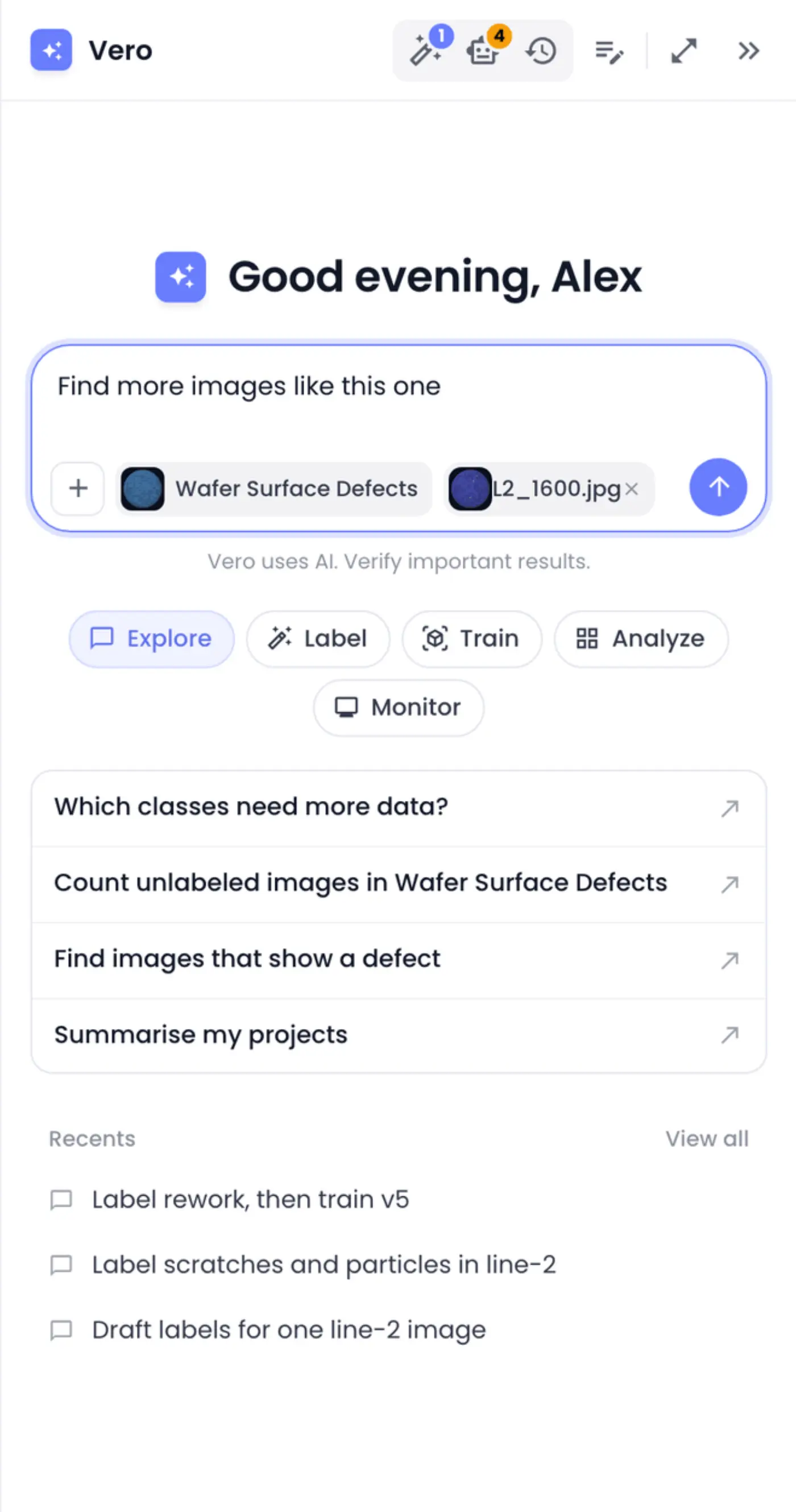
Add to chat is also on the images in a monitor's results. In batch prediction results, select an image and click the chat bubble (Add this image to chat) above the list.
Read Vero's reply
While Vero works, the panel shows what it is doing one step at a time, such as Finding the line-2 folder or Counting unlabeled images. Steps that take a while, like testing a script or waiting for a job, show up as they start.
Once the reply is in, the steps fold into one line, Worked for 6m · 1 step for example. Click it to see them again.
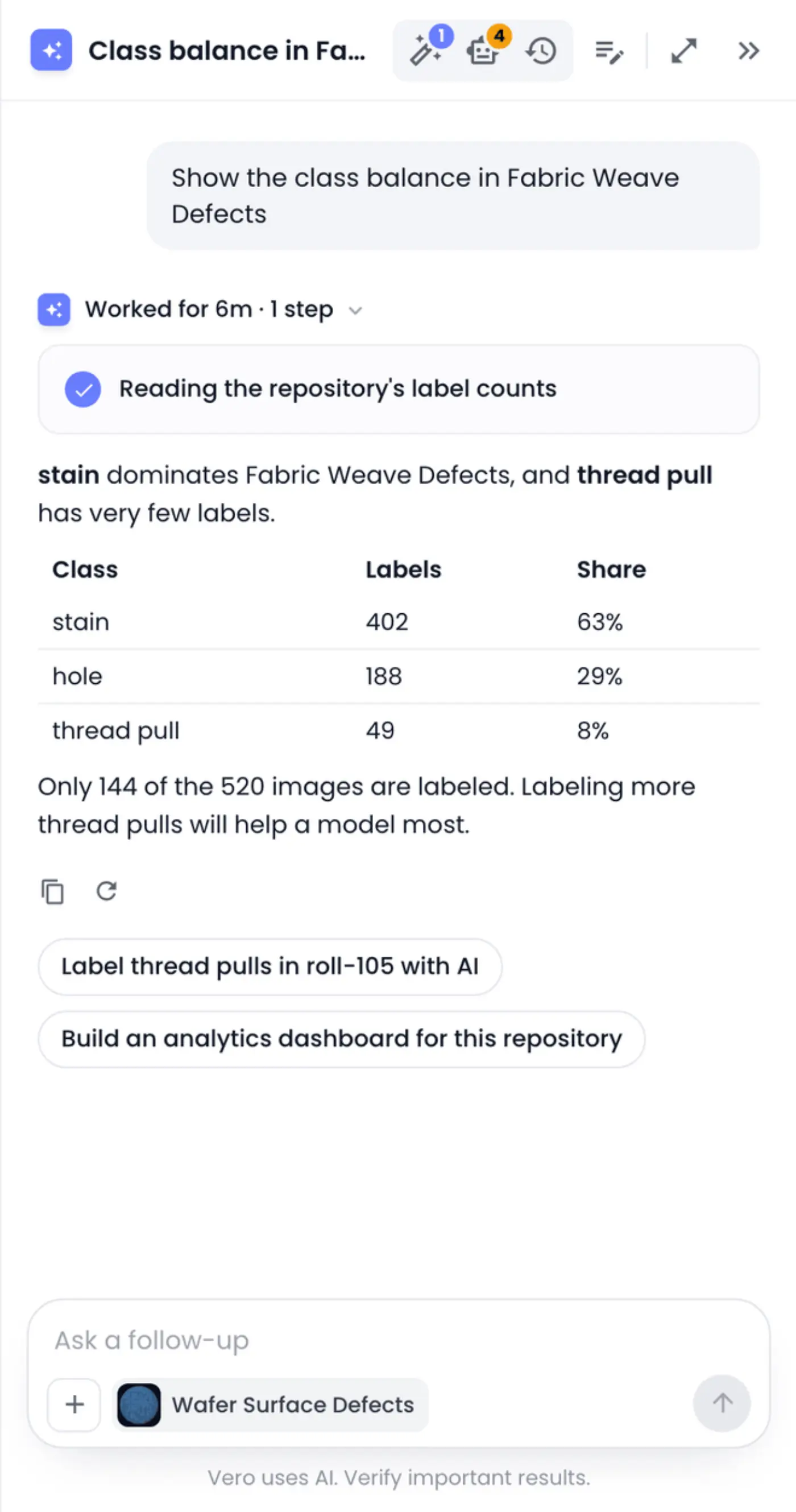
A reply can contain:
- Text, short by default. Ask for more detail if you want it.
- Tables and charts for numbers worth comparing. Charts in a reply are a snapshot; for live charts, ask for a dashboard (see Custom Dashboards).
- Links to the things it mentions, such as a repository or an image. Hover over a linked image to see a preview. Click to go there; Vero never moves you to another page on its own.
- Cards for work it started, such as an AI labeling job or a training run. Cards keep updating on their own; see AI Labeling with Vero.
- Follow-up suggestions, up to three, under the last reply. Click one to send it.
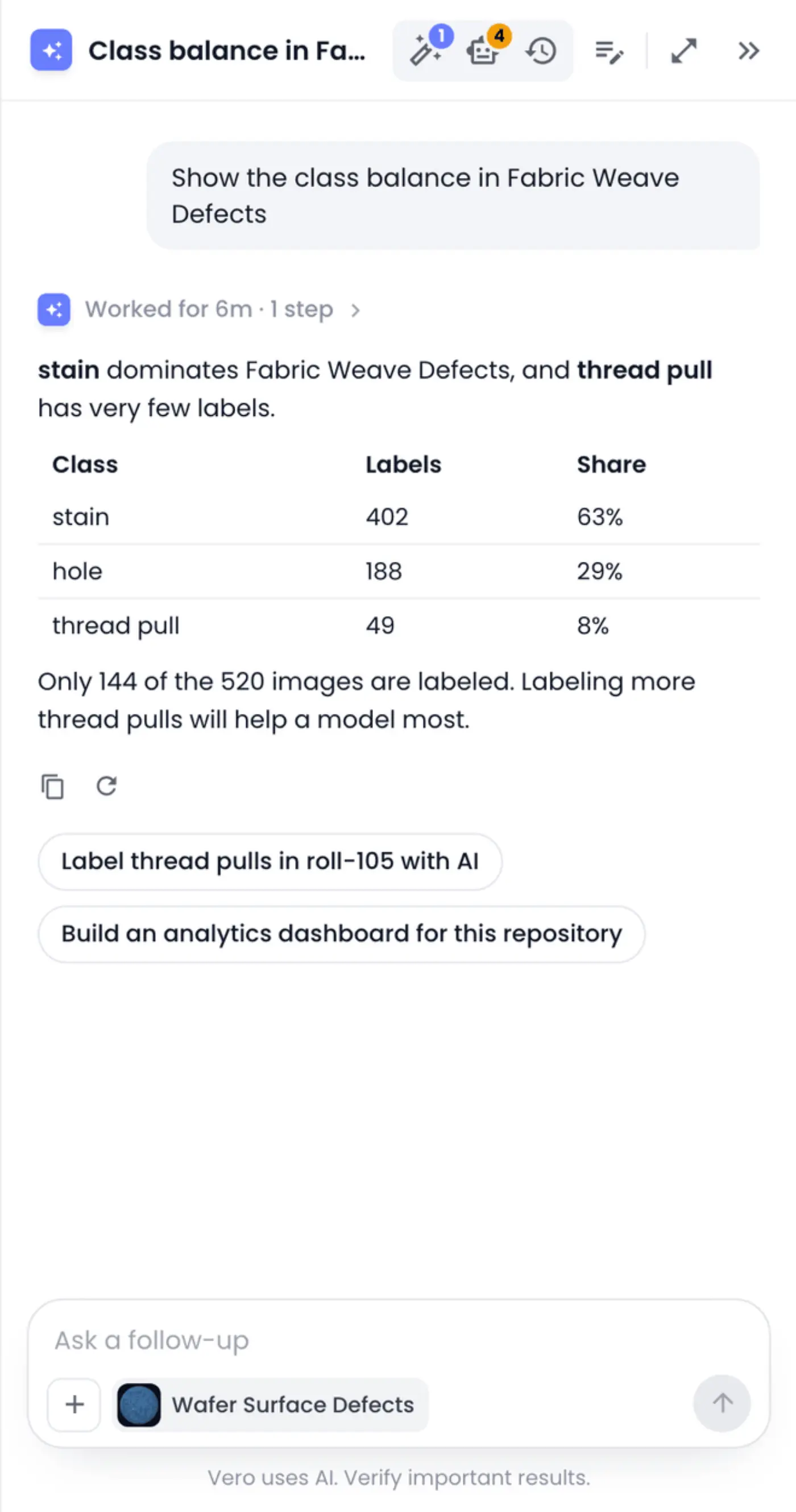
Under each reply, Copy reply copies its text. Retry (the circular arrow) asks your last question again.
When Vero changes something, such as adding labels or a class, the page you're on updates by itself. You don't need to reload.
Stop Vero
While Vero is working, the send button turns into Stop. Click it to end the reply where it is. Anything Vero already did stays done; anything it hadn't started yet doesn't happen.
Closing the panel doesn't stop Vero. It keeps working on the server, and the reply is waiting when you open the panel again, even after you reload the page or move to another page. If you reload in the middle of a reply, Vero reopens the chat and carries on showing it.
Find a past chat
Vero names each chat after its first message, and keeps every chat until you delete it.
- Click Chat history (the clock) in the panel header.
- Find the chat, newest first, with when you last used it. Click it to open it.
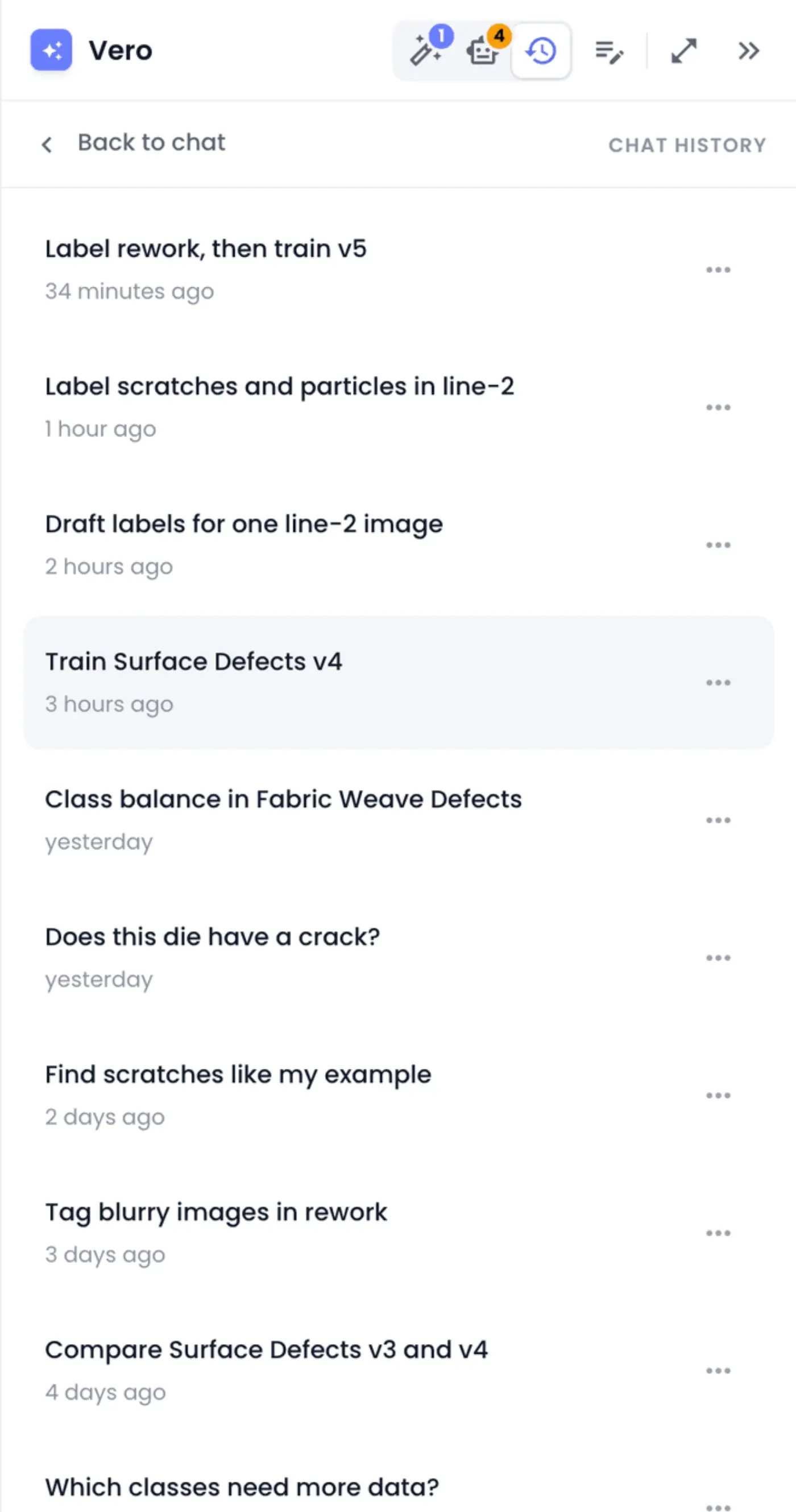
In full screen, every chat is in the sidebar on the left, grouped under Today and Earlier, and Search chats finds one by its title or by anything you wrote in it.
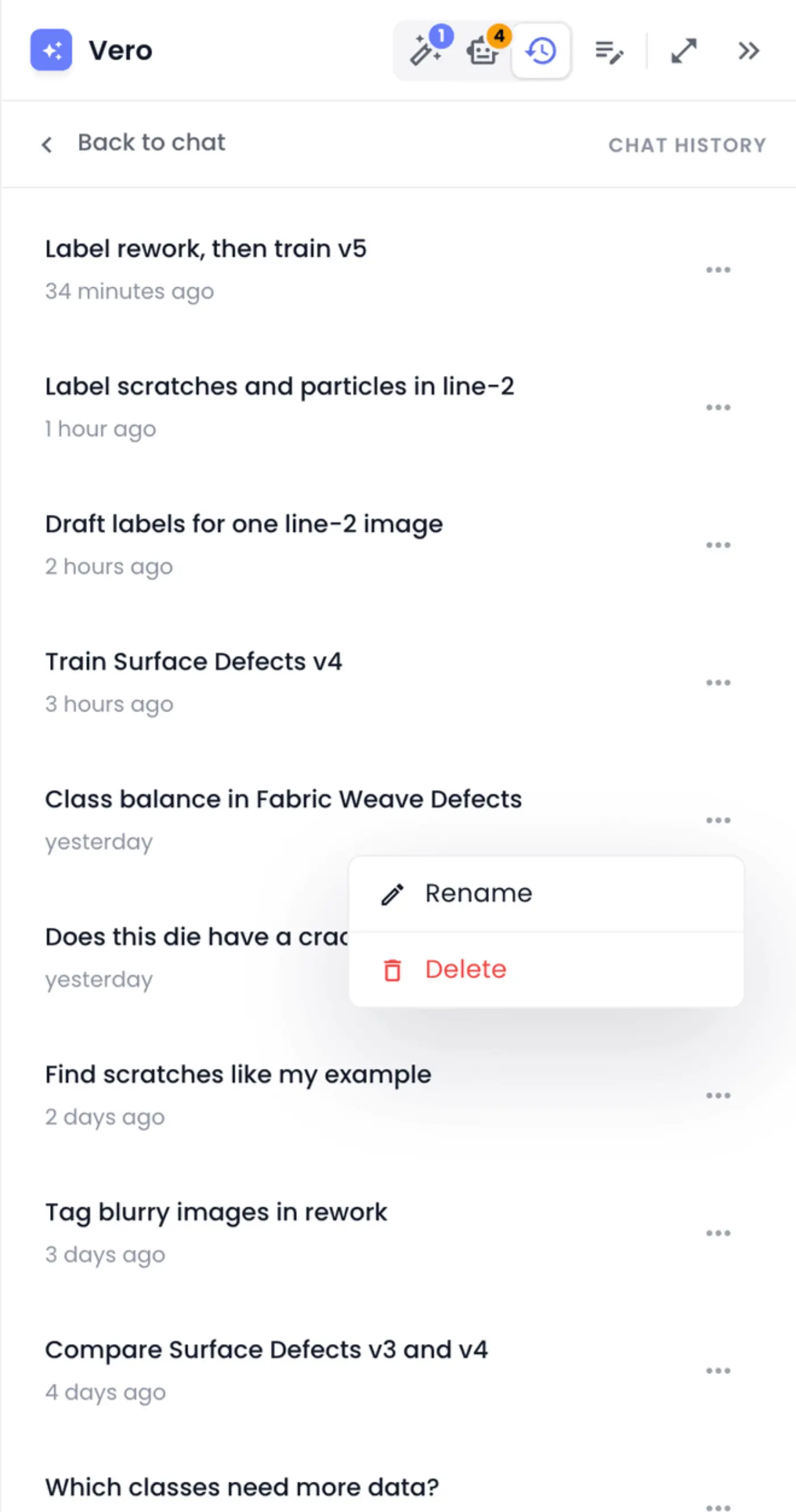
Each chat's ⋯ (More) menu has two actions:
- Rename changes its title. Press Enter to keep the new name or Esc to cancel.
- Delete removes the chat for good, after you confirm. It doesn't undo anything Vero did in it.
Your chats are your own. Other people in your workspace can't see them.
Keyboard shortcuts
| Shortcut | What it does |
|---|---|
| ⌘J / Ctrl J | Open or close Vero (not on the labeling canvas, which uses it) |
| ⌘⇧O / Ctrl ⇧ O | Start a new chat |
| Enter | Send your message |
| Shift+Enter | New line in your message |
| Esc | Leave full screen |
Typing in Vero never sets off the page's own shortcuts, so arrow keys in the message box won't move the labeling canvas to the next image.