Solar Runs
Generate a flight's reports, follow the run, get told when it ends, and cancel, retry or fix it.
A run analyses a flight's photos and writes its reports. It finds defects on the panels, builds a map of the site from the photos, works out which panel each defect is on, and writes the Critical, Mild and Low reports. A large site can take several hours.
To upload a flight and check its photos first, see Solar Sites and Flights.
Generate the report
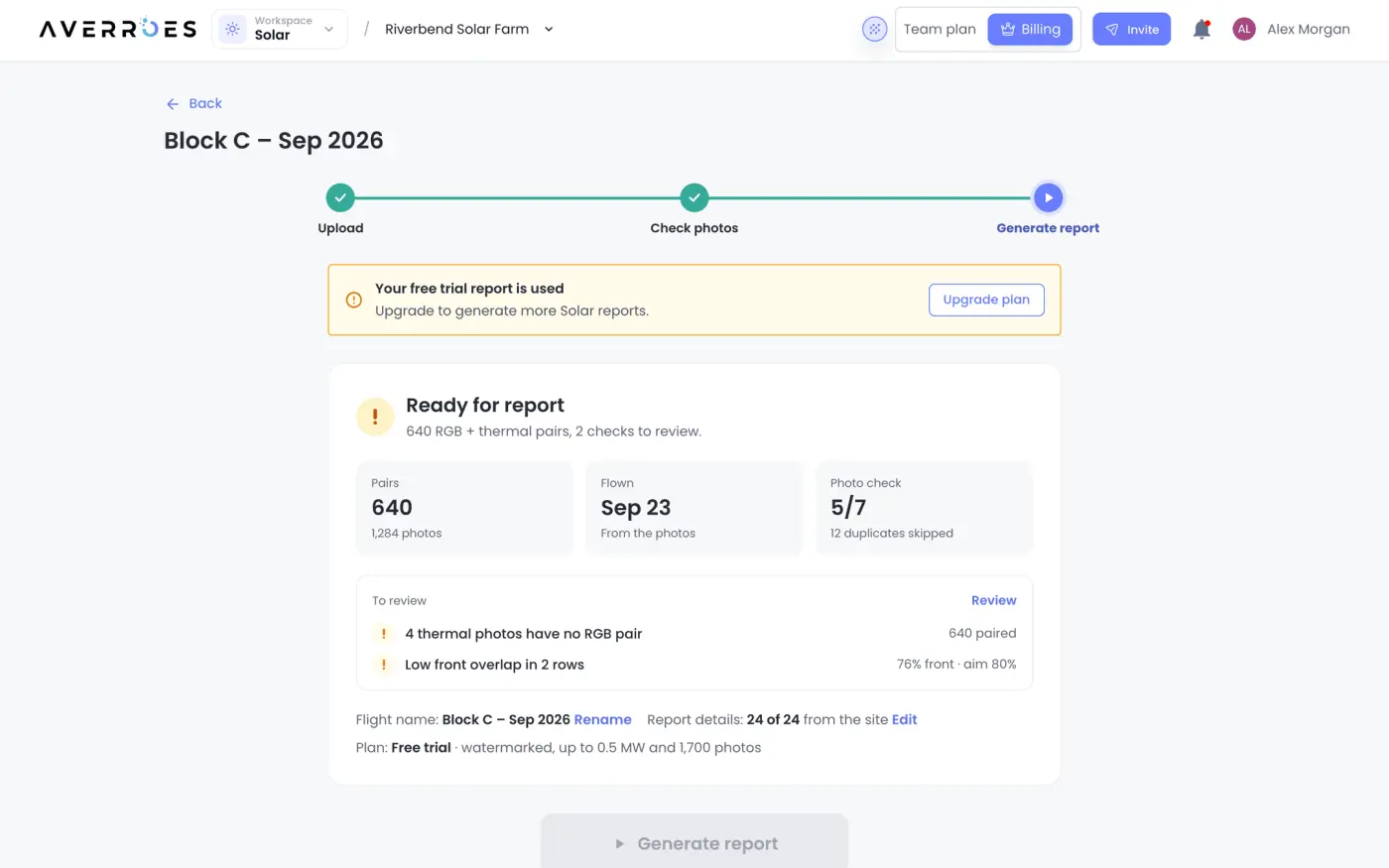
The last step of a new flight is Generate report, which starts a run that writes the flight's reports. For a flight you uploaded earlier, click Generate report on its row of the site, or on the flight's Overview.
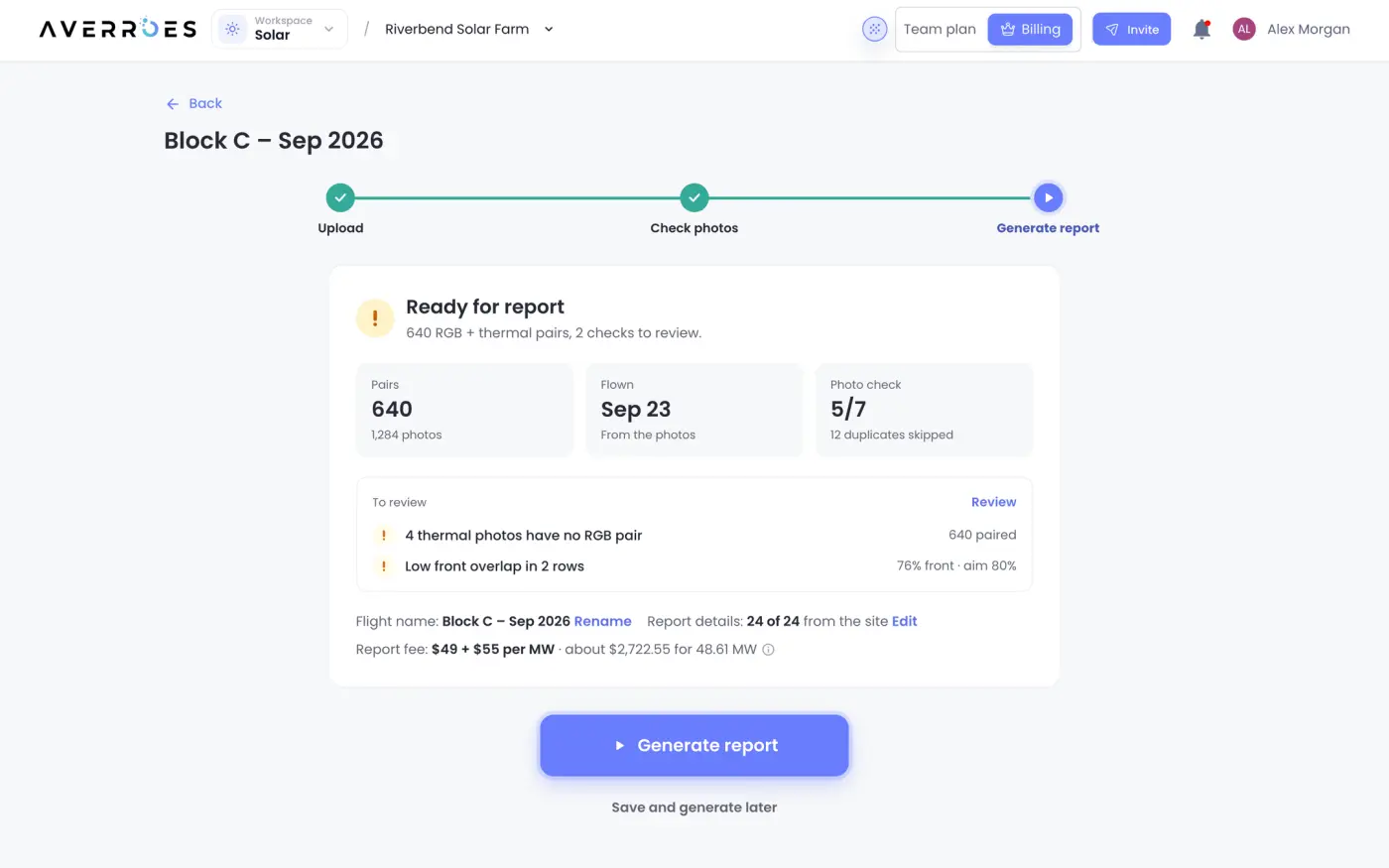
- Check the flight: Pairs, the day it was Flown and the Photo check result. If the check found anything, it's listed under them, problems first. Review goes back to Check photos; when a problem stops the report, the list says To fix before the report and Fix in Check photos takes you there. Rename changes the flight's name.
- Check the Report details the reports will print. Edit changes them for the whole site.
- On a plan that charges per report, check the Report fee: a base fee plus a price per MW. With the Site peak power in the report details, it also shows about what this report costs. On the Free plan the row says Free trial instead. See Pay for a report below.
- Click Generate report.
- In Generate the report?, keep Email me when it's ready ticked to get an email when the run ends or fails, then click Generate report and email me (or Generate report if you unticked it). The fee is repeated there; you pay once the report is ready. The flight's page opens on the run.
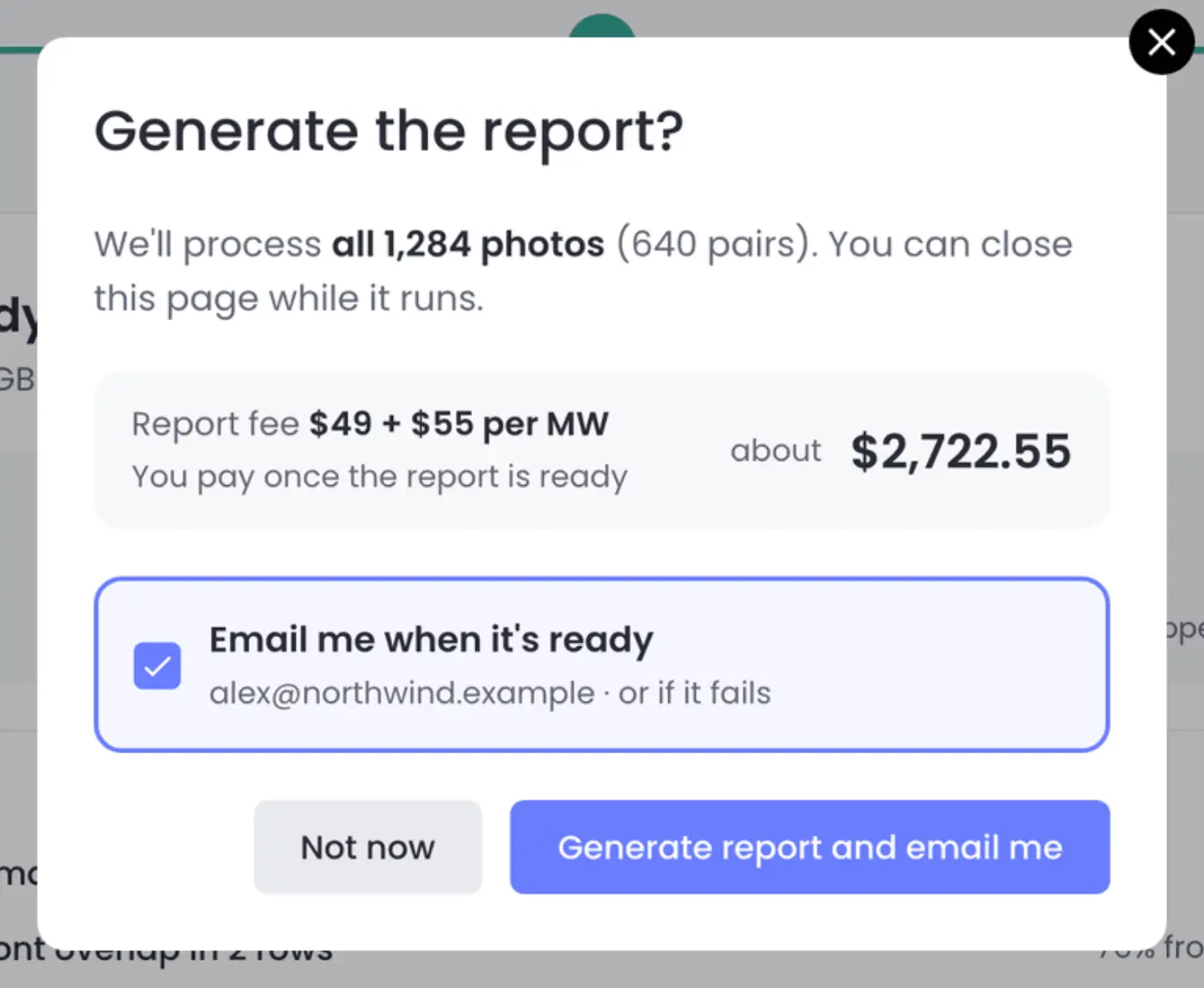
Save and generate later keeps the flight ready for its report on the site. Not now closes the dialog without starting.
Follow a run
A flight's Overview shows the run's four steps, which one it's on and for how long.
| Step | What it does |
|---|---|
| Find defects | Finds defects on the thermal and RGB photos, and the panels on the RGB ones |
| Build site map | Calibrates the thermal camera and stitches the photos into a map of the site |
| Locate panels | Finds every panel on the map and lines up the thermal and RGB photos |
| Write reports | Writes the Critical, Mild and Low reports |
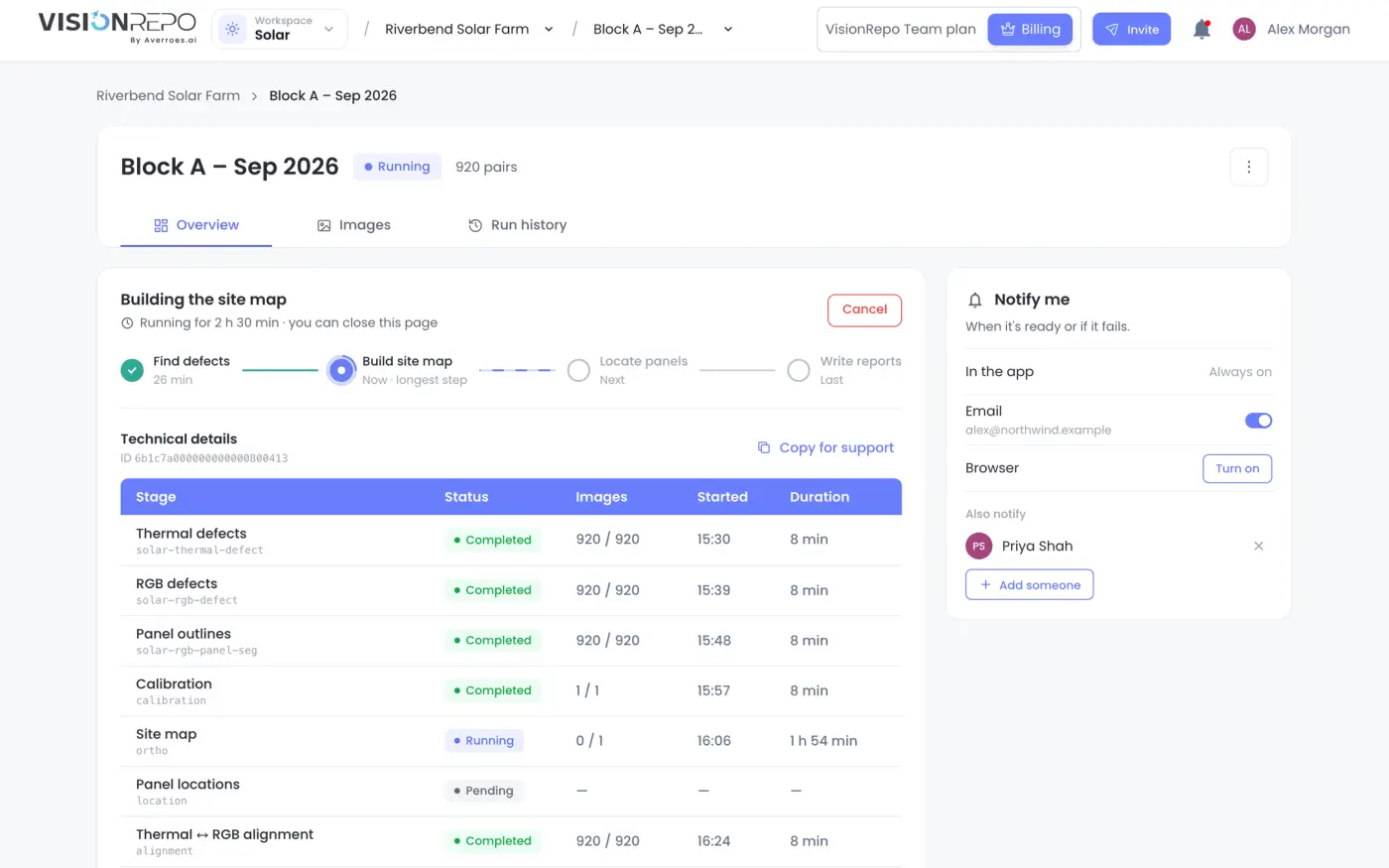
Building the site map is the slowest step and can take hours on a large site. You can close the page; the run goes on. While it runs, the photos with defects found so far appear under the steps. They may change once the run ends.
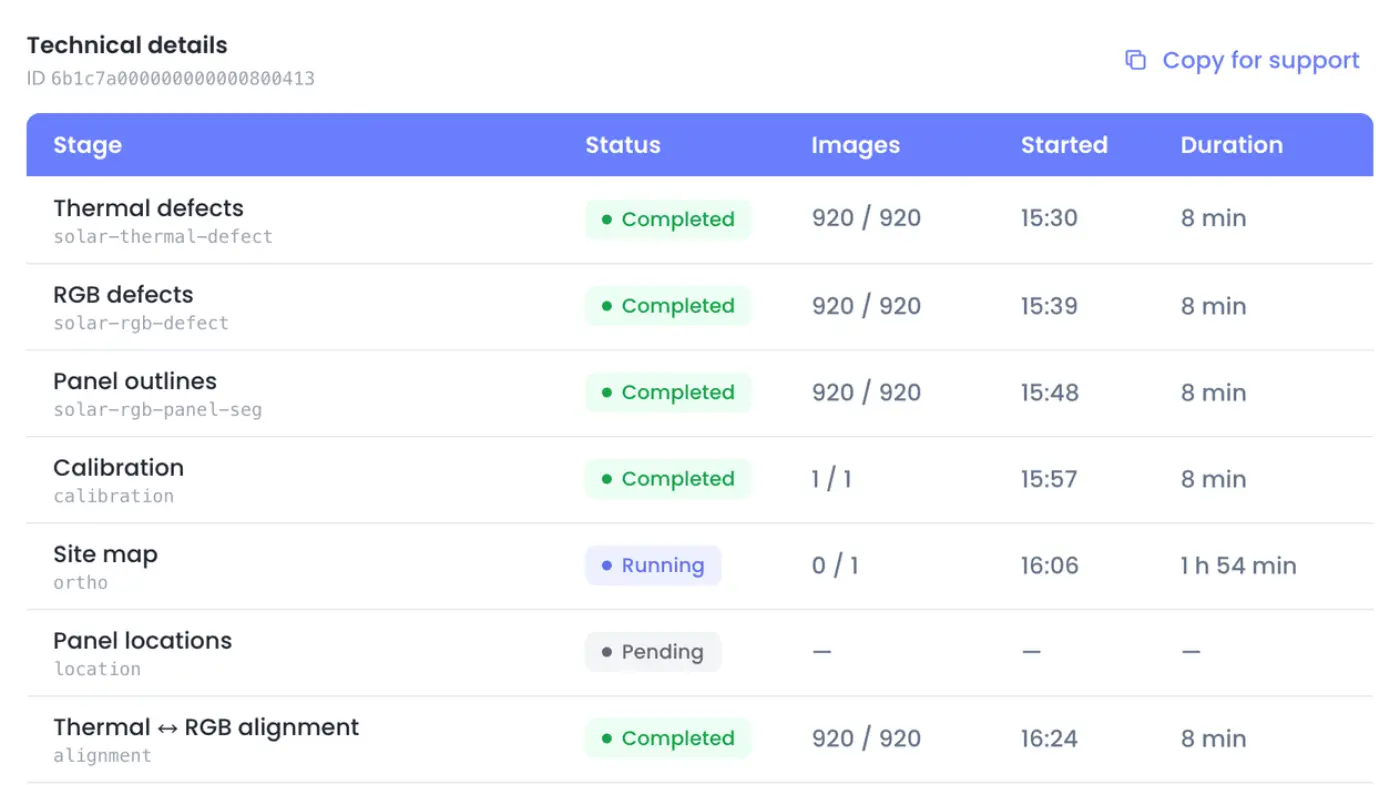
Under the steps, Technical details lists the nine stages behind the four steps, with their status, how many photos each has done, when they started and how long they took. Copy for support copies all of it for a support request.
Get notified when a run ends
Whoever starts a run is told when it completes, fails or is cancelled. While it runs, the flight's Overview has Notify me:
- In app: the bell in the header shows the run, and a message pops up if the app is open. It's always on for whoever started the run.
- Email sends you an email with a link to the flight. If you started the run, it follows Email me when it's ready from the start dialog. If a teammate started it, turning it on adds you to the people told, in the app and by email.
- Also notify adds people from your organization, who get the in-app message and the email.
To tell teammates, add them there once the run has started. People who turned on Results ready or Run failed on the site's page are told too, whoever started the run.
Pay for a report
On a plan that charges per report, a run's results and reports unlock once its report is paid. When the run ends, the flight's Overview shows the counts by severity and Pay to see the results with the price. Until then the anomaly list, the anomaly viewer, the early look while it runs and every PDF stay locked.
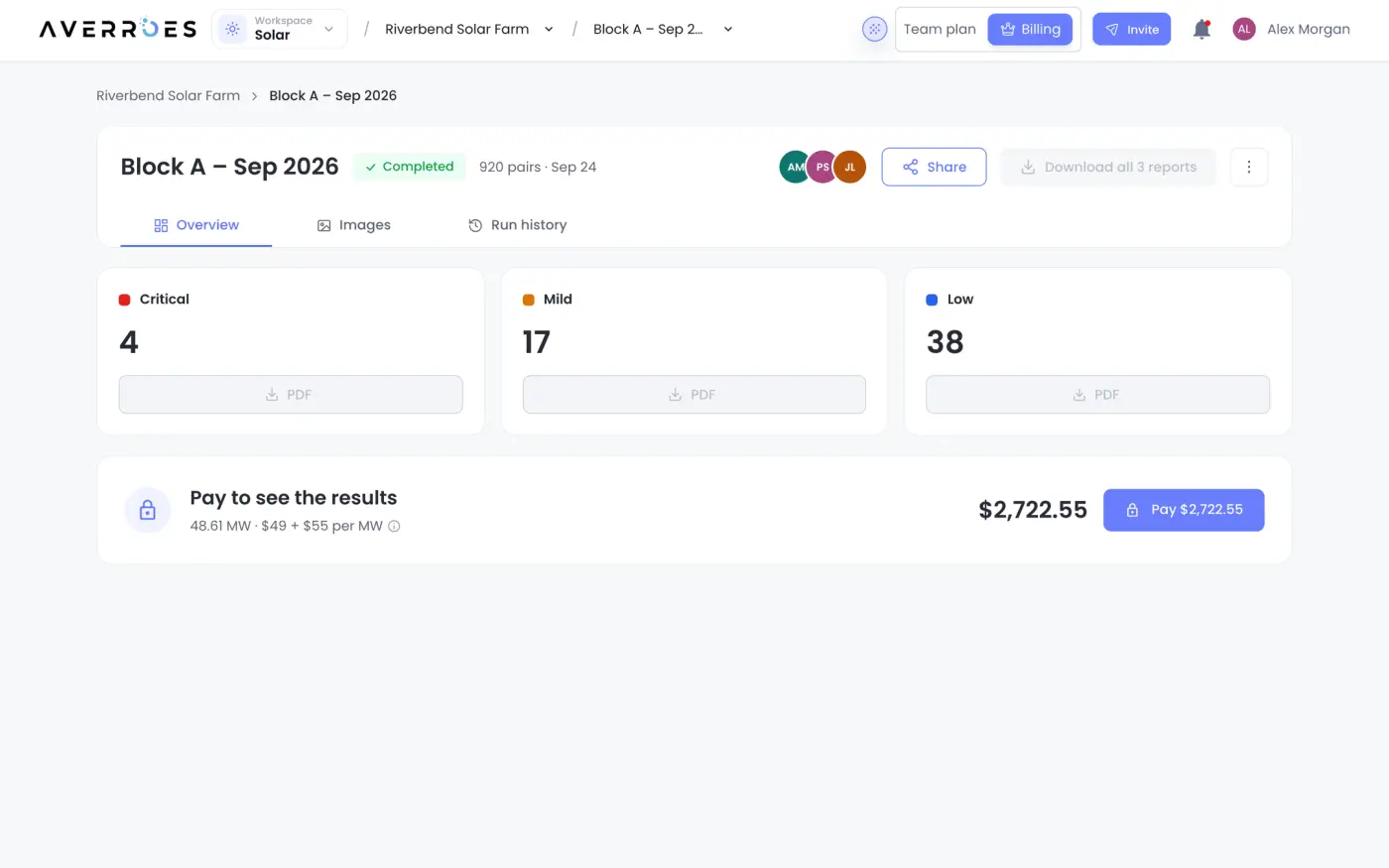
The price is the plan's base fee plus the report's size in MW times the price per MW:
- The size comes from the Site peak power in the report details. Without it, it's the panels the run counted times the Panel power (or a usual panel: 410 W on a rooftop, 540 W on a farm). If neither is known, the report counts as 1 MW.
- A report is at least 1 MW, and is priced to 0.01 MW.
- Over 100 MW, the plan's rate for larger reports applies to every MW.
- Every report is paid on its own, including one you generate again.
- Click Pay next to the price.
- Pick a saved card, or Add new Card.
- Click Pay. The results and PDFs unlock. Download invoice saves the invoice, which is also listed under Settings › Billing.
If the card is declined, the dialog says Your card was declined: try another card. If it says We couldn't start the payment, the problem was on our side and the card wasn't tried: click Try again in a moment. Neither one charges you.
Only billing admins can pay. Everyone else sees Ask an admin, which sends your billing admins a note with a link to the flight.
The free trial report
On the Free plan, your organization can generate one trial report, free. It has an Averroes watermark across every page, and has two limits:
- Up to 0.5 MW. With a Site peak power in the report details, a larger site can't use the trial.
- Up to 1,700 photos. Every photo of the flight counts, including ones still being checked.
When a limit stops the trial, or once it's used (Your free trial report is used), Generate report is greyed out and says why, with Upgrade plan. If photos added after the run started take the flight past 1,700, the run stops with Too many photos for the free trial. A trial run that's cancelled, or fails without a report, gives the trial back.
Cancel a run
- On the flight's Overview, click Cancel.
- In Cancel this run?, click Cancel run. Keep running closes the dialog without stopping it.
The flight shows You cancelled this run, or who cancelled it. A cancelled run can't be resumed or retried; click Generate report again to process the photos again. The people the run would have told are told it was cancelled.
Retry a run
When a run fails, its card says what went wrong and offers Retry if retrying can help. Retrying runs the failed and skipped steps again, along with the steps after them, and keeps the steps that worked. The card then reads Retrying, and the kept steps are marked Kept.
If the card says Panel rows missing from the site map, the map left out the panel rows. Retrying builds the site map again before it locates the panels, since the same photos can stitch differently. If it keeps failing, check that the photos cover the panel rows with enough overlap.
Only the latest run of a flight can be retried, and only once nothing is still running. A run that stopped with nothing running, for example after a step took too long, can be retried too.
Fix a run that stopped
A failed run's card names the problem, gives the details and suggests the fix. The main button depends on the kind of problem:
| Button | When | What to do |
|---|---|---|
| Retry | Something went wrong on our side, such as a server that didn't start or a step that took too long | Retry. If it keeps failing, click Get help |
| Upload a new flight | The flight itself can't be used, for example Photos don't overlap enough | Fly the site again with more overlap and upload the new flight. Retrying won't help |
| Replace photos | Some photos can't be used, for example the thermal and RGB photos couldn't be lined up | Replace the problem photos with the originals, then retry |
| Retry reports | Only the reports failed. Results are ready, the PDF reports aren't | Retry the reports. The results are already on the page |
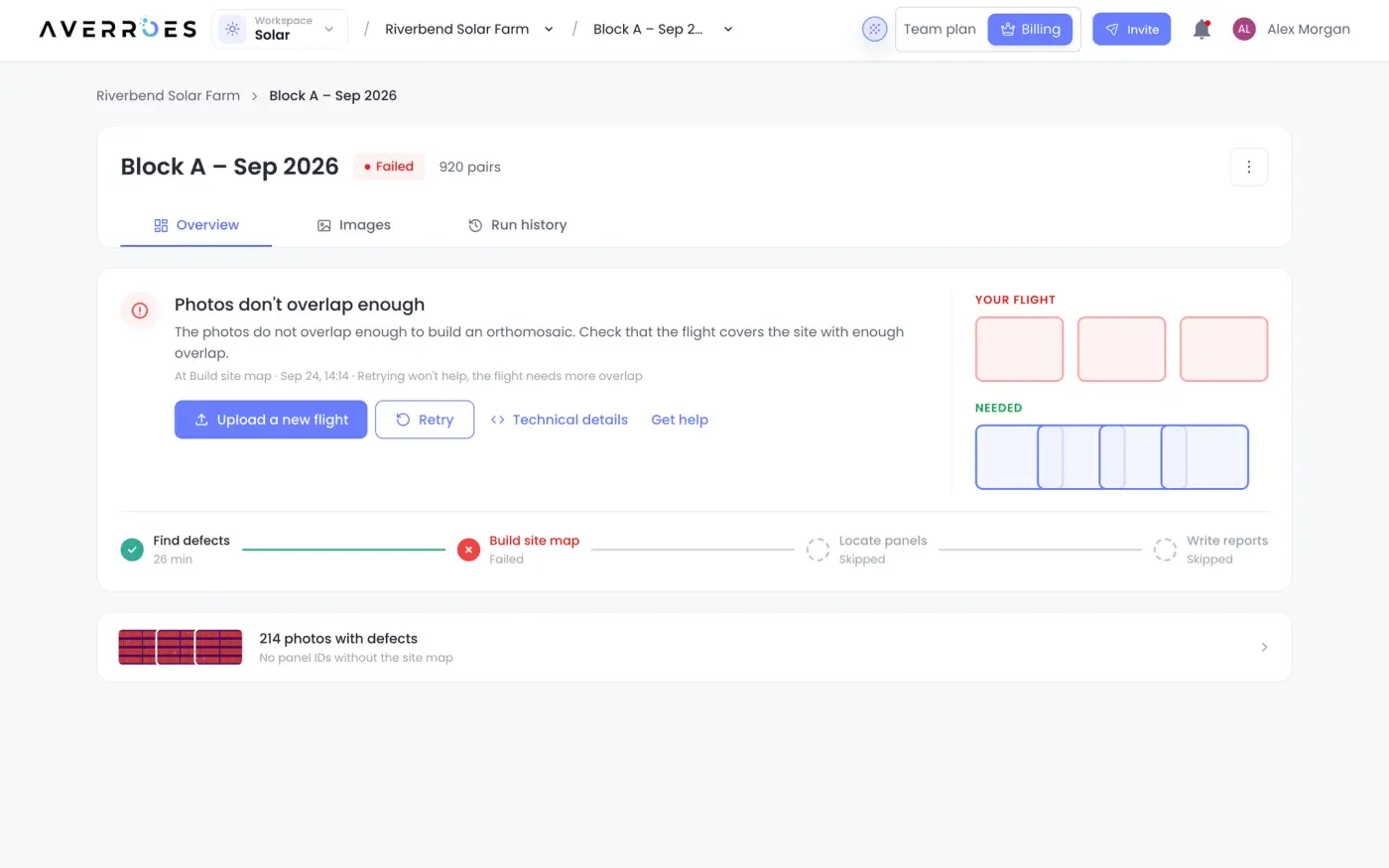
The steps under the card show where the run stopped: a red cross on the step that failed, and a dashed circle on the steps it skipped. Below them, a second card shows what the run found before it stopped, such as the photos with defects.
A run can also refuse to start:
| Message | What to do |
|---|---|
| A run is already going for this flight | Click View run to follow it, or cancel it first |
| "Couldn't check the photos. Try again in a minute." | A temporary problem on our side. Try again |
| "Thermal info missing: …" or "… no matching thermal and RGB image pairs" | Fix the problems in Check photos first |
See a flight's earlier runs
Run history lists every run of the flight, newest first, with when it started, its status and what it found. Open the latest one on Overview, or click Details on an older failed run to see its technical details. PDFs opens the reports of each completed run.