Reviewing Labeled Work
Mark images and labels as correct or incorrect in a review task, and raise issues on images that need fixing.
A review task is a second pass over images someone has already labeled. The reviewer works on the same labeling canvas, with one addition: a Review result card for marking each image, or each label on it, as correct or incorrect.
Those verdicts feed the Correct and Incorrect counts on the task, the rejection rate in its details, and the per-person accuracy and rejection rates on the project's Tasks Management page. Creating review tasks is covered in Tasks.
Open an image to review
- Open the review task, from the repository's Dataset Tasks page or with Explore Task on Tasks Management.
- Click an image in the task.
The canvas opens with the labeler's work on it and the Review result card at the top of the Labeling tab on the right.
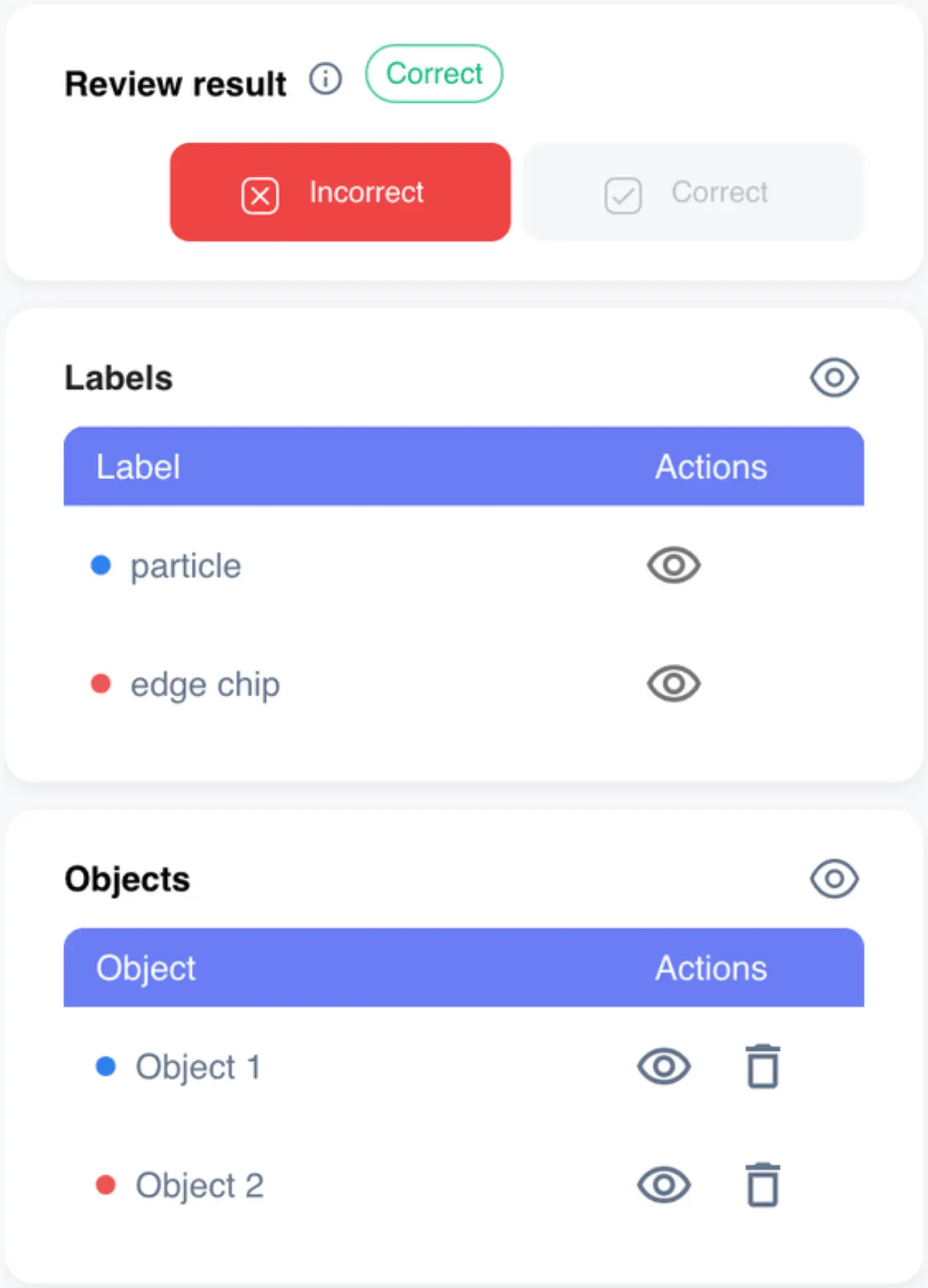
The card only appears on images opened from a review task. The same image opened from the repository, or from a labeling task, has no review buttons. The thumbnail strip stays inside the task, so you can move from image to image without losing them.
Judge the whole image
With nothing selected on the canvas, your verdict covers the whole image.
- Correct means the labeling on this image is right as it stands.
- Incorrect means something on it is wrong.
The shortcuts are Ctrl + C for correct and Ctrl + I for incorrect (Cmd on a Mac), as the button tooltips say. Ctrl + C still copies if you have text selected.
Judge a single label
Select one object, either on the canvas or in the Objects card. The buttons now apply to that label alone, and the chip next to Review result shows that label's verdict. The info icon beside the heading says the same thing.
Clear the selection to go back to judging the whole image. There's no separate switch; what you have selected decides it.
Change a verdict
Once judged, a Correct or Incorrect chip appears next to Review result, and the button matching the current verdict is greyed out. To change your mind, click the other button. A verdict can be flipped but not cleared.
Judged images are marked where you'll look for them:
- The thumbnail in the strip gets a Correct or Incorrect badge (tooltip Reviewed: correct or Reviewed: incorrect).
- In the task's table view, the Review column reads Correct, Incorrect or Pending.
- The task's Status filter can show only Reviewed or Not reviewed images.
- The Image details card shows who reviewed it under Reviewer.
Fix labels while you review
A reviewer gets the full canvas, not a read-only copy. If you can write media in the repository, you can redraw a box, change a class or delete an object as the labeler would. See Labeling Images.
Judging and editing are separate. Marking a label incorrect doesn't change it, and fixing a label doesn't mark it reviewed.
Raise an issue on an image
When something needs someone else's attention, such as a missed defect or a label in the wrong place, raise an issue. An issue is a small task attached to one image, or to one label on it, with its own assignee and due date.
- Open the image on the canvas. To attach the issue to a single label, select that object first.
- Open the Issues tab in the right-hand panel.
- Click the + beside Issues.
- Fill in the Create New Issue dialog: Issue Name, Issue Type, Due Date, Assignee and, optionally, a description.
- Click Create Issue.
The dialog's header shows what the issue is attached to: the image's name, or the label's ID.
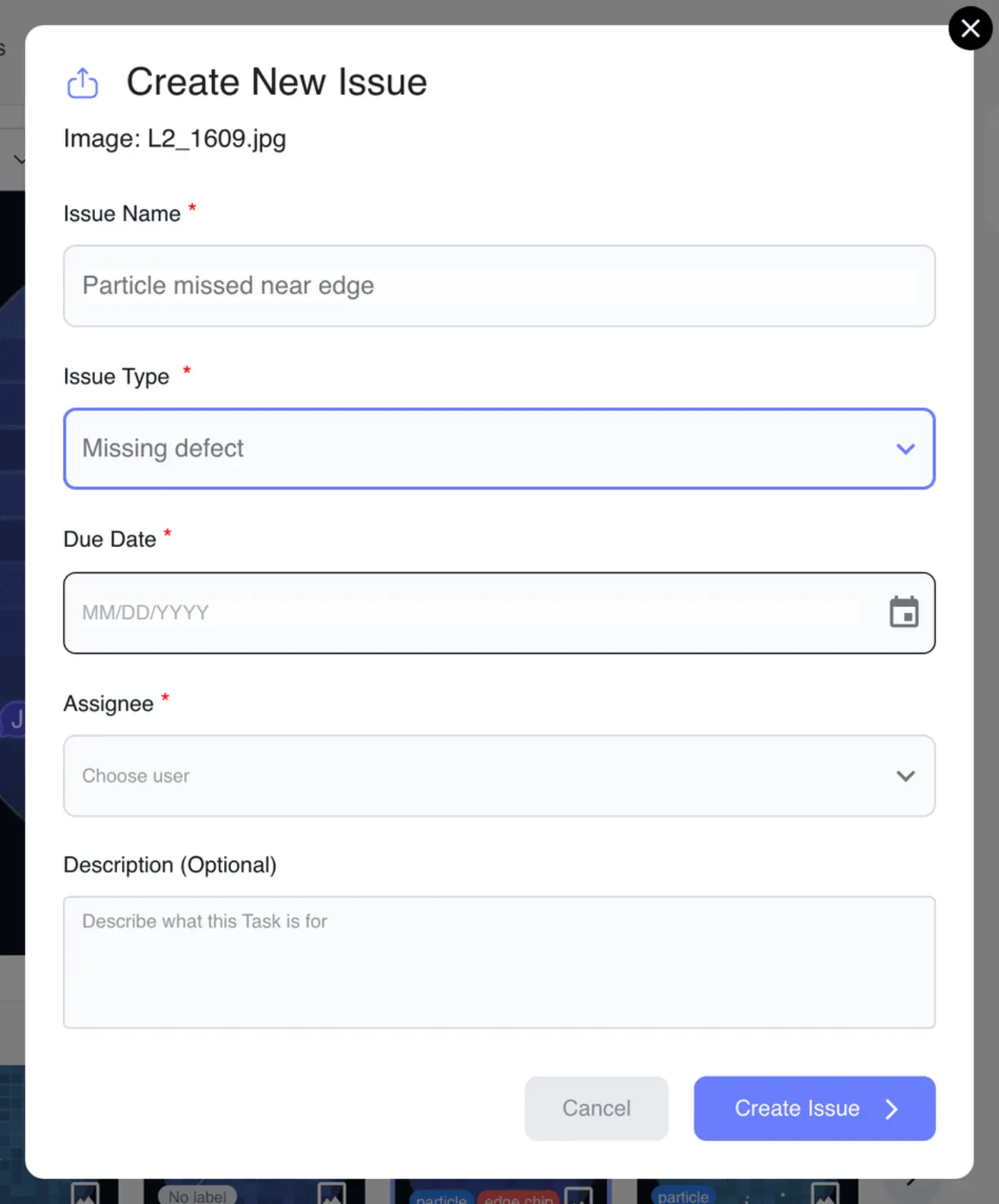
| Issue type | Use it when |
|---|---|
| General | anything that doesn't fit the others |
| Missing defect | something that should be labeled isn't |
| Not a defect | something is labeled that shouldn't be |
| Wrong label | a shape has the wrong class |
| Wrong position | a shape is in the wrong place or the wrong size |
The due date has to be tomorrow or later, and the assignee list holds the people with access to the repository.
Resolve or delete an issue
The Issues tab lists the image's issues with their type, description and due date (or There are no issues yet on this media.). With an object selected, it lists only that object's issues.
- The tick marks an issue resolved. It then shows a Resolved chip.
- The bin deletes it, after you confirm with Yes, Delete.
Issues also appear on the repository's Dataset Tasks page with the type Issue, so they can be filtered, assigned and tracked like other tasks. Marking one Completed there doesn't ask for confirmation.
Raising, resolving and deleting issues needs permission to write tasks; without it the +, tick and bin are hidden. Without permission to read tasks, the Issues tab doesn't appear at all.
What differs between labeling and review tasks
| Labeling task | Review task | |
|---|---|---|
| Drawing tools | yes, if you can write media | yes, if you can write media |
| Review result card | no | yes |
| Correct and Incorrect on the task | N/A | counts of judged images |
| Rejection Rate in Task Details | no | yes |
| Status filter | Labeled / Unlabeled | Reviewed / Not reviewed |
| Create Review Task in its menu | yes | no |