Testing a Model and API Integration
Try a trained model on a few images, then call it from your own software over the API.
Once a model has finished training, try it on images you choose before you rely on it. When it behaves, connect it to your own software through the API.
Test a model from the repository
In the repository, open Models and click Test on a trained model. Test only works while the model is running; if it's greyed out with Run model first to enable testing, click the run button on the model first and wait for it to start (see Models).
The Test Model panel opens on the right, with two ways to pick images.
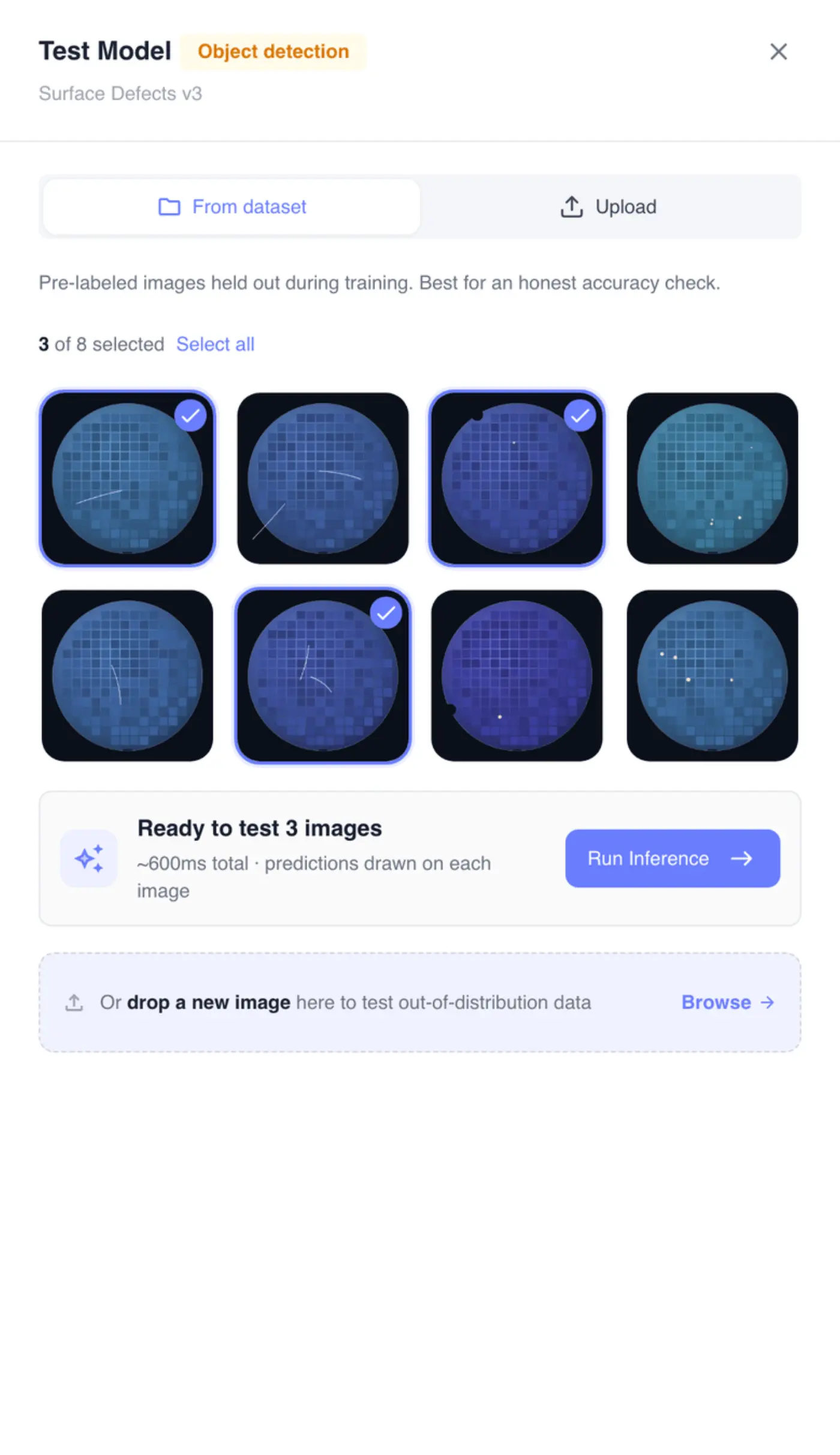
From dataset shows up to 8 images from the repository version you're on.
- Click images to select them, or use Select all.
- Click Run Inference.
Upload is for images the model has never seen, such as a new batch or a different camera.
- Drop images on Upload images to test, or click Browse. You can add up to 8.
- Click Run Inference on followed by the number of images. The button shows Running… with a count as results come in.
If the model stopped in the meantime, you'll see Model is not running. Please run the model first.
Read the test results
Predictions are drawn on each image in their class colors. Each card lists its Detected labels; one the model couldn't process says Inference failed. Click an image to open it full screen, where you can zoom in and step through the set with the arrow keys.
The Predictions list shows each prediction with its Confidence, and Label Statistics counts what the model found across the run.
Clear all and start over empties the panel. Nothing from a test is saved: your labels don't change and the model isn't updated.
Get the API endpoints for a model
In the repository's Models panel, click API on a trained model. The API Integration panel lists four endpoints, each with example code in cURL, .NET, Node and Python.
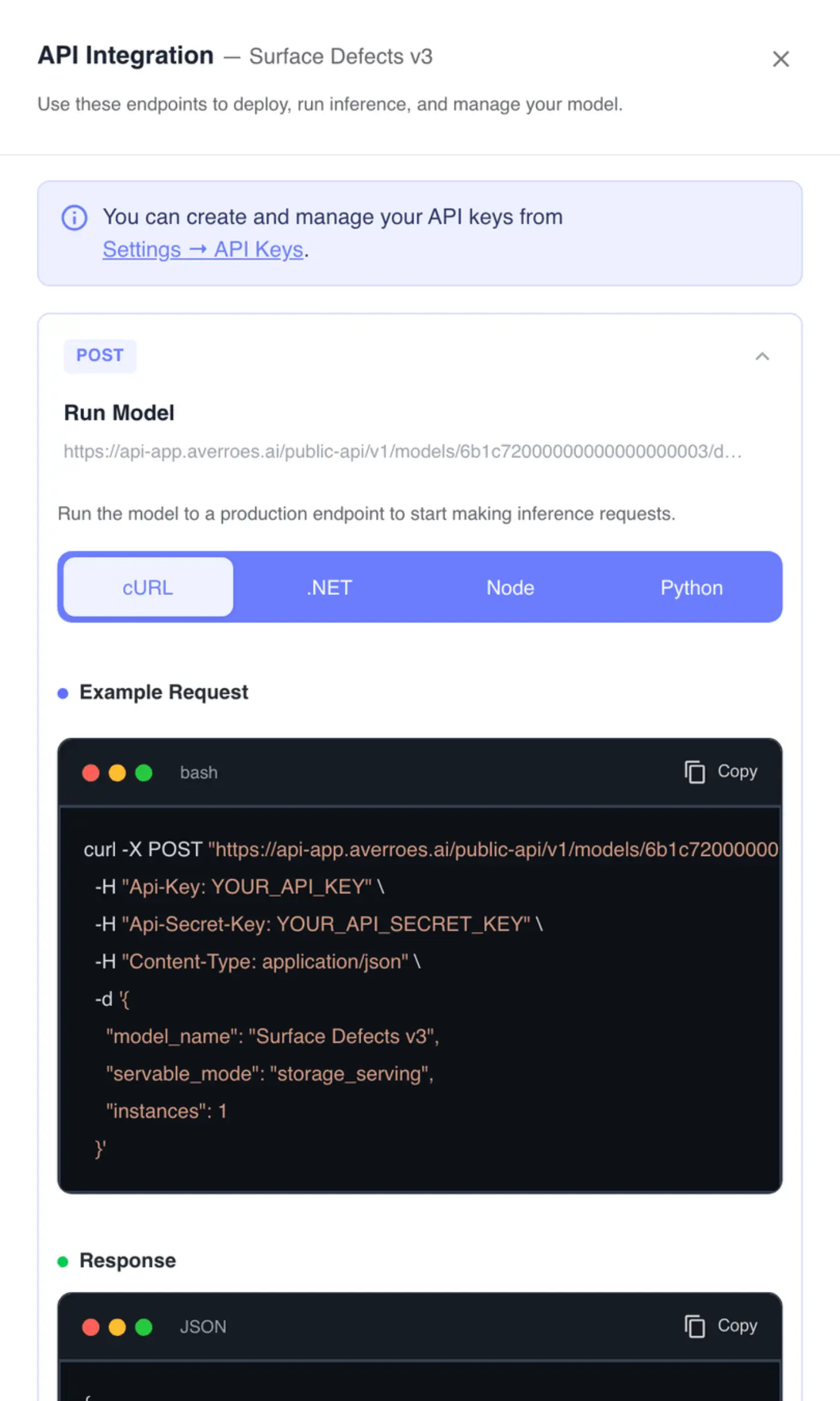
| Endpoint | What it does |
|---|---|
| Run Model | Deploys the model so it can take requests. Same as running it in the app |
| Get Model Status | Tells you whether the model is deployed |
| Run Inference | Sends one base64-encoded image and returns the predictions |
| Stop Model | Stops the model and releases its resources |
Expand an endpoint, pick a language, and use Copy on Example Request or Response. The examples already contain the model's id and name. Opening this panel doesn't change anything.
Call a model from your own software
Every request needs an API key and secret, sent as the Api-Key and Api-Secret-Key headers. The examples show them as YOUR_API_KEY and YOUR_API_SECRET_KEY; replace both. Create keys in Settings → API Keys, which the banner in the API Integration panel links to. See API Keys and API Docs.
The usual order:
- Call Run Model once. Starting a model takes a while, so don't send images straight away.
- Call Get Model Status until it reports the model is deployed.
- Send each image to Run Inference and read the predictions from the response.
- Call Stop Model when you're done.
A deployed model keeps using resources until it's stopped. If you only need predictions for a nightly run, start and stop the model around it.
Treat API keys like passwords. Keep them in environment variables or a secrets store rather than in code, and replace a key if it leaks.