Plans and Long-Running Tasks
Approve a multi-step request once and let Vero finish it, follow its progress, and stop it when you need to.
Some requests take more than one action, such as Label the edge chips in rework, save a new version, then train v5. Instead of stopping to ask before every step, Vero writes a plan, you approve it once, and Vero works through it to the end, even when one step waits on a job that takes an hour.
Approve a plan
When your request needs several kinds of changes, Vero replies with the plan as a numbered list, one line per step saying what it will do and why. Under it, a plan card asks for your go-ahead: Approve the plan above once and I'll do every step without stopping to ask.
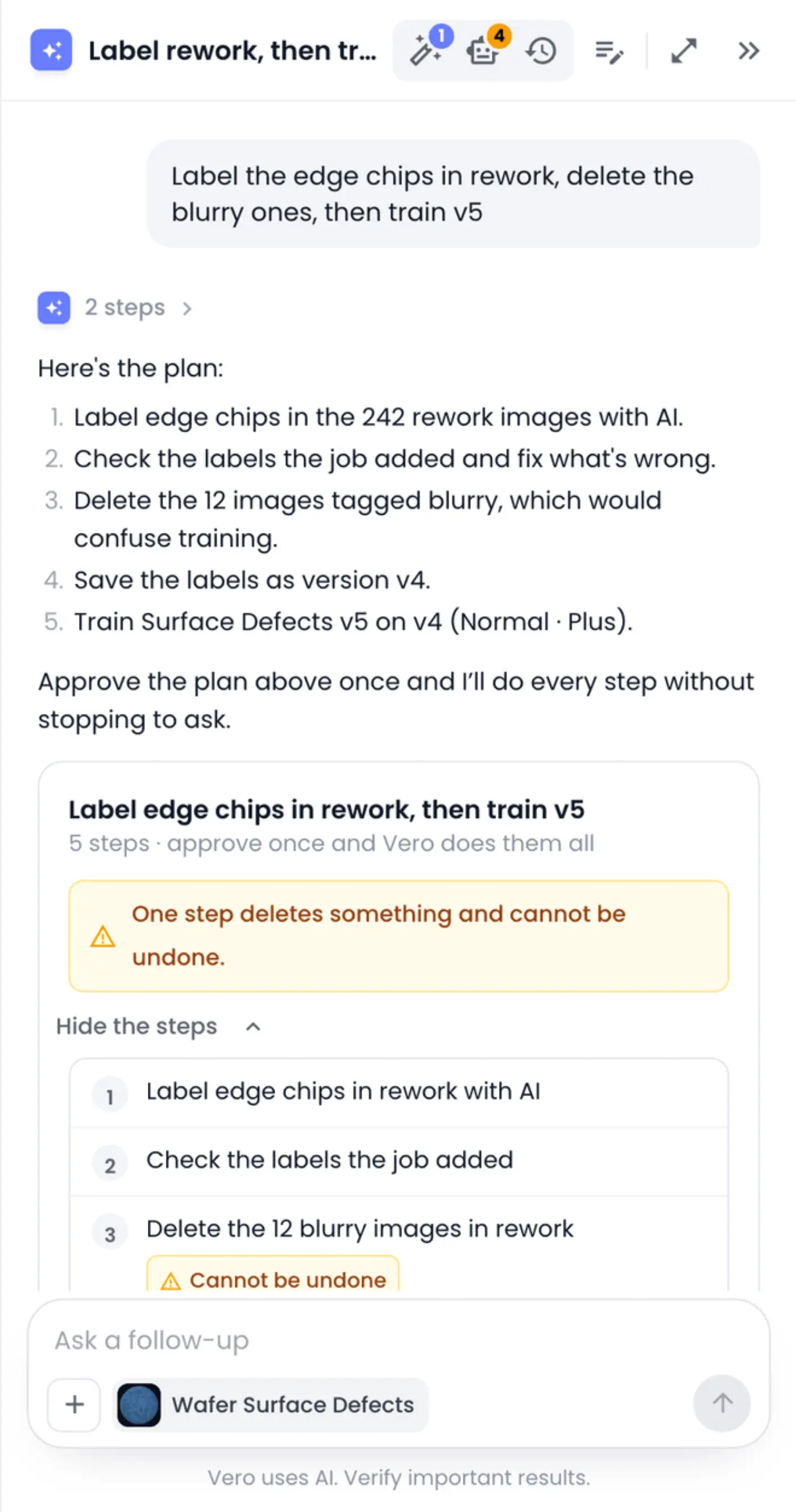
The card shows the plan's title and how many steps it has. Click Show the steps you're approving to see exactly what the approval covers. When a step deletes something, the card warns you (One step deletes something and cannot be undone.) and marks that step Cannot be undone.
Then choose:
- Approve plan to let Vero carry out every step without asking again.
- Change plan to say what to do differently. Type it in What should Vero change? and click Send changes. Vero writes a new plan for you to approve. Back returns to the buttons.
- Cancel to drop the plan. Nothing in it runs.
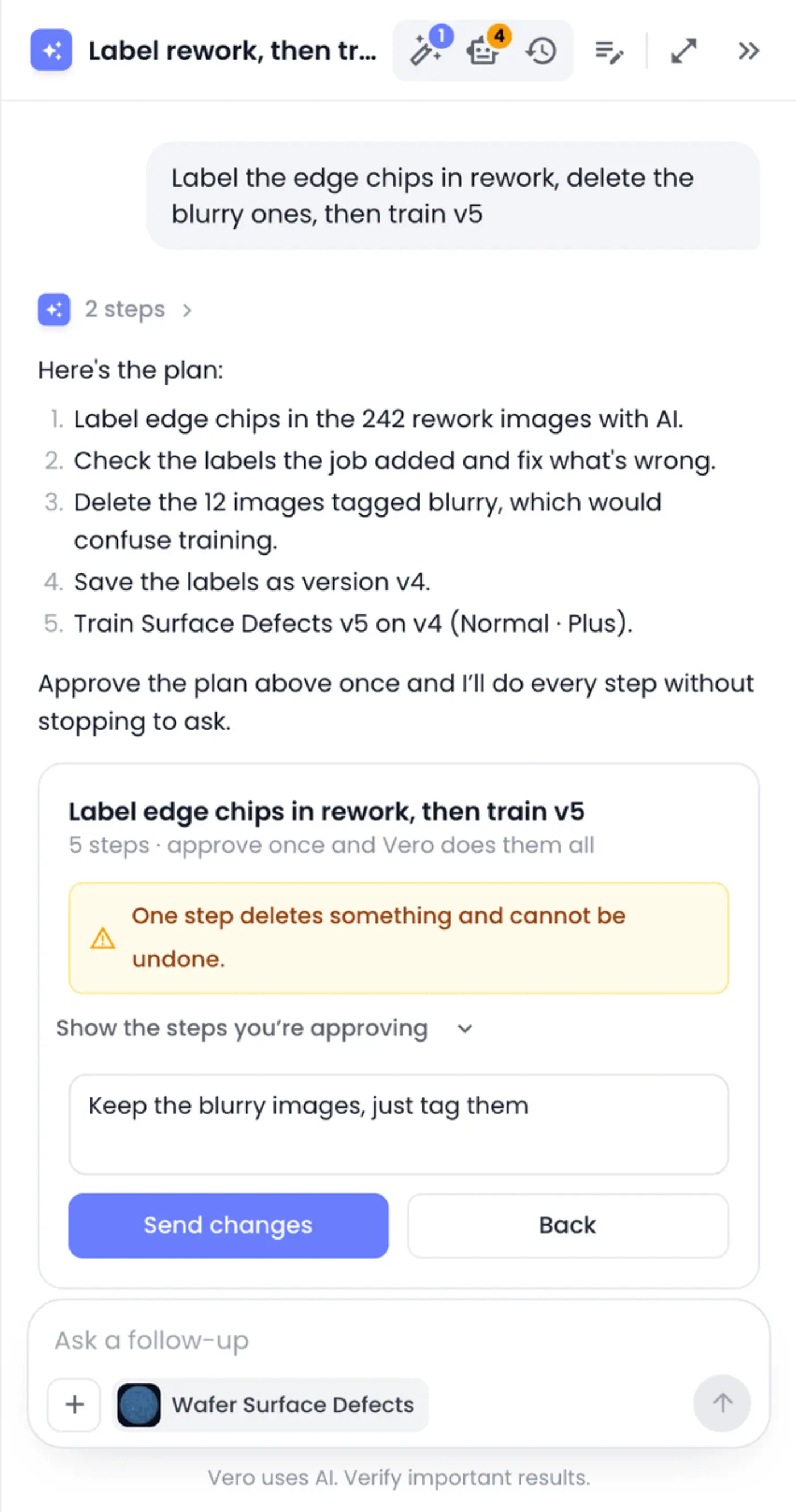
A plan has at most 15 steps. For anything bigger, split your request in two.
Know what a plan approval covers
Approving a plan lets Vero do the steps it listed, nothing else.
- Vero can delete something only when a step says so, and that step is flagged on the card.
- If Vero gets stuck on a step and needs your answer, it stops and asks. Anything else that changes your data then needs your approval again until the plan moves on.
- An approval is for finishing the plan, not a standing permission. If the plan has made no progress for a couple of hours, Vero asks again before changing anything. A plan that hasn't finished after a day is closed.
You can only have one plan open in a chat at a time. Start a new chat for an unrelated request.
Follow a plan while it runs
Once you approve, the plan sits above the message box: its title, how many steps are done (2/4, for example) and a line saying what's happening. Each step ticks off as Vero finishes it.
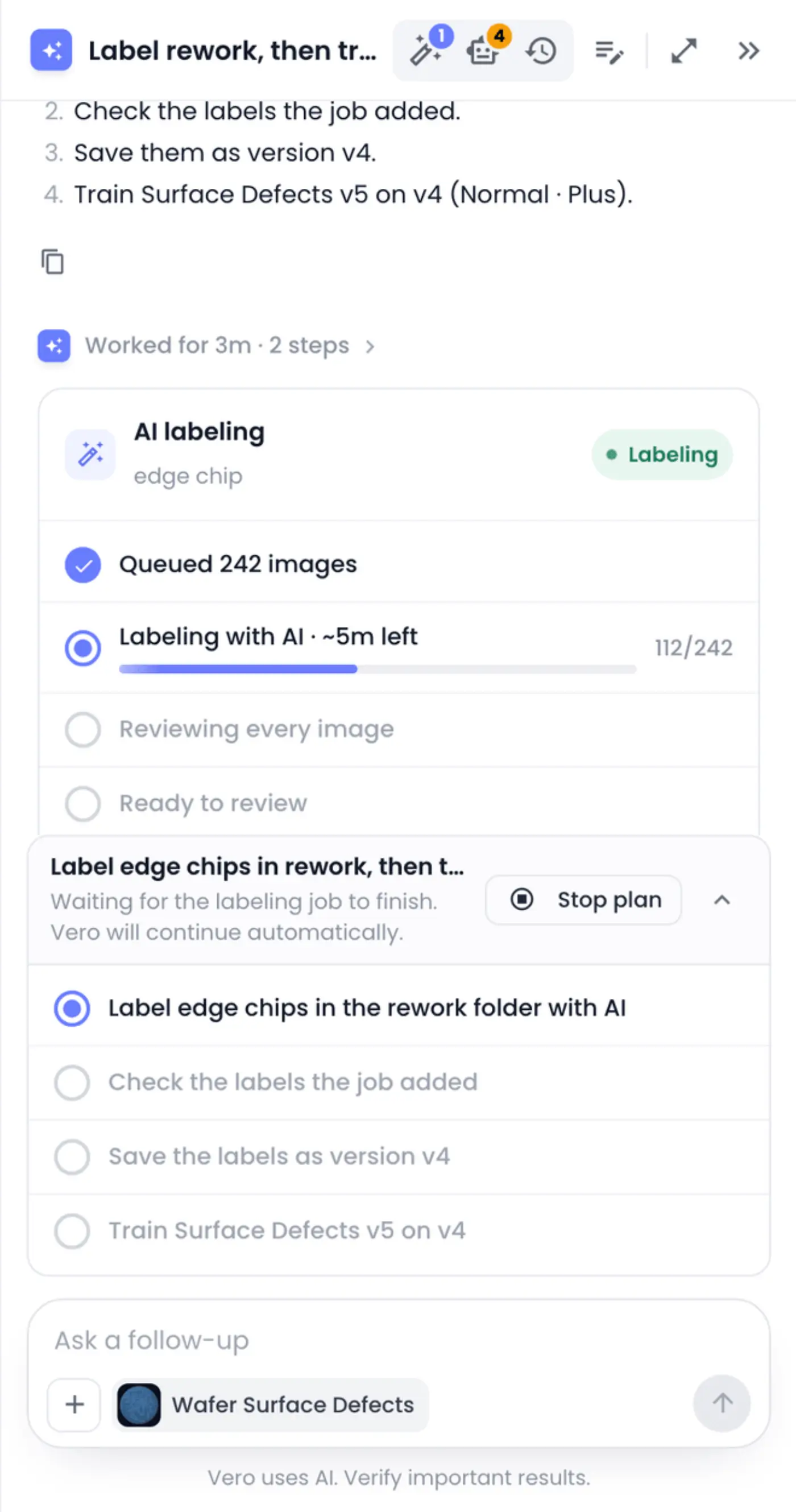
The line under the title tells you where things are:
| It says | What it means |
|---|---|
| 2 of 4 steps done | Vero is working through the steps. |
| Waiting for the labeling job to finish. Vero will continue automatically. | A step started an AI labeling job. Vero picks the plan up again when the job, and its check of the labels, are done. |
| Vero will continue automatically in a moment. | Vero paused between steps, for example after a long stretch of work, and is about to carry on. |
| Vero needs your answer to go on. | A step is stuck. Read Vero's last message and reply. |
| Done · 4 of 4 steps | The plan is finished. |
| Stopped by you. | You stopped the plan. |
Click the arrow beside Stop plan to hide or show the steps.
Let Vero continue while you're away
A plan keeps going without you. When a step waits on an AI labeling job, Vero ends its reply with a sentence saying so, and the job card in the chat shows its progress. When the job finishes, Vero continues with the next step by itself and writes a new reply in the same chat.
You can close the panel, move to another page or close the tab while this happens. If the chat is open when Vero continues, the new reply appears as it's written; otherwise it's there the next time you open the chat from Chat history.
Stop a plan
Click Stop plan above the message box. Nothing more of the plan runs, now or after a job it's waiting for. Steps already done stay done, and a labeling job that's already running keeps running; stop it from the job card or the AI labeling list if you need to (see AI Labeling with Vero).
Clicking Stop in the message box while Vero is replying also stops the open plan.
Work that keeps running after Vero replies
Some things Vero starts take longer than a reply. Vero hands them over to the app and shows a card that keeps itself up to date, so you don't have to ask how they're going.
-
An AI labeling job shows a job card in the chat and appears in the AI labeling list in the panel header. A notification arrives when it finishes.
-
Training a model shows a training card with its progress and an Open model button. A notification arrives when the model is ready; see Build a Model.
-
A custom dashboard shows a step reading Building the dashboard while Vero writes it, then a link to it.
-
A scheduled agent shows Writing the script, then the agent's test run, and then appears in the Agents list; see Vero Agents.
-
A one-off bulk change, such as tagging every blurry image in a folder, is done with a small script. Vero runs it once as a trial that changes nothing, checks what it would do, then runs it for real.
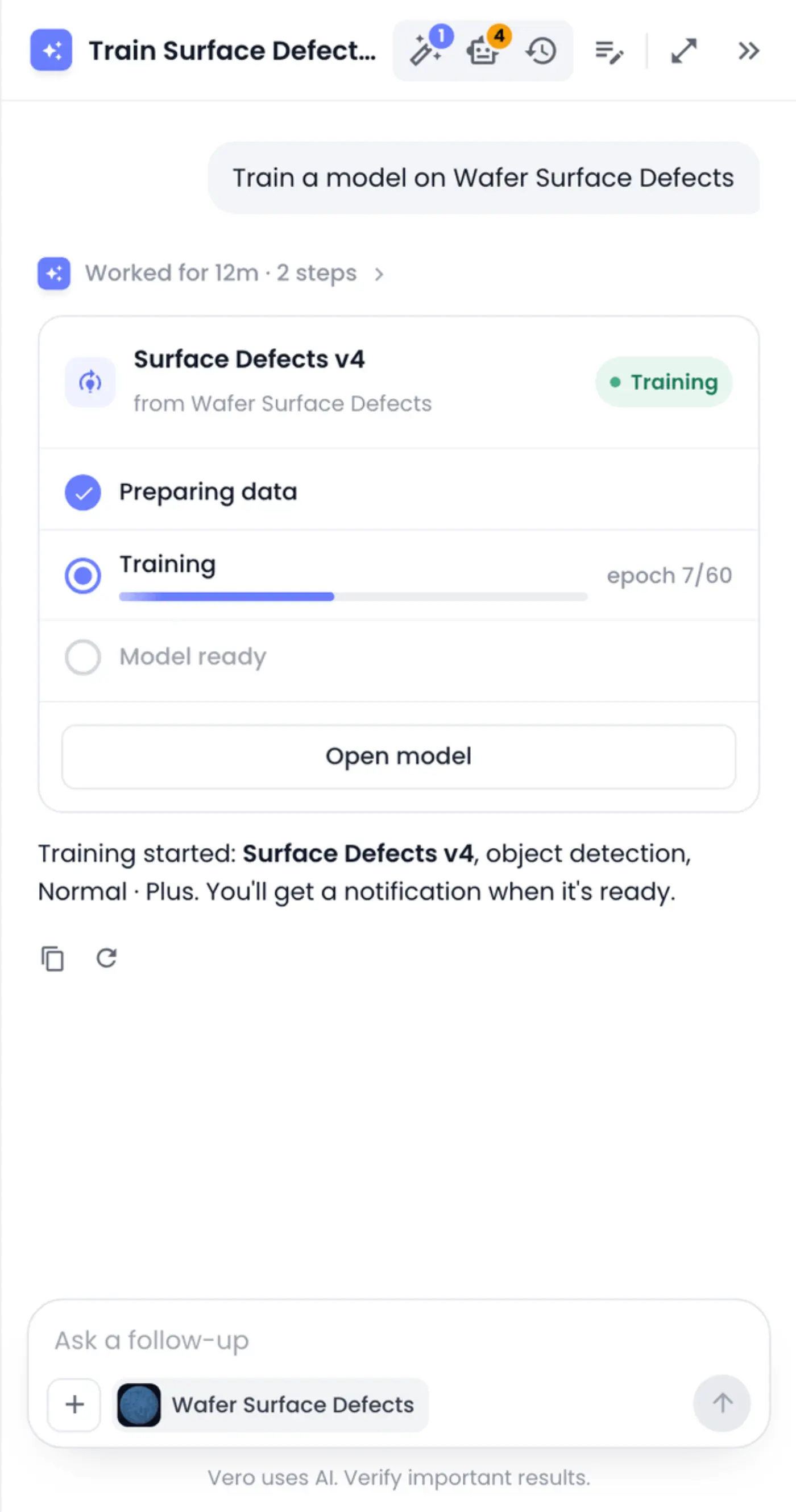
Vero won't promise to check back on these later. The cards and notifications do that for you, so you can close the chat and get on with something else.
Keep one reply going at a time
Vero writes one reply at a time in each chat. While it's working, the message box shows Vero is responding… and waits. To ask about something else meanwhile, click New chat: the first chat keeps going in the background, and you can come back to it from Chat history.
A single reply runs for up to about ten minutes. When a plan needs longer, Vero pauses and continues by itself, as described above.