Navigating Your Workspace
Read the header, switch between the General, PCB and Solar workspaces, move between projects and repositories, and find notifications, running tasks and your account menu.
The header across the top of every page is where you move around: it tells you which project and repository you're in, and it holds your notifications and account menu. The app needs a desktop or laptop screen. On a narrow window it shows Please access the platform using a desktop or laptop. in place of the page.

Read the left side of the header
From left to right:
- The logo takes you back to the repository list of the project you're in, or to the home page if you aren't in one.
- The Workspace switcher shows which kind of project you're in: General, PCB or Solar.
- After a slash, the name of the current project. Click it to switch project.
- Inside a repository, another slash and the repository's name. Click it to jump to another repository in the same project.
On the home page of a workspace that has no projects yet, the project slot reads No project yet.
Switch workspaces
The Workspace switcher doesn't change organization. It switches between the kinds of project a workspace can hold.
| Option | What it shows |
|---|---|
| General | Datasets, models & monitors: repositories, labeling, training and everything built on them |
| PCB | Inspection lines & templates for PCB inspection |
| Solar | Solar panel datasets & models: drone inspections of solar sites |
Picking another option takes you to the default project of that kind, or to its start screen if there is none. The choice is remembered in your browser, so you come back to the same side next time. See PCB Inspection for the PCB side and Solar Sites and Flights for the Solar side.
Solar is available only if your plan includes it. Otherwise it's greyed out, with the tooltip Solar is not included in your current plan.
Move between projects and repositories
Click the project name to open the projects menu. It lists every project of the current kind, with a green dot beside the one you're in and blue dots beside the rest. Hover a long name to see it in full. Create new project at the bottom opens the new-project form; it's hidden if your role can't create projects. See Projects.
Inside a repository, click the repository name to open the repositories menu. The one you're in is tagged current. Create New Repository at the bottom creates another one in the same project (in a PCB project the item reads Create Inspection Line, and on a Solar site, where the menu lists flights, New flight).
Use the right side of the header
- The plan chip names your plan. Upgrade beside it opens the plan picker on a free plan; on a paid plan it reads Billing and opens billing settings.
- Past due payment appears in red when a payment has failed. It opens billing so you can settle it, and is disabled (with the reason on hover) if your role can't change the plan.
- Invite appears for workspace super admins who can manage users. It opens the invitation form described in Team Members and Roles.
- The bell opens your notifications.
- Your avatar and name open your account menu.
Check your notifications
A red dot on the bell means something is unread. The panel groups notifications under Today and Older, newest first, with the unread count beside the title.
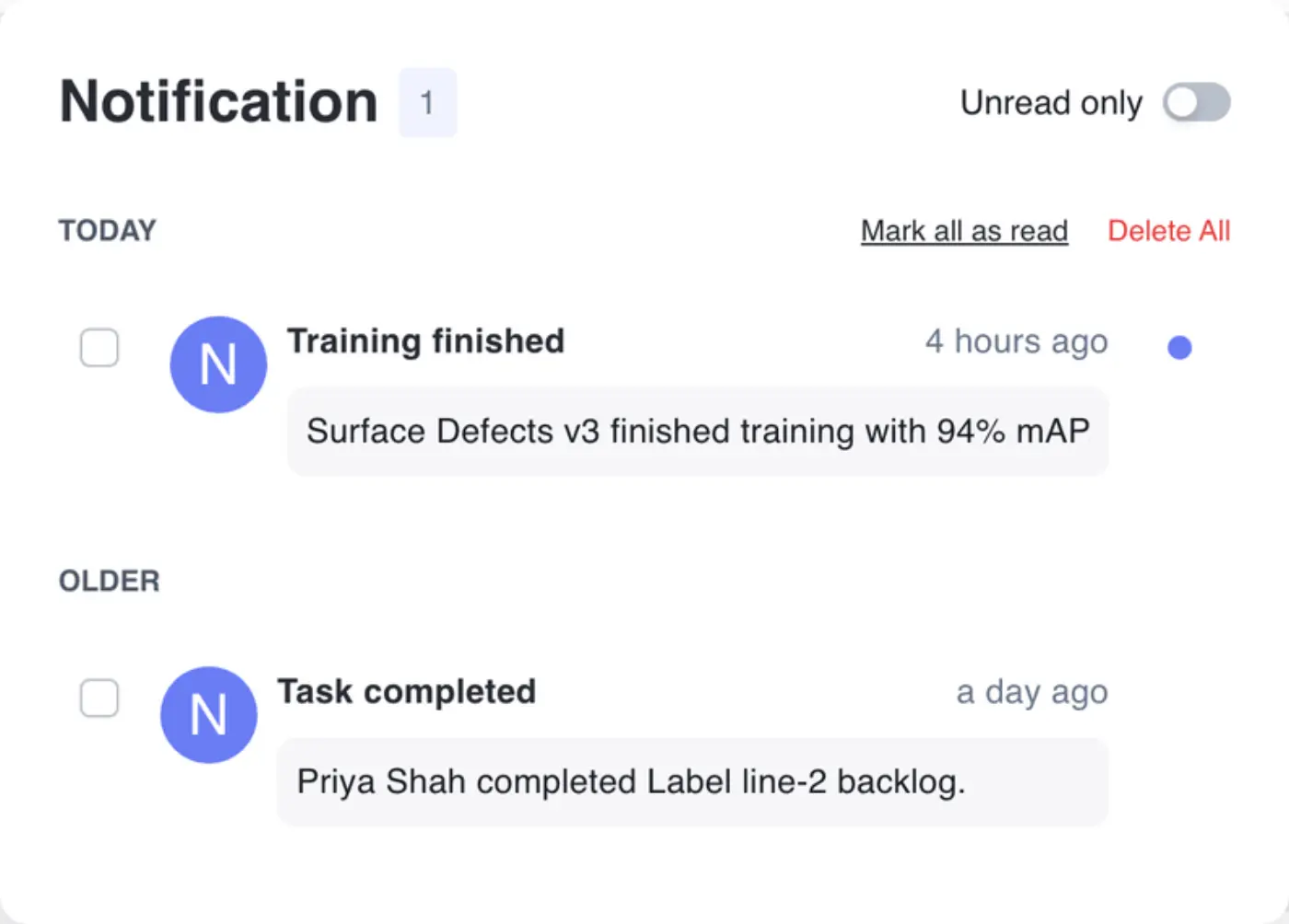
Clicking a notification marks it read and takes you to what it's about: a finished training run or deployment, a task assigned to you, a completed import or auto-labeling run, a batch prediction, a monitor alert, or an image someone shared with you.
- Unread only hides everything you've already read.
- Mark all as read clears the dot without opening anything.
- Tick the boxes beside notifications and click Delete to remove just those.
- Delete All empties the list after you confirm in Confirm Notifications Deletion. It can't be undone.
An empty list reads Not a Peep!
Use your account menu
The menu under your name starts with your email address. Some rows depend on your role.
| Row | What it does |
|---|---|
| Switch organization | Hover it to list every workspace you belong to, with a tick beside the current one. Picking another signs you into it and reloads the app on its home page. |
| Settings | Opens workspace settings on the billing page. |
| API Keys | Opens your API keys. Shown if your role can read or manage keys. |
| Action Log | Opens the record of who changed what. Shown to workspace super admins only. |
| API Reference | Opens the API documentation. |
| Help Docs | Opens these articles. |
| Logout | Signs you out. |
Averroes staff also see Admin settings, which isn't part of a customer workspace.
Move around inside a project
There's no navigation column. You move around from the header and from the pages themselves:
- The repository list's side panel has a tasks icon, which opens the project's task board, and a gear icon, which opens project settings.
- Models live with the repository they were trained from. Open the repository and click Models (or Build a Model if it has none yet).
- Workspace-wide pages (settings, API keys, the action log) are in your account menu.
Find help
Help Docs in your account menu opens these articles, and some dialogs link straight to the article that explains them.
You can also ask Vero, the assistant on the right of most pages, how to do something. It answers from these articles and links the one it used, and it can often do the task for you. See Vero.
When a control is greyed out
- If your role doesn't allow an action, the button or menu item stays visible but disabled, and hovering it names the permission you're missing. Ask a workspace admin; see Roles and Permissions Reference.
- If your plan doesn't include a feature, clicking it opens an upgrade prompt with Upgrade now instead. See Plans and Billing.