Models
Find the models trained in a project, read their status, deploy them, and clean up the ones you no longer need.
A model is what you get when you train on a repository. Every model belongs to the repository and version it learned from, and you can reach it from two places: the AI Models panel inside that repository, and (in Averroes AI workspaces) the project's Models page, which lists every model in the project.
Open the AI Models panel in a repository
Open a repository. The button at the right of its header says Build a Model until the repository has at least one model, then it changes to Models. Click Models to open the AI Models panel, a list of every model trained from this repository, newest first.
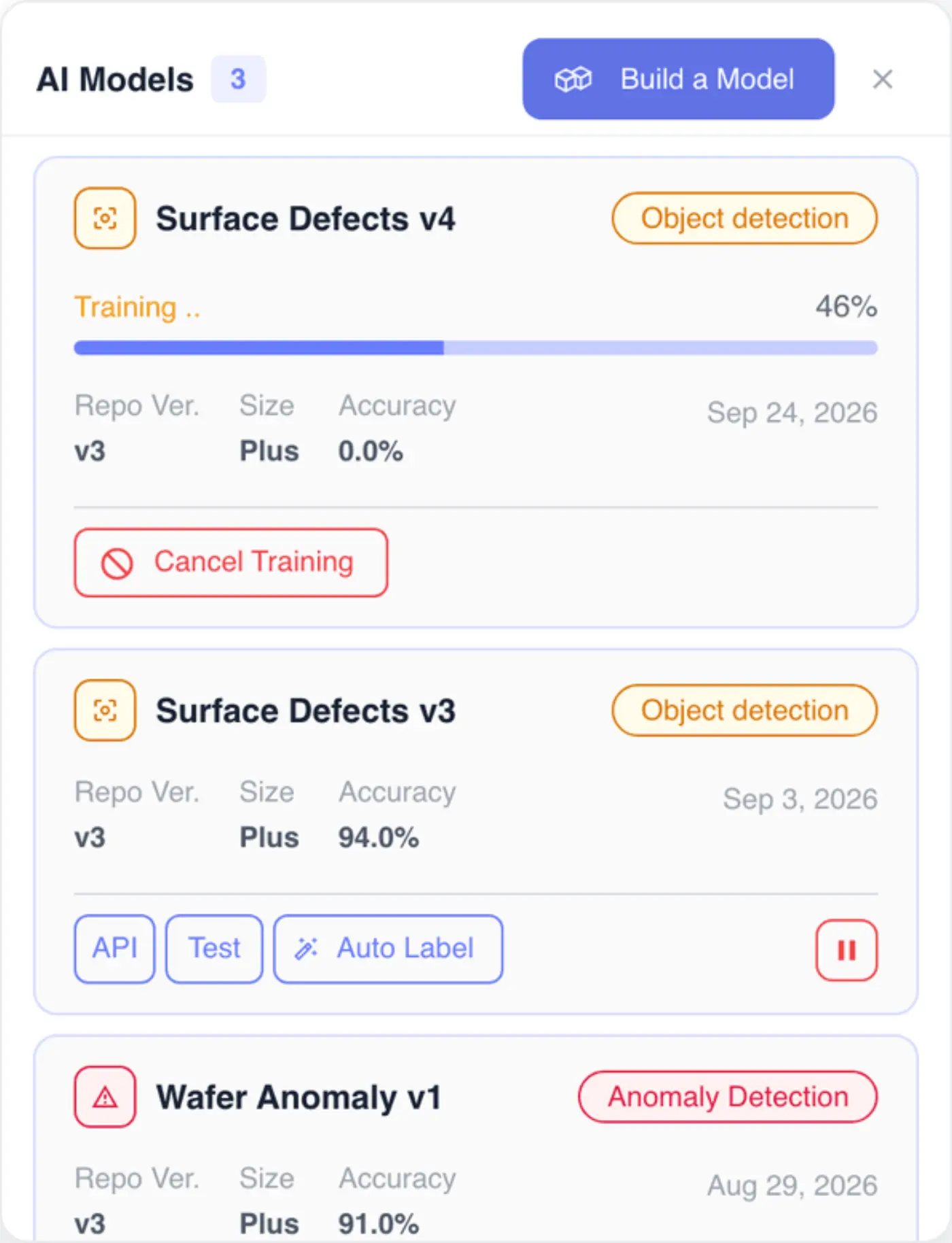
Each entry shows the model's type, the Repo Ver. it was trained on, its Size (Mini or Plus), its Accuracy once training has finished, and the date it was trained. Click the name to rename it.
The buttons along the bottom depend on where the model is:
| Model state | What you can do |
|---|---|
| Training | Cancel Training. This stops the run and deletes the model, so there's nothing to resume later. |
| Failed | Delete |
| Trained | API opens the endpoints for this model, Test tries it on a few images, Auto Label labels the repository with it, and the round button at the right runs or stops it |
While a model is training, the entry shows Allocating Resouces (the app's spelling) until a machine is ready, then Training with a percentage. When a run finishes, an amber dot appears on the Models button and a small dot next to the model, with a Training complete or Training failed tooltip.
The round button at the right is how you run a model from here. Run model deploys it to the cloud with one instance. While it starts, a spinner circles the button and clicking it cancels. Once it's live, the button becomes Stop model, which asks you to confirm in a Stop Model dialog. You can't stop a model while an auto-labeling job is using it; cancel the auto-labeling first.
Test stays disabled until the model is running, with the tooltip Run model first to enable testing. See Testing a Model and API Integration for both Test and API, and Smart and Auto-Labeling for Auto Label.
If the header button is greyed out with Models are not available in your current plan, your plan doesn't include training. If it's greyed out with a permissions message, your role can't view models (or, with no models yet, can't train them).
Run and stop models from the repository
The AI Models panel is where you manage models in Vision Repo. There's no separate deployment dialog: Run model starts the model in the cloud, and Stop model stops it. A running model keeps using your plan's resources, so stop the ones you aren't using.
Train a model
Training always starts from a repository, because the model learns from one version of its labels. Open the repository and click Build a Model (in the header, or at the top of the AI Models panel). See Build a Model.