Vero Agents
Have Vero run a job for you on a schedule, such as a daily defect report or an alert when a monitor's defect rate climbs.
An agent is a job Vero keeps running for you: every morning, every hour, or once at a time you choose. It checks your data, works out what changed, and emails you the result, so you hear about a spike in defects without opening the app.
You don't build agents with a form. You describe what you want in a chat, and Vero sets it up, tests it, and schedules it.
What an agent can do
Agents use the same information Vero can read in a chat. Some examples:
- Every weekday at 8am, check Line 2 Surface Monitor and email me and Jordan a summary of the defects found overnight.
- Every 15 minutes, check Line 2's defect rate and email me if it goes above 4%.
- Every Monday morning, send me a report of labeling progress across my repositories, with a PDF attached.
- Email me once Surface Defects v4 has finished training.
- Tomorrow at 6am, tell me how many images last night's batch prediction flagged.
Reports arrive as formatted emails, with tables and, if you ask, a PDF attachment. An agent that's told to report "only new" things remembers where its last successful run stopped, so you don't get the same defects twice.
An agent runs as you. It can see what you can see, and it can only use the parts of the app Vero listed when you approved it.
Create an agent
- Ask Vero in a chat. Say what to check, how often or when, and who should get the email. For example, Every weekday at 8am, email me a summary of yesterday's defects on Line 2 Surface Monitor.
- Answer Vero's questions, if it has any. When your schedule names a time of day, a weekday or a date, Vero asks for your time zone if it doesn't know it. "Every 15 minutes" needs no time zone.
- Approve the card for creating the agent. See Approving Vero's Actions.
- Wait while Vero writes the agent and runs a test. The steps above its reply show Writing the script and then the test.
- Read Vero's reply. It tells you what the test found and who would have been emailed, and when the first real run is.
The test run is a rehearsal: it reads your real data, but no email is sent. If the test fails, Vero fixes the agent and tests it again, up to three times, then tells you what's wrong if it still can't get it working.
You can also start from these places:
- Create an agent on a monitor's page, and on its analytics dashboard, puts a request about that monitor in the message box for you to finish and send.
- With no agents yet, the Agents list shows a few requests under Try asking. Clicking one puts it in the message box.
- The Monitor chip on Vero's welcome screen includes requests for reports and alerts.
Choose when it runs
| You ask for | It runs |
|---|---|
| A repeating schedule, such as "every weekday at 8am" or "every hour" | On that schedule until you deactivate or delete it |
| A single time, such as "tomorrow at 6am" | Once, then it's Completed |
| "Now" or "right away" | Once, within a minute or two of being set up |
| "Tell me once it happens", such as "when training finishes" | On a schedule until it has told you, then it's Completed |
Each run has up to 20 minutes to finish.
See your agents
Click Agents (the robot) in the Vero panel header. Its badge shows how many agents you have, and turns amber when one of them failed its last run.
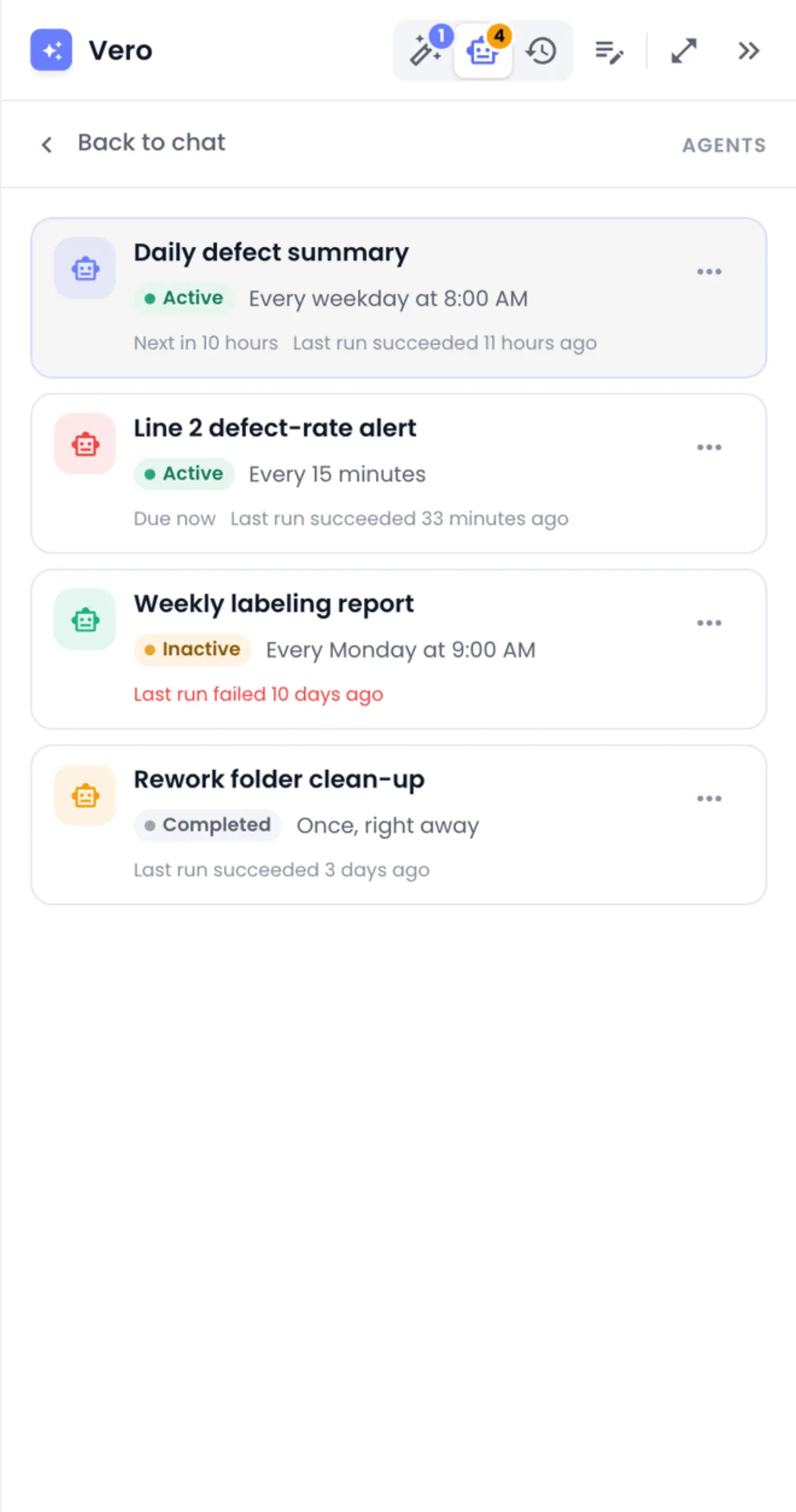
Each row shows the agent's name and colour, its status, its schedule, when it runs next and how its last run went.
| Status | What it means |
|---|---|
| Active | Scheduled and running as planned. |
| Draft | Created, but its test hasn't passed yet. It won't run until it does. |
| Inactive | Paused. It keeps its settings but doesn't run. |
| Completed | A one-time agent that has run, or an agent that has told you what you asked for. |
| Failed | Something went wrong setting it up or running it. Open its chat and ask Vero what happened. |
Click an agent to see its details:
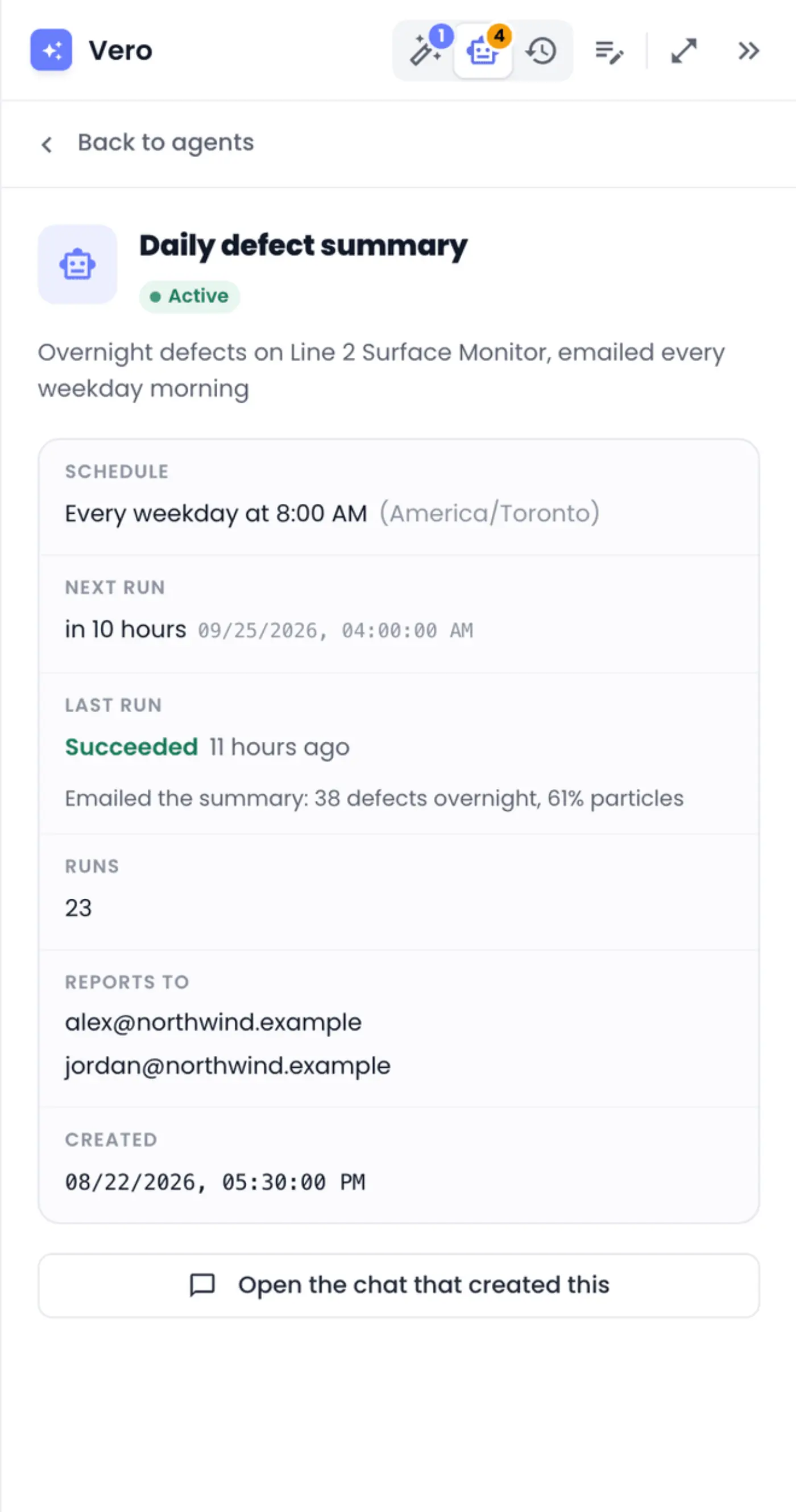
- Schedule, with its time zone.
- Next run, or Not scheduled for an agent that's inactive or done.
- Last run: whether it succeeded, when, and a one-line summary of what it found.
- Runs: how many times it has run.
- Reports to: who gets its emails. No recipients — results stay in Vero means it emails nobody.
- Created, and Open the chat that created this, which opens the conversation where you set it up.
Back to agents returns to the list.
Rename, recolour, pause or delete an agent
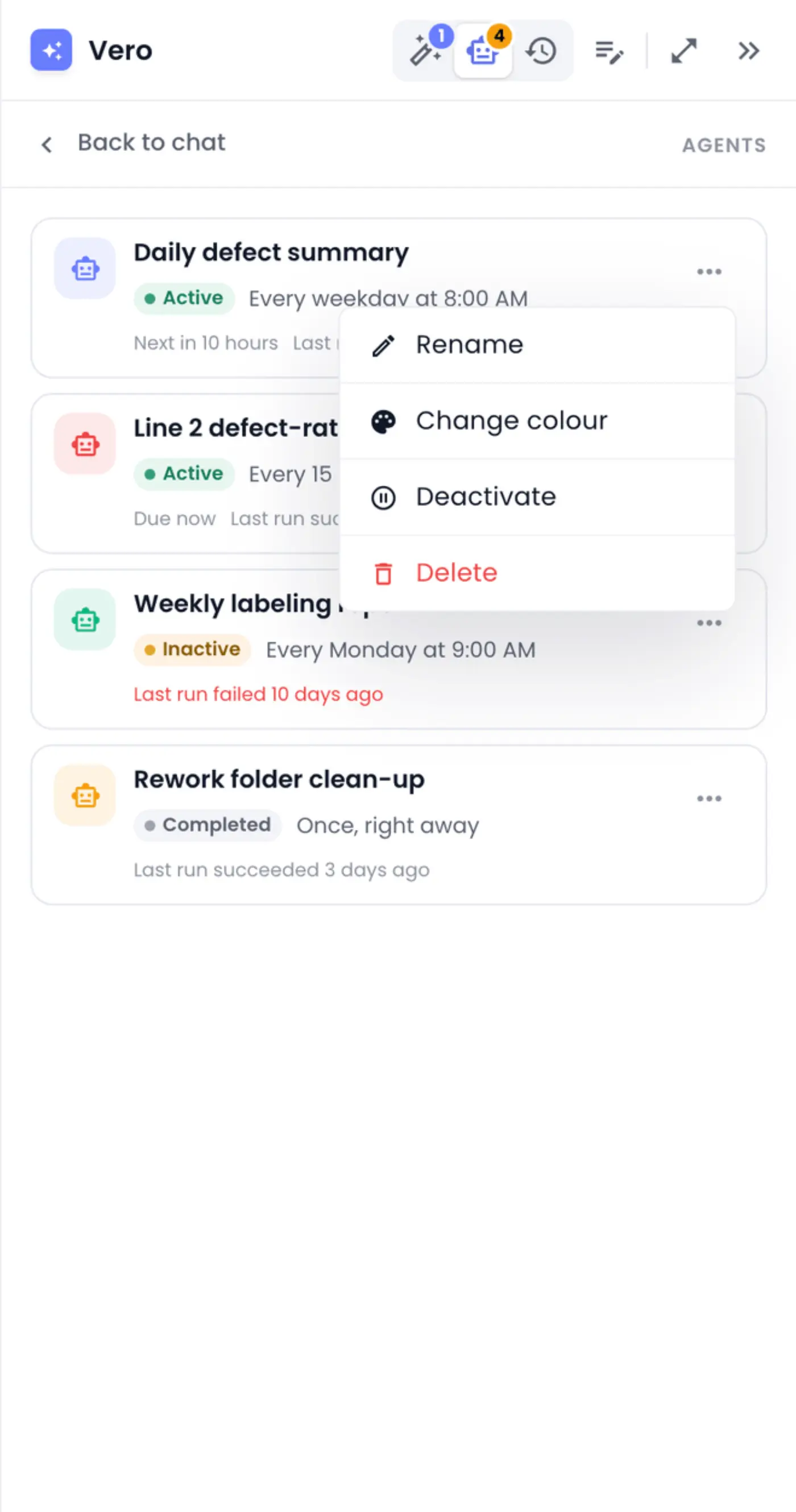
Each agent's ⋯ menu (Actions for the agent) has:
- Rename. Type the new name and press Enter, or Esc to cancel.
- Change colour, to tell agents apart at a glance.
- Deactivate to pause an active agent, or Activate to start an inactive one again. You confirm either way. Draft and completed agents don't have this option.
- Delete removes the agent and its schedule for good, after you confirm.
You can also do all of this by asking Vero, for example Pause the weekly labeling report. Vero prefers pausing to deleting, so you can bring an agent back later.
Change what an agent does
To change an agent's schedule, its recipients or what it reports, ask Vero, ideally in the chat where you created it (Open the chat that created this):
- Also send the daily defect summary to Priya.
- Run the defect-rate alert every 5 minutes instead.
- Add a chart of defects per hour to the daily summary.
Vero changes the agent, runs the test again and tells you how it went. You approve the change first, as when you created it.
When a run fails
When an agent's last run failed, the Agents badge turns amber, the agent's row says so, and a card above the Ask Vero button tells you, with an Open agent button. The Last run field has a one-line reason.
Common causes are a repository or monitor that was renamed, moved or deleted, or a change to your own access. Open the agent's chat and ask Vero to look into it; it can fix the agent and test it again.